
Why Do My JLab Earbuds Keep Cutting Out? (Troubleshooting Guide)
Introduction
You are walking, working out, or taking an important call when your audio drops for a second or disconnects completely. If you keep asking yourself, ‘Why do my JLab earbuds keep cutting out?’, you are not the only one facing this problem. Many true wireless earbuds users experience the same issue, and JLab models are no exception.
The good news is that constant cutting out and random disconnects usually come from a few common causes: signal problems, interference, low battery, software glitches, or physical damage. You can fix many of these issues yourself with simple steps and without any special tools.
This guide walks through the most likely reasons your JLab earbuds keep disconnecting and shows how to solve them in a logical order. You will first understand what ‘cutting out’ really means, then move through checks for distance, interference, battery and charging, resets and updates, settings, and physical damage.
By the end, you will know how to diagnose the problem, what to change on your devices, and how to prevent your JLab earbuds from cutting out in the future, so you can listen more and troubleshoot less.
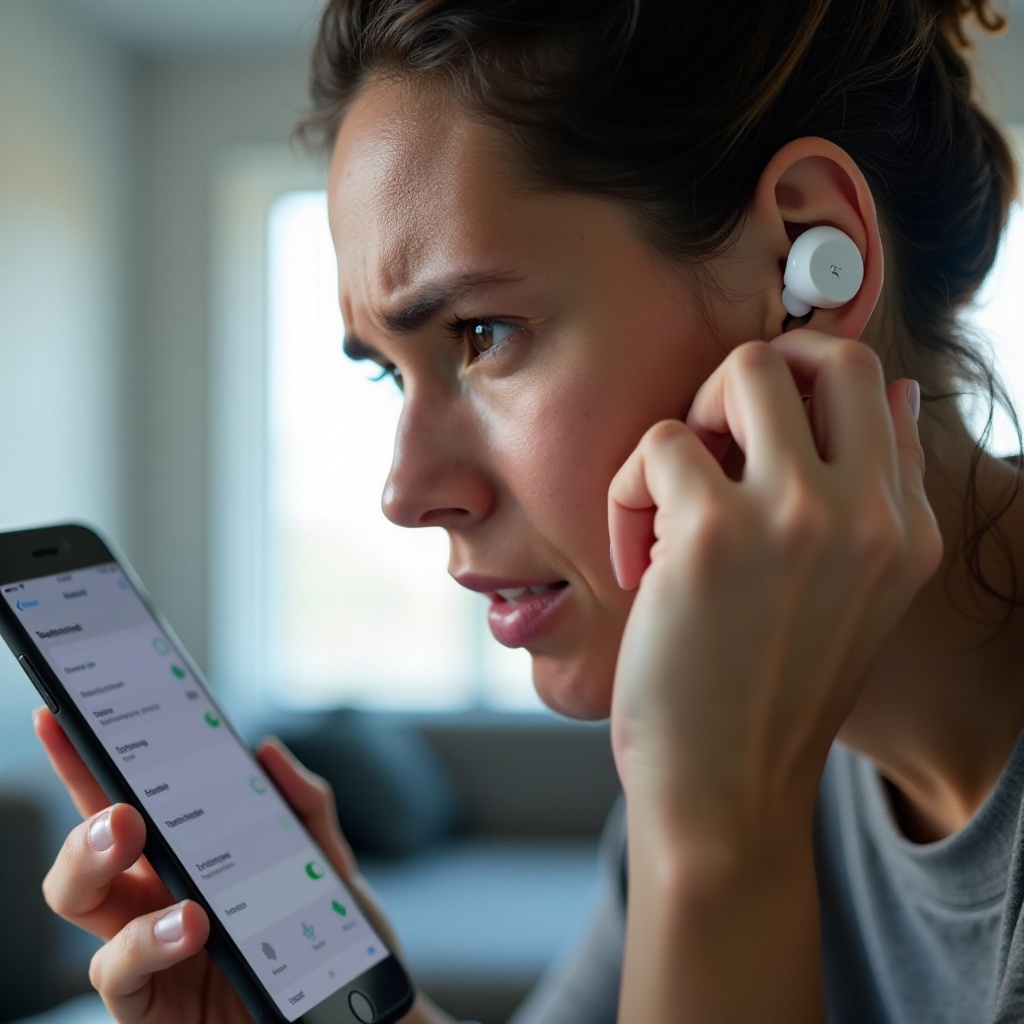
What ‘Cutting Out’ Means With JLab Earbuds
Before you dive into fixes, it helps to be clear about what you mean by your JLab earbuds ‘cutting out’. Different symptoms point to different root causes, so the more precise you are, the faster you can solve it.
Sometimes you hear short audio stutters. The sound pauses for a fraction of a second and then comes back. These quick glitches often point to brief Bluetooth signal drops or minor interference rather than a full disconnect.
In other cases, your JLab earbuds might fully disconnect from your phone or laptop. You might see a system message saying the Bluetooth device disconnected, or all sound stops and does not return until you manually reconnect. That type of behavior usually signals a stronger connection issue, software bug, or very weak signal.
You may also notice that only one earbud cuts out while the other keeps playing. This is common with true wireless models because one earbud often acts as the ‘primary’ bud and relays the signal to the other. When the link between them weakens or one bud has less battery, you can see one-sided dropouts.
Some people find that problems appear only with certain apps, such as video calls or specific music apps. If your earbuds work fine with offline music but cut out in streaming or call apps, the problem might involve app settings, data connection, or call-related Bluetooth profiles.
With these patterns in mind, you can now look at the most common underlying reasons so you know where to start.
Most Common Reasons JLab Earbuds Keep Cutting Out
When you ask, ‘Why do my JLab earbuds keep cutting out?’, the answer usually falls into a few predictable categories. Knowing these helps you troubleshoot in a structured way instead of trying random fixes.
1. Bluetooth range and line-of-sight limits
Bluetooth has a limited range and does not like obstacles. When you move too far away from your phone or place it behind your body, walls, or furniture, the signal weakens and the audio can drop.
2. Wireless interference from other devices
Busy wireless environments are full of Wi‑Fi routers, other Bluetooth devices, smart home gear, and more. All of these signals can interfere with your JLab earbuds and cause stutters and disconnects.
3. Low battery or charging issues
If your earbuds or charging case do not hold enough charge, you can see uneven power levels between the left and right buds. That often leads to sudden dropouts, especially when one side runs lower than the other.
4. Software and firmware glitches
Bugs in your phone’s operating system, Bluetooth stack, or the earbuds’ firmware can create instability. Device updates can fix old problems but sometimes introduce new ones.
5. Physical damage or dirt
Dust, earwax, moisture, and physical damage can all affect how your earbuds charge and how they connect.
In the next sections, you will work through each of these areas, starting with the simplest place to look: the distance between your earbuds and your device.
Check 1 – Are You Too Far From Your Device?
The first and easiest factor to check is distance. Bluetooth works best at close range, and JLab true wireless earbuds are designed for short, everyday distances rather than long-range connections.
Most JLab earbuds are rated for about 30 feet of Bluetooth range under ideal conditions. In real life, you often get less than that because walls, doors, furniture, and your own body can block the signal.
Pockets and bags cause extra problems. If you put your phone in a back pocket, a backpack, or a gym bag, your body and the fabric sit between the phone and the earbuds. That barrier can be enough to cause stutters when you walk, run, or move your head.
Try a quick distance test:
- Place your phone on a table in front of you and sit within a few feet.
- Play music and listen for several minutes. Notice if the audio stays stable.
- Slowly walk away and see at what distance the audio starts to cut out.
- Now keep the phone in your hand, move around your home or gym, and compare that to when the phone sits in your pocket.
If the earbuds only cut out when the phone is far away or hidden, you have likely found part of the cause. Keep your device close, and use a front pocket or armband to maintain a clearer signal path.
When you still notice dropouts even at very short distances, you should consider whether wireless interference is also affecting the signal.
Check 2 – Reduce Bluetooth and Wi‑Fi Interference
If staying close to your device does not solve the cutting-out problem, the next likely culprit is interference from other wireless devices. Many gadgets share the same 2.4 GHz spectrum, and crowded environments can quickly overload it.
You will often find heavy interference in apartments, offices, gyms, and public areas. Wi‑Fi routers, smart TVs, game consoles, Bluetooth speakers, keyboards, and even microwaves can compete with your JLab earbuds for clear air.
To reduce interference, try the following steps:
-
Turn off unused Bluetooth devices nearby.
Switch off extra headphones, speakers, game controllers, or keyboards that are not in use. This frees up some of the local Bluetooth noise.
-
Move away from your Wi‑Fi router or access point.
If you are sitting right next to your router or a cluster of smart home devices, walk into another room and test your earbuds there. A small move can make a big difference.
-
Adjust your Wi‑Fi setup.
If you can, log into your router and move some devices from the 2.4 GHz band to 5 GHz. Many Bluetooth devices, including earbuds, operate on 2.4 GHz, so reducing the load on that band can improve stability.
-
Avoid very crowded wireless zones when you can.
For example, if your earbuds always cut out near a certain corner of the office or gym, that spot might be filled with competing signals.
After you lower interference, test your earbuds again. If you still face cutouts even in calmer wireless environments, it is time to look at power: your battery and charging conditions.
Check 3 – Make Sure Your JLab Earbuds and Case Are Properly Charged
Low battery power is one of the most common and overlooked reasons for JLab earbuds cutting out. When the battery is weak or uneven between the two earbuds, the connection becomes unstable and dropouts are more likely.
Watch for these battery-related signs:
- Your earbuds cut out more often as the battery level drops.
- One earbud dies much faster than the other.
- The earbuds disconnect briefly when you move your head or talk.
To rule out charging problems, follow these steps:
-
Clean the charging contacts.
Dust and earwax can block the metal contact points inside the case and on the earbuds. Use a dry microfiber cloth or a cotton swab lightly dampened with isopropyl alcohol to clean these metal points. Let everything dry fully before charging.
-
Check that the earbuds are seated correctly.
Place each earbud in the charging case and make sure it fits snugly and sits flat. Look for the charging indicator lights to confirm that both buds are actually charging.
-
Inspect the charging cable and power source.
Try a different USB cable and plug into another charger or USB port. Faulty cables often cause slow or incomplete charging, which then leads to weak battery performance.
-
Fully charge the earbuds and case.
Charge until the case and earbuds show a full charge according to the lights or your phone’s battery display. After that, use them again and note whether the cutouts still occur.
If fully charged earbuds still cut out, the issue may be with the Bluetooth pairing itself. A reset and fresh pairing can clear glitches and restore a stable connection.
Check 4 – Reset and Re‑Pair Your JLab Earbuds
Over time, Bluetooth pairing data can become corrupted or out of sync. This can cause random dropouts, delayed audio, or sudden disconnects even when everything else looks fine. Resetting and re‑pairing your JLab earbuds gives you a clean start.
Begin by removing the earbuds from your device’s Bluetooth list.
On Android:
- Open Settings > Bluetooth.
- Find your JLab earbuds in the list of paired devices.
- Tap the gear or info icon and choose ‘Forget’ or ‘Unpair’.
On iPhone:
- Go to Settings > Bluetooth.
- Tap the ‘i’ next to your JLab earbuds.
- Select ‘Forget This Device’ and confirm.
Next, perform a factory reset on your JLab earbuds. The exact steps vary by model, but they usually involve placing both earbuds in the case and then using a specific button or touch sequence to trigger a reset. You will see LED patterns or flashes that confirm the reset.
Always refer to JLab’s official instructions for your exact model to avoid mistakes.
Once reset:
- Put the earbuds back in the case, then remove them so they enter pairing mode.
- Open Bluetooth settings on your phone or laptop.
- Select the JLab earbuds when they appear and confirm the pairing request.
After re‑pairing, test the earbuds with music and calls. If you still notice cutting out, especially across different apps, the next step is to check for software and firmware updates that may improve Bluetooth stability.
Check 5 – Update Phone Software and JLab Firmware
Even if your earbuds are working correctly, outdated software on your phone or outdated firmware on the earbuds can cause connection problems. Updating both sides can fix bugs and improve overall stability.
On iPhone, go to Settings > General > Software Update and install the latest stable version of iOS. On Android, go to Settings > System > System Update or a similar path, depending on your device, and apply any pending updates.
System updates often include improvements to Bluetooth handling, audio drivers, and network performance, all of which can affect your JLab earbuds.
Some JLab models also support firmware updates. If your model does, you will usually update through an official JLab app or a dedicated update tool. Follow these steps if available:
- Install the official JLab app or open their update tool.
- Connect your earbuds and check for firmware updates.
- If an update exists, follow the on‑screen instructions and keep the earbuds near your device until the process completes.
After updating, test your earbuds again. If the audio still cuts out, it is time to look at the physical condition of the earbuds and the charging case.
Check 6 – Clean the Earbuds and Charging Contacts
Earbuds spend their time in your ears, pockets, and bags, so they naturally collect dirt, earwax, sweat, and dust. Over time, this buildup can affect both sound and connectivity.
Debris on the nozzles and mesh can block sound and make it seem like audio cuts out or fades. Dirt on the charging contacts can prevent a full charge and create power issues that cause dropouts.
To clean your JLab earbuds safely:
- Power off the earbuds and remove them from your ears.
- Use a dry microfiber cloth to wipe the outside surfaces.
- For the nozzles and mesh, gently brush away debris with a soft, dry brush or a clean cotton swab. Do not push wax deeper into the mesh.
- For the charging contacts, use a cotton swab lightly dampened with isopropyl alcohol to clean the metal points on the earbuds and inside the case. Allow everything to dry completely before charging.
Avoid using water, harsh chemicals, or anything abrasive. Once clean, place the earbuds back in the case, charge them fully, and test again.
If the earbuds are clean, fully charged, updated, and still cutting out, the problem may lie in your device’s audio and Bluetooth settings, which you should check next.
Check 7 – Adjust Audio and Bluetooth Settings on Your Device
Sometimes the issue has less to do with the earbuds themselves and more to do with how your phone or laptop handles audio and Bluetooth. Certain settings can cause stutters, especially on devices with limited processing power.
Here are a few settings to review:
-
Turn off heavy audio enhancements.
Disable ‘surround’, ‘spatial’, ‘3D audio’, or other advanced sound effects in your system settings or music apps. These features can add processing load and sometimes cause glitches or lag.
-
Check Bluetooth codec settings (if available).
On many Android phones, you can enable Developer Options and access Bluetooth audio codec settings. If you are using a high‑bandwidth codec that your device struggles to handle, switch to a simpler option like SBC or AAC and test again.
-
Disable aggressive power‑saving modes during listening.
On Android, battery optimization can sometimes restrict background activity for music and streaming apps. Exclude your main audio apps from strict battery optimization. On iPhone, try turning off Low Power Mode while you listen.
-
Limit heavy multitasking during use.
If your device is older or under heavy load, too many apps running at once can affect Bluetooth performance. Close unused apps and see if that stabilizes your connection.
Once you adjust these settings, test your JLab earbuds again with music, videos, and calls. If the problem only happens with certain apps or in certain places, you will need to narrow down the cause further by testing across different apps, devices, and environments.
Check 8 – Test Different Apps, Devices, and Environments
If your JLab earbuds cut out only in specific situations, you may be dealing with a local or app‑level issue rather than a problem with the earbuds. Testing across different apps, devices, and locations helps you pinpoint the source.
Start with apps:
- Play music or podcasts in several apps, such as Spotify, YouTube, and your phone’s local music player.
- Try streaming video apps and note whether the earbuds cut out there as well.
If dropouts happen only in one app, that app may have a bug, streaming issue, or conflicting setting. Updating or reinstalling the app and checking its audio settings may solve the problem.
Next, try another device:
- Pair your JLab earbuds with a second phone, tablet, or laptop.
- Use them for calls and music on that device.
If the earbuds perform well on the second device but still cut out on the first, the original phone or computer likely has a software or Bluetooth hardware issue.
Finally, change your environment:
- Test at home, at work, and outdoors.
- Notice whether the problem appears only in particular rooms or areas.
If the cutting out happens only in one physical location, chances are that interference or a specific device in that area is causing trouble.
When your tests show that issues affect both ears in many contexts, you might have a general connection problem. If they affect just one earbud, you should focus on that side next.
When Only One JLab Earbud Keeps Cutting Out
It is common for only one JLab earbud to cut out while the other works. This is often related to how true wireless earbuds share the Bluetooth connection between the two buds.
In many designs, one earbud acts as the ‘primary’ unit. It connects directly to your phone and then passes the audio to the ‘secondary’ earbud. If the link between them is weak, or if one bud has a lower battery level, that side can cut out.
To troubleshoot one-sided dropouts:
-
Check battery levels for each earbud if your device shows them.
If one earbud frequently has less charge, that side may be more prone to cutting out.
-
Charge both earbuds fully in the case.
Make sure they are seated properly and charge for long enough to reach a full battery.
-
Reset and re‑pair the earbuds again.
A full reset helps resync the connection between the left and right sides as well as to your phone.
-
Test each earbud alone.
Use only the left earbud for a while, then only the right, if your model supports single‑bud use. If only one ear keeps cutting out on its own, that earbud may be faulty.
If one earbud appears defective, you might be able to carry on in mono mode temporarily. However, for a long‑term solution, you should think about support or replacement options, especially if other signs of damage appear.
Signs Your JLab Earbuds May Be Damaged or Defective
Not every problem comes from settings or interference. Sometimes hardware simply fails. Knowing how to spot signs of physical damage or defects helps you decide when to stop troubleshooting and seek a replacement.
Look for these signals:
- Your JLab earbuds keep cutting out even after testing distance, interference, charging, resets, updates, cleaning, and settings.
- You see visible cracks, dents, bent contacts, or corrosion on the earbuds or inside the case.
- The earbuds were exposed to more water than they are rated to handle, such as being submerged in water.
- You hear constant distortion, crackling, or sudden volume drops that do not match normal Bluetooth glitches.
If several of these signs apply, it is likely that your earbuds have a hardware issue that you cannot fix with software tweaks. At this point, the best step is to contact JLab support or explore warranty and replacement options.
When to Contact JLab Support or Replace Your Earbuds
Once you have tried all reasonable troubleshooting steps and your JLab earbuds still keep cutting out, it is time to consider professional help or a replacement. Doing this at the right moment saves you time and frustration.
Before you contact support, gather a few details:
- The exact JLab model you own.
- The approximate purchase date and a copy of your receipt or order email.
- The store or website where you bought them.
- A clear description of the issue and a list of the fixes you have already tried.
With that information ready, reach out to JLab customer support through their official website. They can confirm whether your earbuds fall under warranty and may guide you through model‑specific checks or offer repair or replacement options.
Also check your retailer’s return or exchange policy. If you purchased the earbuds recently, you may be able to return or exchange them directly through the store.
If your earbuds are out of warranty and clearly faulty, compare the cost of any paid repair with the price of a new pair. True wireless earbuds continue to improve, so upgrading to a new model can sometimes be the most practical choice.
How to Prevent Your JLab Earbuds From Cutting Out in the Future
After you solve the current issue or replace a faulty pair, you will want to keep your JLab earbuds working smoothly. A few easy habits can greatly reduce the chance of future cutouts and disconnects.
Follow these best practices:
-
Charge consistently, but avoid extremes.
Do not let the earbuds sit unused with a dead battery for long periods, and avoid leaving them in very hot or very cold places while charging or storing.
-
Store the earbuds in the case when not in use.
The case protects them from physical damage and dirt and helps maintain battery health.
-
Clean them regularly.
After workouts or heavy use, wipe away sweat and dust. Clean the charging contacts and nozzle area every so often to keep sound and power consistent.
-
Keep your device close and avoid blocking the signal.
Use a front pocket, belt clip, or armband for your phone instead of a back pocket or deep bag, especially when you are moving.
-
Stay updated.
Install stable system updates on your phone and apply any official JLab firmware updates when they are available.
By combining these preventive steps with the troubleshooting methods in this guide, you can enjoy a more stable, reliable listening experience and spend much less time wondering why your JLab earbuds keep cutting out.
Conclusion
If you have been wondering, ‘Why do my JLab earbuds keep cutting out?’, you now have a clear framework to find the answer. Most issues stem from a few main causes: limited Bluetooth range, heavy wireless interference, low or uneven battery levels, software or firmware glitches, and sometimes physical damage.
You started by understanding what different types of ‘cutting out’ look like, then checked distance and interference. You confirmed proper charging and cleaned the earbuds and case. You reset and re‑paired the earbuds, updated software and firmware, and adjusted key audio and Bluetooth settings.
You also learned how to test across different apps, devices, and environments, what to do when only one earbud keeps cutting out, and how to recognize signs of deeper hardware faults. Finally, you saw when it makes sense to contact JLab support, when a replacement is the better choice, and how to build good habits that prevent future problems.
With this step‑by‑step approach, you can solve most connection issues yourself and enjoy your JLab earbuds with fewer interruptions and a much more reliable listening experience.
Frequently Asked Questions
Why do my JLab earbuds keep cutting out during calls only?
If your JLab earbuds cut out mainly during calls, the problem often relates to call-specific Bluetooth profiles, app settings, or network limits. Voice calls and video calls use different audio paths than music, and apps like Zoom or Teams also depend on a stable data connection. Test calls in different apps, restart your phone, and close heavy background apps. Make sure your Wi‑Fi or mobile data signal is strong and up to date. If music is stable but calls still drop, check for updates to your call apps and your phone’s system software.
Why do my JLab earbuds cut out when I put my phone in my pocket?
When you put your phone in your pocket, especially a back pocket, your body and clothing sit between the phone and your JLab earbuds. This blocks the Bluetooth signal and can cause frequent dropouts. Thick fabrics, jackets, and bags make the problem worse. To improve the connection, keep your phone in a front pocket, belt clip, or armband so there is a clearer path between the phone and the earbuds. Also avoid keeping metal objects like keys between the earbuds and your device.
Can I fix JLab earbuds that keep cutting out without replacing them?
In many cases, you can fix JLab earbuds that keep cutting out without buying a new pair. Start by keeping your device close and reducing interference from other wireless devices. Make sure the earbuds and case are fully charged and the charging contacts are clean. Reset and re-pair the earbuds, update your phone’s software, and apply any JLab firmware updates if your model supports them. Adjust audio and Bluetooth settings, turn off heavy sound effects, and relax aggressive power-saving modes. If you still experience cutouts after all these steps and you see signs of physical damage or water exposure, the earbuds may have a hardware fault and you should contact JLab support or your retailer about repair or replacement options.
