Toniebox WiFi Setup: The Complete 2024 Guide for Parents
Introduction
Toniebox has become a favorite audio player in many families because it keeps kids away from screens while still giving them stories, music, and audiobooks. To unlock all its features, you need to get the WiFi connection right. A smooth Toniebox WiFi setup means new content downloads quickly, updates run in the background, and your child can enjoy their Tonies without delays.
Many parents run into the same problems: the Toniebox will not connect, the WiFi network does not show up, or the app cannot find the box at all. The good news is that most of these issues are quick to fix once you understand how the Toniebox connects and what it needs from your home network.
This guide walks you through Toniebox WiFi setup step by step. You will see what to prepare before you start, how to connect for the first time, how to use different types of networks, and how to solve the most common issues. Each section builds on the previous one, so you can move from basic setup to confident everyday use.
What Is a Toniebox and How Does WiFi Fit In?
Toniebox is a soft, cube-shaped, portable audio player designed for children. Kids place small figurines called Tonies on top of the box to start stories, songs, or educational content. The controls are simple: they squeeze the ears to change volume and tap the sides to skip chapters. There are no screens, tiny menus, or complicated buttons.
WiFi plays a key role in how Toniebox works:
- When you place a new Tonie on the box for the first time, the Toniebox connects to WiFi to download the audio linked to that figure.
- For Creative-Tonies, the Toniebox uses WiFi to sync your custom recordings or uploads from the Tonies app or website.
- Firmware updates and new features reach your device over WiFi.
Once the content has downloaded, the Toniebox can play it offline. That means your child can use it in the car, outdoors, or in a room with weak WiFi, as long as the stories are already stored on the box.
Because WiFi is so central to how Toniebox works, it makes sense to prepare carefully before you begin the first connection. The next section shows exactly what to get ready so the setup process runs smoothly.

Before You Start: What You Need for a Smooth Toniebox WiFi Setup
Before you begin the actual WiFi connection process, a few quick checks will save you time and frustration. Think of this as your setup checklist: account, network, and device. When these three are ready, Toniebox WiFi setup is much easier.
Creating and Preparing Your Tonies Account
You manage your Toniebox through a Tonies account. This connects your box, your Tonies, and the app in one place.
- Go to the official Tonies website or open the Tonies app.
- Create an account with your email, or sign in if you already have one.
- Confirm your email address if the system asks you to.
- Keep your login details handy; you will need them during setup.
Your Tonies account lets you register the Toniebox, manage Creative-Tonies, and control content settings for your child. Having it ready before you turn on the box keeps the whole process simple.
Checking Your Home WiFi Requirements (2.4 GHz, Speed, Security)
Toniebox uses 2.4 GHz WiFi, which travels farther and works better through walls than 5 GHz. Most home routers in 2024 support both bands.
Check these basics on your router:
- Network band: Make sure your router broadcasts a 2.4 GHz network. If your router combines 2.4 and 5 GHz under one name, it usually still works, but a separate 2.4 GHz name can be more stable.
- Security type: Use WPA2 or WPA2/WPA3 mixed mode. Avoid open networks or unusual security settings.
- Signal strength: Test WiFi in the room where the Toniebox will live. If your phone struggles there, the Toniebox might struggle too.
- Password: Have your WiFi password ready. Double-check spelling and any special characters.
You do not need very high speeds. A standard home connection is enough for Toniebox WiFi setup and content downloads.
Getting the Toniebox and Toniebox App Ready
A little preparation on the device side also helps:
- Charge the Toniebox fully or keep it on its charging station during setup.
- Download and install the Tonies app from the App Store or Google Play.
- Enable Bluetooth and WiFi on your phone in the settings.
- Place the Toniebox, your phone, and your router in the same room for the first setup.
With your account created, your network checked, and your devices ready, you can move on to the actual Toniebox WiFi setup steps. The next section covers the first connection in clear detail.
Step-by-Step: How to Connect Your Toniebox to WiFi for the First Time
The first connection is the most important part of Toniebox WiFi setup. Take it slowly, and follow each step in order so you do not miss anything.
Putting the Toniebox into Setup Mode (LED Colors and Buttons)
Toniebox uses light colors to show what it is doing. For setup, you need to place it into a special mode so the app can find it.
- Turn on the Toniebox by squeezing one ear until you see a light.
- Flip the box upside down so the ears face the table or floor.
- Press and hold both ears together for about 5 seconds.
- Watch the LED light on top. Flashing blue usually means the Toniebox is in setup mode and ready to connect.
Keep the box in this mode while you move to your phone. If the light pattern looks different, repeat the steps until you see the correct flashing blue signal.
Pairing the Toniebox with the App on Your Phone
Now switch to the Tonies app to link the box with your account.
- Open the Tonies app and sign in with your Tonies account.
- Tap the option to add a new Toniebox.
- Allow the app to use Bluetooth if it asks for permission.
- The app will search for nearby boxes in setup mode.
- When your Toniebox appears, select it and follow the prompts on-screen.
The app guides you through linking this physical box to your account. The LED may change color during this process, often to green when the pairing completes.
If the app cannot find your Toniebox, check that Bluetooth is turned on, that the Toniebox is still flashing blue, and that you are close enough to the box.
Selecting Your WiFi Network and Entering the Password
Once the app recognizes your box, it will ask you to choose a WiFi network.
- Wait for the app to show a list of available WiFi networks.
- Select your home 2.4 GHz network. If you see two networks with similar names, choose the one marked as 2.4 GHz if that option appears.
- Enter your WiFi password carefully, paying attention to upper and lower case letters.
- Confirm and wait while the Toniebox connects to your router and the Tonies servers.
During this stage, do not move too far from the router, and avoid closing the app. When the connection succeeds, you will see a success message in the app, and the LED on the box will shift to a steady pattern.
After this first connection, it is smart to confirm that everything works by checking the light signals and playing a Tonie. The next section explains how to verify that your Toniebox WiFi setup is truly complete.
Verifying a Successful Toniebox WiFi Setup
A successful Toniebox WiFi setup is more than just a brief ‘connected’ message in the app. You want to know the box can actually download and play content without errors.
LED Light Indicators for a Good Connection
The LED light on top tells you how the Toniebox feels about its connection.
- Solid green or a soft pulsing light often signals that the box is working normally.
- Flashing blue usually means setup mode.
- Red or orange may indicate errors or connection problems.
After you enter the WiFi password and finish pairing, the light should move away from flashing blue and settle into a normal, stable pattern. Check the app as well; it should show your Toniebox as online and registered to your account.
Testing with a Tonie and Downloading the First Story
To confirm everything works:
- Place an official Tonie figure on top of the box.
- Watch the LED and listen. If this is a new Tonie, the box will use WiFi to download the audio.
- You may hear a short chime, and then the story or music should start playing.
- If the Tonie has been used on this box before, it may start playing almost instantly, because the content is already stored locally.
If the Tonie does not start, or the LED turns red or orange, you may have a WiFi issue to solve. Before diving into troubleshooting, it helps to know how Toniebox behaves on different kinds of networks. The next section looks at home, guest, and travel connections so you can plan where and how your child will listen.
Using Toniebox with Different WiFi Networks
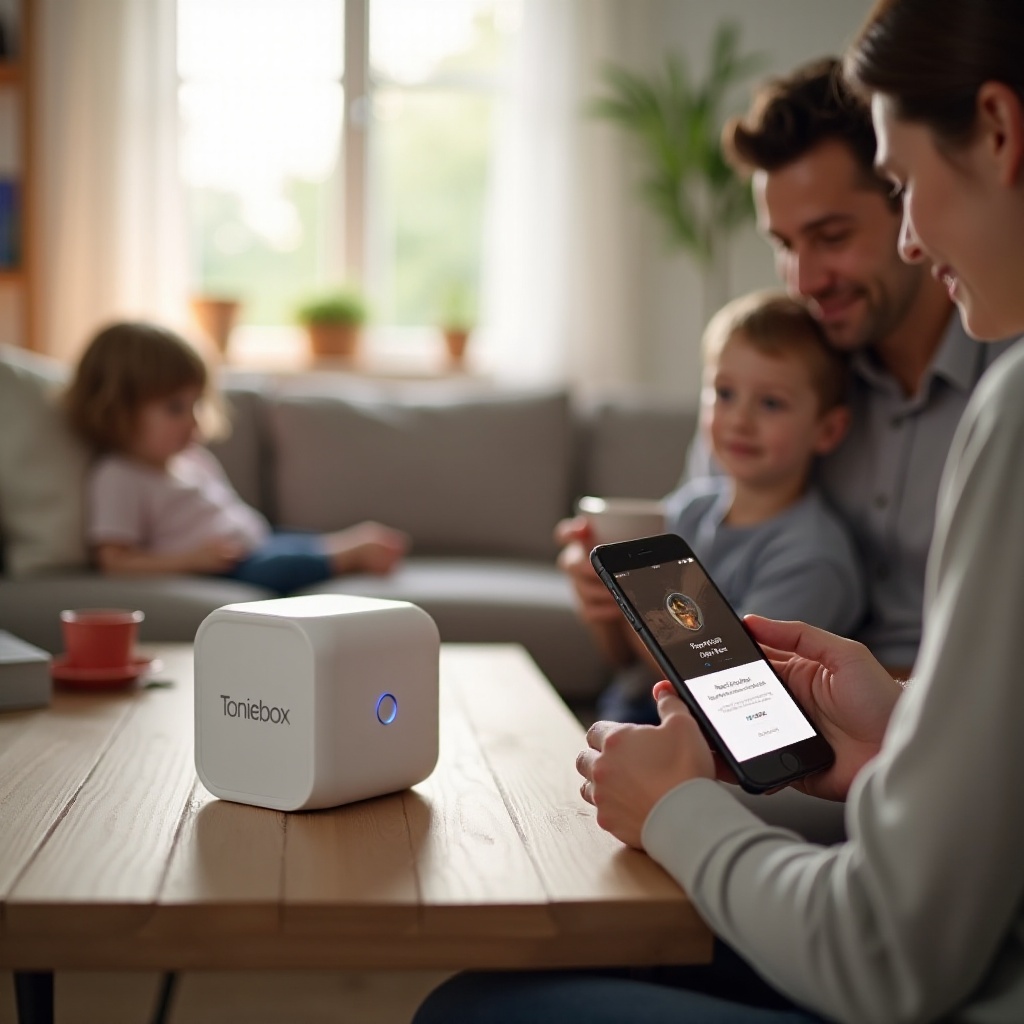
Most families use Toniebox at home, but kids also want stories at grandparents’ houses, vacation rentals, or in the car with a hotspot. Each situation can affect Toniebox WiFi setup in a different way, and understanding these differences makes it easier to keep content flowing.
Home Routers and Mesh WiFi Systems
At home, Toniebox should work with:
- Traditional single routers from your internet provider or a store.
- Mesh systems with multiple nodes placed around your home.
- Modern all-in-one gateway devices.
For best results at home:
- Place the main router or a mesh node near the room where the Toniebox lives.
- If you use a mesh system, connect the Toniebox to the closest node to keep the signal strong.
- Avoid placing the Toniebox right next to thick walls, large metal objects, or microwaves.
Once set up on your home network, the Toniebox will reconnect automatically to that WiFi when you turn it on in range.
Guest Networks, Public WiFi, and Security Considerations
Guest WiFi or public WiFi, such as in cafes or hotels, often uses ‘captive portals’. These are login pages that pop up in a browser after you connect. Toniebox cannot handle these web-based login pages, so it may fail to complete the WiFi setup on those networks.
Be cautious with:
- Open networks with no password.
- Public hotspots that require a browser login or room number.
- Shared networks where you do not control the router or security settings.
For a children’s device, it is usually better to rely on trusted networks that you manage or know well, both for security and for reliability.
Mobile Hotspots and Travel Routers for On-the-Go Listening
If you travel often, a mobile hotspot or travel router can make Toniebox WiFi setup easier on the road.
- Phone hotspot: Turn on hotspot on your smartphone, set a simple network name and password, and connect the Toniebox to it like a normal WiFi network.
- Travel router: Connect a travel router to hotel WiFi, then create your own private 2.4 GHz network that the Toniebox can use without captive portals.
This approach gives you control and avoids complex login pages. Just remember that downloading new content over mobile data uses bandwidth, so preload as much as you can before you leave home.
Even with good planning, issues can still pop up. The next section walks through common Toniebox WiFi setup problems and the most effective fixes.
Common Toniebox WiFi Setup Problems and How to Fix Them
Even with careful preparation, you may hit a snag during Toniebox WiFi setup. Most issues fall into a few clear categories, and each has a practical, repeatable fix.
Toniebox Not Showing Up in the App
If the app cannot find your Toniebox during setup:
- Confirm the box is in setup mode with a flashing blue LED.
- Make sure Bluetooth is turned on in your phone’s settings.
- Move the Toniebox closer to your phone and remove any large obstacles between them.
- Force close and reopen the Tonies app, then try again.
- Restart the Toniebox by turning it off and on, then re-enter setup mode.
If you still have trouble, try using another phone or tablet if possible. This helps you find out whether the problem lies with the box or with the original device.
WiFi Network Not Appearing or Wrong Password Errors
If your WiFi network does not appear in the list inside the app:
- Check that your router is on and broadcasting a 2.4 GHz network.
- Stand closer to the router with your Toniebox and phone.
- Make sure the network is not hidden. If it is, temporarily show the network name (SSID) in the router settings.
- If your router uses only 5 GHz, enable 2.4 GHz or add a separate 2.4 GHz access point.
For password errors:
- Carefully retype the password. It is easy to mistype on a phone keyboard.
- Confirm you are connecting to the correct network, not a neighbor’s network with a similar name.
- If your password is extremely long or complex, try simplifying it slightly to rule out typing mistakes during setup, then change it later if you wish.
A simple password change on the router, followed by reconnecting the Toniebox, often clears up recurring authentication issues.
When and How to Reset Your Toniebox Safely
If nothing works, a reset can help. Use it only after you have tried the basic fixes, because a full reset means you must repeat the setup steps.
There are two main levels:
- Soft reset:
- Turn the Toniebox upside down.
- Hold one ear for several seconds until the box restarts.
- This refreshes the system without removing it from your account.
- Factory reset (last resort):
- Follow the official instructions in the Tonies app or on the support site for a full reset.
- This disconnects the Toniebox from WiFi and your account.
- You will need to repeat the full Toniebox WiFi setup process afterwards.
Always note your login details and keep the app handy before doing a full reset so you can reconnect quickly and avoid long downtime for your child.
Once you have a stable connection and know how to fix issues, it helps to understand what the Toniebox does with that connection in daily use. The next section explains how the box uses WiFi after setup and how much of your child’s listening can happen offline.
How Toniebox Uses WiFi After Setup
Once your Toniebox WiFi setup is complete, the connection continues to work in the background whenever the box is in range of your network. Knowing what happens during these moments helps you manage data, plan downloads, and keep things running smoothly.
Downloading New Stories and Creative-Tonie Recordings
Each time you place a new Tonie on the box, it reaches out over WiFi to fetch the corresponding audio. For Creative-Tonies, the process is similar:
- You upload recordings or audio files in the app or on the Tonies website.
- The next time the Toniebox connects, it downloads these files to its internal memory.
- After the download, the content is stored on the device and can play offline.
Keep the box within WiFi range during these first downloads, and let the download finish before you move away or turn the box off.
Offline Listening: What Works Without WiFi
After a successful download:
- The Toniebox can play that Tonie’s content with no internet connection at all.
- Your child can use it on car rides, flights, parks, or in rooms with weak WiFi.
- Only new content or changes to Creative-Tonies require the Toniebox to reconnect.
This is why it is smart to preload several Tonies before a long trip or a vacation. Once content is downloaded, Toniebox behaves like a fully offline portable audio player.
Managing Data Usage and Background Updates
Toniebox uses relatively little data, but it does download audio and firmware updates.
- Connect it to WiFi at home, where data is usually unlimited.
- Avoid heavy downloads on mobile hotspots unless you have enough data in your plan.
- Turn it on near your router from time to time so it can grab updates and sync new Creative-Tonie content.
You control when and where it connects by deciding when to turn the device on within WiFi range. When your connection is stable and predictable, you can take advantage of more advanced tweaks. The next section covers router settings and placement tips that can give your Toniebox an even more reliable connection.
Advanced Tips for a Stable Toniebox Connection
After you master the basics of Toniebox WiFi setup, a few advanced tweaks can keep your connection stable over the long term and reduce the chance of random disconnects.
Optimizing Router Settings for Toniebox
Check your router’s admin page, usually through a browser or the router’s own app.
- Enable 2.4 GHz with a clear, simple network name that is easy to recognize.
- Use WPA2-Personal security with a medium-length password.
- Avoid very aggressive firewall settings or MAC filtering unless you know how to whitelist the Toniebox.
- If possible, split 2.4 GHz and 5 GHz into separate network names so you can choose the correct one during setup.
These steps not only help the Toniebox, but also many other smart home and children’s devices that prefer 2.4 GHz.
Improving Signal in Kids’ Rooms and Play Areas
To ensure good coverage where your child listens most:
- Place the router in a central, open spot in your home rather than hidden in a closet.
- Use a mesh WiFi system or a range extender if bedrooms are far from the router.
- Keep the Toniebox away from thick walls, large metal objects, aquariums, and big appliances that can block signal.
A stronger signal means faster downloads and fewer dropped connections, which keeps listening smooth and frustration low.
Using Parental Controls and Network Filters Wisely
Many modern routers offer parental control features that block certain sites, apps, or devices.
- Make sure you do not accidentally block the Toniebox or the Tonies servers with strict filters.
- If you enable strong content filters, test the Toniebox afterwards to confirm it can still connect and download.
- Use the Tonies app itself for content control on the Toniebox, and let the router handle only broad safety rules.
With these settings tuned, your Toniebox WiFi setup will stay reliable, and your child can enjoy stories without constant tech issues.
Conclusion
A solid Toniebox WiFi setup is the foundation for a stress-free listening experience. When your box connects easily, downloads are quick, updates run quietly, and your child can switch Tonies without waiting. You now know how to prepare your account and network, connect step by step, verify success, use different types of WiFi, and fix the most common issues.
Take a few minutes to check your home WiFi settings, test a Tonie, and review your travel options such as hotspots or travel routers. Once everything is in place, the Toniebox becomes what it is meant to be: a simple, dependable, screen-free audio companion that your child can enjoy anywhere, at home or on the go.
Frequently Asked Questions
Do I need WiFi every time my child uses the Toniebox?
You only need WiFi when the Toniebox downloads new content or updates. After a Tonie’s audio has downloaded, your child can play it offline. Everyday listening with already-loaded Tonies works fine without a connection. WiFi is required again only when you add new Tonies, update Creative-Tonies, or install device updates.
Can I use Toniebox with a 5 GHz network only?
No. Toniebox connects over 2.4 GHz WiFi. Many routers broadcast both 2.4 and 5 GHz under the same name, which still works because the Toniebox uses the 2.4 GHz band in the background. If your router truly uses only 5 GHz, you must enable 2.4 GHz or use a separate access point, travel router, or hotspot that offers 2.4 GHz support.
How do I move my Toniebox to a new WiFi network or new house?
When you move or change routers, you simply repeat the WiFi connection part of the setup. Put the Toniebox into setup mode with a flashing blue light, open the Tonies app, and choose the option to connect to a new network. Select your new WiFi and enter the password. Your Tonies, account, and downloaded content stay linked to the device, so you do not lose stories when you switch networks.