
Samsung TV Audio Cuts Out? Complete 2024 Troubleshooting Guide
Introduction
Nothing ruins a movie night faster than a TV whose sound keeps dropping. Many Samsung owners report the same frustrating pattern: the Samsung TV audio cuts out for a second, comes back, then disappears again. Sometimes it happens only with a soundbar. Other times it affects streaming apps, game consoles, or every source you use.
The good news is that most audio dropouts come from settings, cables, or software, not from a dead TV. With a logical checklist, you can usually track down the cause at home and avoid a service call.
This guide walks step by step through what to check when your Samsung TV audio cuts out, from quick fixes to advanced troubleshooting. You will learn how to stabilize your sound, which settings work best with common setups, and when it is time to contact Samsung or a technician.
Step 1 – Identify When and Where the Samsung TV Audio Cuts Out
Before you change settings at random, narrow down the problem. Pinpointing when the audio drops will tell you whether the issue lives in the TV, an app, or an external device.
1. Check if the sound issue happens on all sources or just one
Ask yourself:
- Does the audio cut out on cable or satellite only?
- Does it happen with your streaming stick or game console only?
- Or does the sound drop across every source you try?
If the issue appears on only one device, the problem likely sits with that device or its cable, not the TV.
2. Compare internal apps, external devices, and live TV
Test three basic scenarios:
- An internal app such as Netflix or YouTube on the TV itself.
- An external HDMI device such as a console, Apple TV, Roku, or cable box.
- Live TV from an antenna or the built in tuner.
Note where the audio cuts out. If sound is stable on internal apps but drops on HDMI sources, focus on HDMI ports and cables. If live TV and apps drop audio, the issue is more likely inside the TV or its settings.
3. Note how often and how long the audio dropouts last
Pay attention to patterns:
- Does audio drop every few minutes?
- Only when you change channels or inputs?
- Only with certain content, like Dolby Atmos movies or 4K HDR?
These patterns help you match the problem to the right fix in later steps.
Once you know when and where your Samsung TV audio cuts out, you can move on to the simple checks that solve many cases in minutes before you touch deeper settings.
Step 2 – Rule Out Simple Causes First
A surprising number of audio problems come from apps, channels, or a small oversight, not from the TV itself. Start with straightforward tests that take very little time.
1. Confirm the problem is not the streaming service or channel
Sometimes:
- A specific streaming server has a temporary glitch.
- A live broadcast has audio problems on the provider's end.
To check this, try:
- Playing another episode, video, or channel.
- Switching to a different streaming app such as YouTube or Prime Video.
If only one app or channel has issues, the service itself may be at fault and not the TV.
2. Test with a different HDMI device, app, or antenna input
Swap sources to isolate the issue:
- If the audio drops with a cable box, test a game console or streaming stick.
- If it drops in Netflix, try the same content on another app if available.
- If it drops on HDMI sources, test live TV with an antenna or built in tuner.
If only one device or app fails, focus your troubleshooting on that device or app first.
3. Verify volume, mute, and external speaker connections
This sounds basic, but it matters:
- Make sure the TV, soundbar, and receiver are not muted.
- Check that the TV volume is not set very low if you use TV speakers.
- Confirm headphone jacks and Bluetooth headphones are not active when you mean to use speakers.
If the simple checks do not reveal the cause and your Samsung TV audio keeps cutting out, the next logical step is to look at physical connections and cables, which often cause intermittent sound.
Step 3 – Inspect Cables, Ports, and Physical Connections
When Samsung TV audio cuts out randomly, loose or faulty connections are common culprits. Small movements, cheap cables, or older hardware can break the audio signal for a split second.
1. Check HDMI and optical cables for damage or looseness
Inspect each cable:
- Look for kinks, frayed ends, or bent connectors.
- Push each plug firmly into the TV and device until it seats fully.
- If a cable feels loose or wobbly, replace it with a better quality one.
For HDMI in particular, use high speed certified HDMI cables, especially with 4K content, gaming, or eARC.
2. Try different HDMI ports and avoid adapters or splitters temporarily
To rule out a bad port or accessory:
- Move your device to a different HDMI input on the TV.
- Connect it directly to the TV, avoiding splitters, switches, or converters.
- If you use an AVR or HDMI switch, bypass it for testing.
If audio stabilizes on a different port or without the splitter or switch, the original port or accessory may be faulty or overloaded.
3. Ensure soundbars and receivers are securely connected
For soundbars and AV receivers:
- Confirm the HDMI ARC or eARC or optical cable connects to the correct port on both devices.
- Reseat the cables on both ends to clear oxidation or a loose fit.
- If you use an optical cable, check that the small plastic protective cap has been removed.
After you confirm your physical connections are solid, it is time to look at Samsung's audio settings, which often control when and how audio signals pass through the TV and can cause dropouts when misconfigured.
Step 4 – Optimize Samsung TV Audio Settings for Stable Sound
Samsung TVs offer many audio options. The wrong combination can cause sound to cut out, especially when the TV tries to auto switch between formats or devices.
1. Choose the correct Sound Output (TV speakers vs external)
Go to:
- Settings > Sound > Sound Output
Choose the output you actually use:
- TV Speaker if you use the built in speakers.
- Your soundbar or receiver (HDMI, optical, or Bluetooth) if you use an external system.
If Samsung TV audio cuts out while using a soundbar, switch temporarily to 'TV Speaker' to see if the problem goes away. If it does, the issue likely sits in the connection or format between the TV and soundbar, not in the TV hardware alone.
2. Switch Digital Output Audio Format to PCM to test
In:
- Settings > Sound > Expert Settings > Digital Output Audio Format
Change the format to:
- PCM instead of 'Auto' or 'Bitstream'.
PCM is simpler and more stable. If audio dropouts disappear with PCM, your soundbar or receiver may struggle with certain surround formats such as Dolby Digital Plus or DTS, or there may be a handshake issue when the TV switches formats.
3. Disable advanced sound effects, Intelligent Mode, and enhancements
Turn off features that may interfere with audio stability:
- Intelligent Mode (if available on your model).
- Adaptive sound, virtual surround, or special sound modes you do not need.
- Extra equalizer effects and voice amplifiers if they cause glitches.
These features sometimes cause switching or processing delays that sound like brief audio dropouts.
With your TV's audio output now set up in a stable way, you can focus on the most common source of problems in modern setups: HDMI, ARC, and eARC connections between the TV and your sound system.
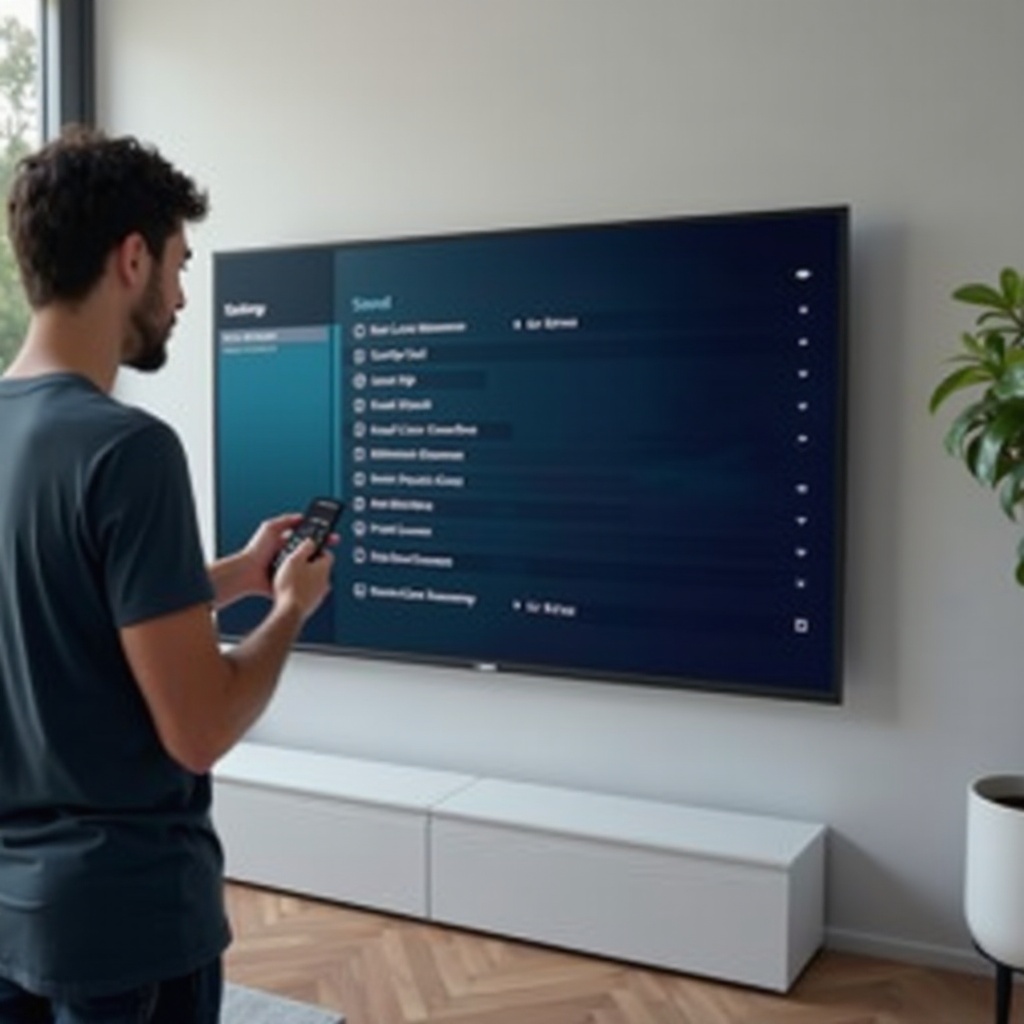
Step 5 – Fix Audio Cutting Out with HDMI, ARC, and eARC
When your Samsung TV audio cuts out with a soundbar or receiver, ARC or eARC often sits at the center of the issue. These features send TV audio back through HDMI, but the digital handshake can fail or reset.
1. Use the proper HDMI ARC or eARC port on your Samsung TV
Check the labels on the TV's HDMI ports. One will say:
- 'ARC' or 'eARC'.
Make sure:
- The HDMI cable from the soundbar or receiver is plugged into the TV's ARC or eARC port.
- The soundbar's HDMI port also supports ARC or eARC, not just a standard HDMI input.
If you connect to a non ARC port, audio may behave unpredictably or not return from the TV at all.
2. Turn HDMI CEC (Anynet+) off and on to reset the handshake
HDMI CEC lets devices control each other, but sometimes causes glitches that look like random audio drops. To reset it:
- Go to Settings > General > External Device Manager.
- Turn 'Anynet+ (HDMI CEC)' off.
- Turn off all devices, then unplug them for 30 seconds.
- Plug everything back in and turn 'Anynet+' back on.
After this reset, test whether audio still cuts out when using ARC or eARC.
3. Temporarily disable Dolby Atmos or surround formats
High end audio formats can stress older soundbars or receivers or reveal firmware bugs. In:
- Settings > Sound > Expert Settings
Try:
- Disabling Dolby Atmos or any advanced output mode.
- Keeping 'Digital Output Audio Format' set to PCM for a while.
If audio remains stable with simpler formats, your sound system may not handle complex signals well, or a firmware update is needed on the soundbar or receiver.
Once HDMI and ARC are under control, turn your attention to streaming apps, which often combine network issues, app bugs, and audio settings and can cause dropouts that look like TV problems.
Step 6 – Stop Audio Dropouts in Streaming Apps (Netflix, YouTube, etc.)
If your Samsung TV audio cuts out mainly in apps like Netflix, YouTube, Disney+, or Hulu, the app or your internet connection may be to blame rather than the TV's hardware.
1. Update streaming apps and Samsung smart TV software
First, update the apps:
- Open the Apps section on your TV.
- Select each app with issues and choose 'Update' if available.
Then update the TV firmware:
- Go to Settings > Support > Software Update > Update Now.
Updates often include fixes for audio glitches with specific apps, formats, or streaming protocols.
2. Clear app cache or reinstall problematic apps
If one app continues to drop audio:
- Go to the app's settings within the TV interface, if available.
- Clear cache and data to remove corrupted files.
- Uninstall and reinstall the app from Samsung's app store.
Test again after reinstalling to see if the audio dropouts stop.
3. Test your internet speed and connection stability
Unstable internet can cause short audio pauses, even if the video seems fine. To test:
- Run a speed test on your phone or laptop near the TV.
- Aim for at least 15 to 25 Mbps for reliable HD and 4K streaming.
If speeds are low or fluctuate, switch to a wired Ethernet connection or move your router closer to the TV. Also avoid heavy downloads or gaming on other devices while you stream.
If your apps behave but sound issues appear when using a soundbar or receiver, focus on how your TV passes audio to external systems and refine that connection.
Step 7 – Solve Samsung TV Audio Cuts When Using Soundbars and Receivers
A common pattern is that audio is fine on the TV speakers, but cuts out when using a soundbar or AV receiver. This points to a compatibility or configuration issue between the devices, not the content.
1. Align audio formats between TV and soundbar or AV receiver
Check both:
- Samsung TV audio settings.
- Soundbar or receiver audio input settings and supported formats.
Match them as closely as possible:
- If the TV outputs PCM, set the soundbar or receiver to accept PCM or stereo input.
- If the soundbar struggles with Dolby or DTS, keep the TV on PCM instead of Auto or Bitstream.
- If both support Dolby Digital, you can test that format once PCM is stable.
Consistency between devices reduces handshakes, format switching, and dropouts.
2. Decide between ARC, eARC, optical, or Bluetooth connections
Each connection type has pros and cons:
- ARC or eARC: Best for modern setups and Dolby Atmos, but more complex and sensitive to cable quality.
- Optical: Very stable for most users, but does not support the highest bandwidth formats like Dolby TrueHD.
- Bluetooth: Convenient and wireless, but most prone to interference and dropouts.
If your Samsung TV audio cuts out through ARC or eARC, test an optical connection. If optical is stable, ARC is likely the issue, not the TV or soundbar hardware.
3. Power cycle the TV and audio system in the correct order
For ARC or eARC setups, the power on order matters. To cleanly re establish the link:
- Turn off the TV and the soundbar or receiver.
- Unplug both devices for at least 30 seconds.
- Plug in the soundbar or receiver first and turn it on fully.
- Then plug in and turn on the TV.
This order helps the TV detect the audio device correctly and create a fresh handshake.
If audio still cuts out, and especially if you use wireless speakers or headphones, the next target is your wireless environment and Bluetooth reliability.
Step 8 – Address Wireless Audio and Bluetooth Dropouts
Wireless audio is convenient, but it adds more factors that can cause interruptions. When Samsung TV audio cuts out over Bluetooth, interference and range are key suspects.
1. Check Bluetooth distance, obstacles, and pairing status
Make sure:
- The soundbar, speaker, or headphones are within the recommended range of the TV.
- There are minimal walls, metal shelves, or large appliances between the TV and the device.
- The device shows a stable Bluetooth connection, not pairing and reconnecting often.
If the device moves around or the signal path changes, dropouts may occur during certain scenes or volume levels.
2. Reduce Wi Fi and device interference around your TV
Other devices that may interfere include:
- Wi Fi routers using the same frequency band as your Bluetooth device.
- Microwaves, cordless phones, and baby monitors.
- Nearby Bluetooth devices like controllers, keyboards, or other speakers.
Try the following:
- Switch your Wi Fi router to a different channel in its admin settings.
- Use the 5 GHz band for Wi Fi if your devices support it, leaving 2.4 GHz less crowded.
- Turn off unused wireless devices during testing.
3. Try wired connections to confirm if wireless is the culprit
Connect the same soundbar or receiver with HDMI ARC, eARC, or optical. If audio becomes stable, the Bluetooth link is likely the problem. You can then choose to stay wired for reliability or optimize your wireless setup further with better placement and router settings.
By this point, you have tested sources, cables, settings, and wireless. The next step is to make sure your Samsung TV software is up to date and to use built in tools to diagnose deeper issues.
Step 9 – Update, Reset, and Run Diagnostics on Your Samsung TV
If your Samsung TV audio cuts out after you have changed connections and settings, a software glitch or corrupted configuration may still linger. Samsung includes tools to help clear these problems and test the hardware.
1. Install the latest Samsung firmware for your TV model
Firmware updates fix bugs and improve compatibility. To update:
- Go to Settings > Support > Software Update.
- Select 'Update Now' and allow the TV to download and install.
If online update fails, you can download the firmware from Samsung's website, copy it to a USB drive, and update manually by following the on screen instructions.
2. Run the built in sound test and perform a Sound Reset
Samsung TVs offer sound diagnostics to separate hardware issues from source issues:
- Go to Settings > Support > Device Care or Self Diagnosis, depending on your model.
- Run 'Sound Test' to see if the issue occurs during the test pattern.
If the test passes but real content still cuts out, the problem may be with external sources, cables, or settings rather than the TV's speakers.
Then reset the sound settings:
- Go to Settings > Sound > Expert Settings.
- Choose 'Reset Sound' to restore audio settings to default.
3. Use a full factory reset as a last resort for persistent issues
If nothing else works and your Samsung TV audio still cuts out across multiple sources:
- Go to Settings > General > Reset.
- Enter your PIN (the default is often 0000 if you have not changed it).
- Confirm the reset.
This wipes all custom settings and apps, so use it only after other options. After the reset, reconnect one device at a time, test audio, and adjust settings slowly so you can spot the exact change that triggers problems if they return.
If audio still drops after a full reset and clean setup, it may be time to consider a hardware issue inside the TV itself.
Step 10 – When Samsung TV Audio Cutting Out Means a Hardware Problem
Most sound problems come from settings, cables, or external devices. But if your Samsung TV audio cuts out across all sources, even after resets and firmware updates, hardware may have failed.
1. Recognize signs of failing audio components or main board
Possible signs include:
- Audio cuts out and the TV restarts on its own.
- Sound disappears completely and never returns, even on different sources or after a restart.
- You hear crackling, distortion, or pops from the speakers before dropouts.
These symptoms point to internal components, such as the main board, audio amplifier, or internal connections, rather than external cables.
2. Check warranty status and support options from Samsung
Find your model and serial number on the back of the TV or in:
- Settings > Support > About This TV.
Then:
- Check your purchase date and warranty terms in your receipt or account.
- Contact Samsung Support through their website, chat, or phone line.
- Provide your troubleshooting steps so far; this can speed up the diagnosis and avoid repeated suggestions.
3. Decide whether repair or replacement makes more sense
Ask the technician or support agent:
- For an estimate of repair cost, including parts and labor.
- Whether parts are readily available for your model.
- How long the repair will take and whether on site service is possible.
Compare that to the cost of a new TV or sound system. If your set is older and repair costs are high, replacement may be the better long term choice. If the TV is new and under warranty, a repair or replacement under that warranty is usually the best path.
Conclusion
When your Samsung TV audio cuts out, it can feel like a complex and mysterious problem. In reality, most cases come down to a few predictable causes: unstable connections, mismatched audio formats, outdated software, or wireless interference.
By working through a clear sequence identify when the issue happens, rule out simple causes, check cables, tune audio settings, stabilize HDMI ARC or eARC, test streaming apps and wireless, and then use Samsung's diagnostic tools you can usually restore stable, consistent sound without professional help.
If you reach the end of this checklist and audio still drops across all sources, internal hardware may be failing. At that point, a call to Samsung Support or a trusted technician is the safest next step and will help you decide whether repair or replacement is the smarter move.
Frequently Asked Questions
Why does my Samsung TV audio cut out only when using my soundbar?
This usually points to a problem with the connection or audio format between the TV and the soundbar. First, check that the HDMI cable runs from the TV’s HDMI ARC or eARC port to the soundbar’s HDMI ARC port, not to a regular HDMI input. In the TV menu, set ‘Sound Output’ to the soundbar and change ‘Digital Output Audio Format’ to PCM to test. If the sound is stable when you switch to TV speakers but cuts out with the soundbar, try a different HDMI cable or an optical connection and update firmware on both devices.
Can a Samsung firmware update cause sound to cut in and out?
Yes, it can. Firmware updates usually fix issues, but sometimes a new version introduces a bug for specific models or setups. If your Samsung TV audio cuts out right after an update, restart the TV and all connected devices, then reset the sound settings to default. Check Samsung’s support site and user forums for known audio issues with your model. If the problem persists, contact Samsung Support; they may have a workaround or may release a follow-up patch that resolves the sound dropouts.
What are the best audio settings to prevent my Samsung TV sound from dropping?
For the most stable sound, set ‘Sound Output’ to the device you really use and keep ‘Digital Output Audio Format’ on PCM, especially if you see dropouts with surround formats. Turn off extra sound effects, Intelligent Mode, and complex processing features you do not need. Use a high-quality HDMI cable in the ARC or eARC port, or optical if ARC seems unstable. If you rely on Bluetooth, keep devices close and reduce interference from Wi-Fi or other wireless gear. These conservative settings reduce handshake problems and format conflicts, which are often the reason Samsung TV audio cuts out.