Why Is My Ring Doorbell Camera Flashing Blue? Complete 2024 Fix Guide
Introduction
A ring doorbell camera flashing blue can leave you wondering if something is wrong with your device, your Wi‑Fi, or your wiring. The blue LED ring is the main way your Ring doorbell talks to you, but the patterns can be confusing if you do not know what they mean.
Sometimes a blue light is completely normal. In other cases, it points to connection problems, power issues, or a setup failure that needs your attention. Knowing the difference can save you time, prevent missed visitors, and keep your home security reliable.
This guide explains every common Ring blue light pattern in 2024, what each one means, and how to fix the most frequent problems. You will see how the LED system works, how to troubleshoot power and Wi‑Fi step by step, and how to tell when to stop DIY fixes and contact support.
By the end, you will be able to look at your ring doorbell camera flashing blue and know, at a glance, whether things are fine or something needs a quick fix.
What the Ring Doorbell Blue Light Means in 2024
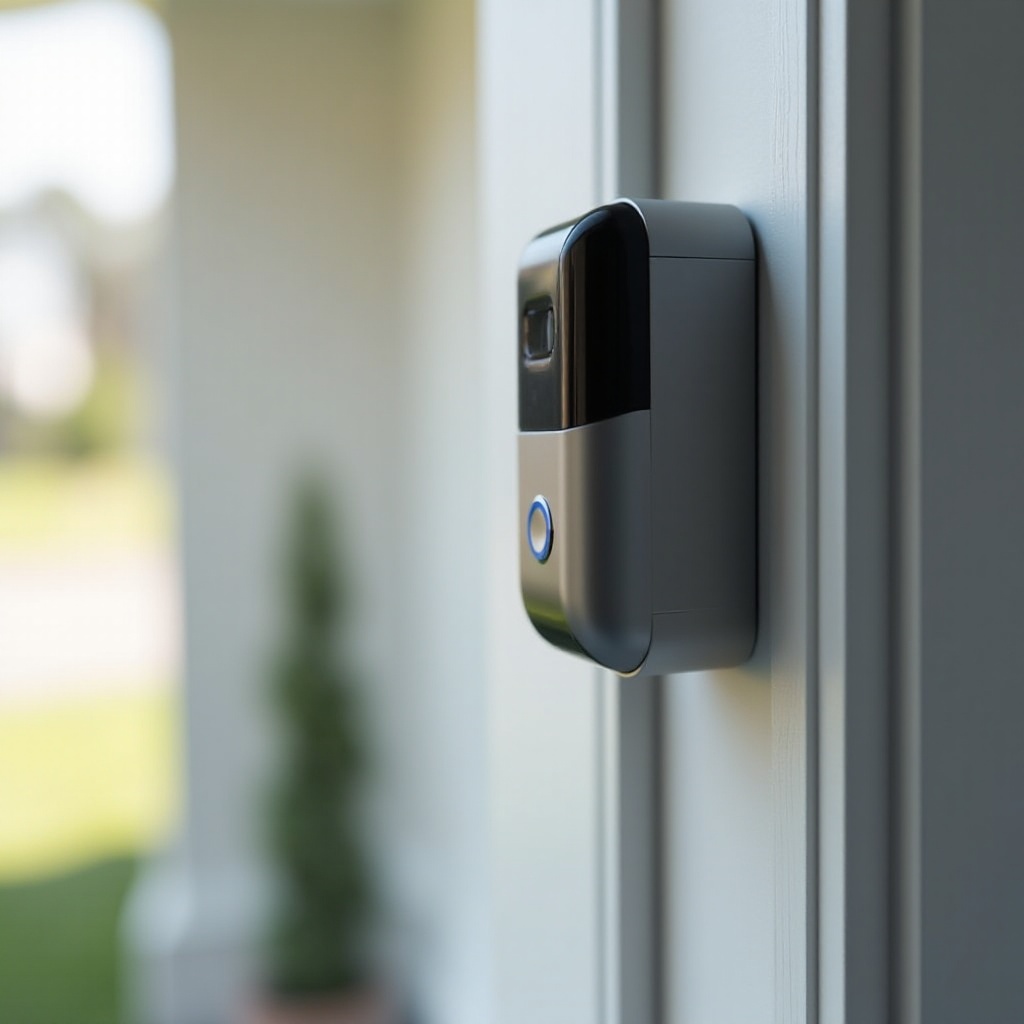
The blue LED around the button of your Ring doorbell is a status indicator. It uses different patterns to show what the device is doing: starting up, connecting to Wi‑Fi, recording, updating firmware, or signaling an error.
Understanding this light is key, because the Ring app does not always show real‑time status. The doorbell itself communicates a lot through that simple LED ring. When you learn its basic patterns, you can diagnose issues much faster.
How the LED ring communicates status
Ring uses the LED ring as a visual language. Each pattern combines three key elements:
- Color – Blue is the main status color for Ring doorbells. White and sometimes red can appear as well.
- Motion – The ring can spin, pulse, flash, or stay solid.
- Timing – Short pulses, long pulses, and pauses all carry meaning.
When you see your ring doorbell camera flashing blue, look carefully at how fast it blinks, whether it spins, and whether it pauses. These details tell you whether the doorbell is starting up, joining Wi‑Fi, recording someone at the door, updating, or stuck in an error.
Blue vs white vs red indications on Ring doorbells
While this guide focuses on blue, it helps to know the bigger picture:
- Blue usually means normal operations: setup, recording, live view, or two‑way talk. It can also show minor connection issues.
- White often indicates idle, ready, or setup mode on certain models.
- Red or orange can suggest low battery or, on some devices, a serious error or overheating.
If you ever see red along with a ring doorbell camera flashing blue, pay closer attention. That combination can mean power or temperature problems that you should not ignore.
Quick reference: normal vs warning blue lights
Here is a quick way to judge what you see:
- Normal blue: brief spinning when someone presses the button, short flashes during recording, or a moment of solid blue as it connects.
- Warning blue: constant flashing that does not stop, repeated spin‑and‑pause cycles, or a blue light that stays on even when nothing is happening.
Once you understand the basic meanings, the next step is to match what you see to a specific pattern. That is where many Ring owners get stuck.
Common Ring Doorbell Blue Flashing Patterns and Their Meanings
When you see a ring doorbell camera flashing blue, identifying the pattern is your first step. Different patterns point to very different situations, from “everything is fine” to “this doorbell needs help now”.
Recognizing the pattern allows you to narrow down whether you are dealing with setup behavior, normal use, or a fault. That makes later troubleshooting more focused and less frustrating.
Spinning blue light
A spinning blue light usually means:
- The doorbell button was pressed and it is ringing.
- The doorbell is finishing a process such as connecting or waking up.
If the blue light spins briefly and then stops, it is normal. If the spinning continues for more than a minute or two, you may have a connection or power issue that stops the device from finishing its task.
Slow flashing blue light
A slow flashing blue pattern often appears when:
- The device is in setup mode.
- The doorbell is trying to connect to your Wi‑Fi network.
- The device is starting up after a restart.
Slow, steady flashing for a short time during installation is expected. Slow flashing that goes on for several minutes without progress usually means the doorbell cannot join your network or complete setup.
Rapid flashing blue light after button press
A rapid flash of blue right after someone presses the button indicates:
- The doorbell detected the press.
- It is sending a signal to your phone and your chime.
- It may be starting to record an event.
This brief burst is normal. If rapid flashing continues for more than a few seconds and your chime does not ring or you do not get a notification, you could have a network, app, or chime configuration problem.
Solid blue light
A solid blue light can mean:
- The doorbell is actively in two‑way talk.
- The camera is in live view.
- The device is finishing a key process.
Solid blue while you are on a live view or talking through the app is normal. Solid blue all the time, even when nobody is accessing the device, can point to software glitches, stuck processes, or power issues.
Blue light with pauses or segments
Sometimes the blue ring lights up in segments, or flashes in groups with short pauses. This can indicate:
- Setup steps progressing, such as 25%, 50%, 75%, and 100% complete.
- Firmware update stages.
- Error codes on some models.
If you see a repeating segmented pattern with pauses and no change in behavior, your doorbell may be stuck in setup or update mode. That is your cue to move from reading the pattern to active troubleshooting.
Most confusing flashing blue issues show up when you first install or update the device, so let us look more closely at that phase.
Ring Doorbell Flashing Blue During Setup or Updates
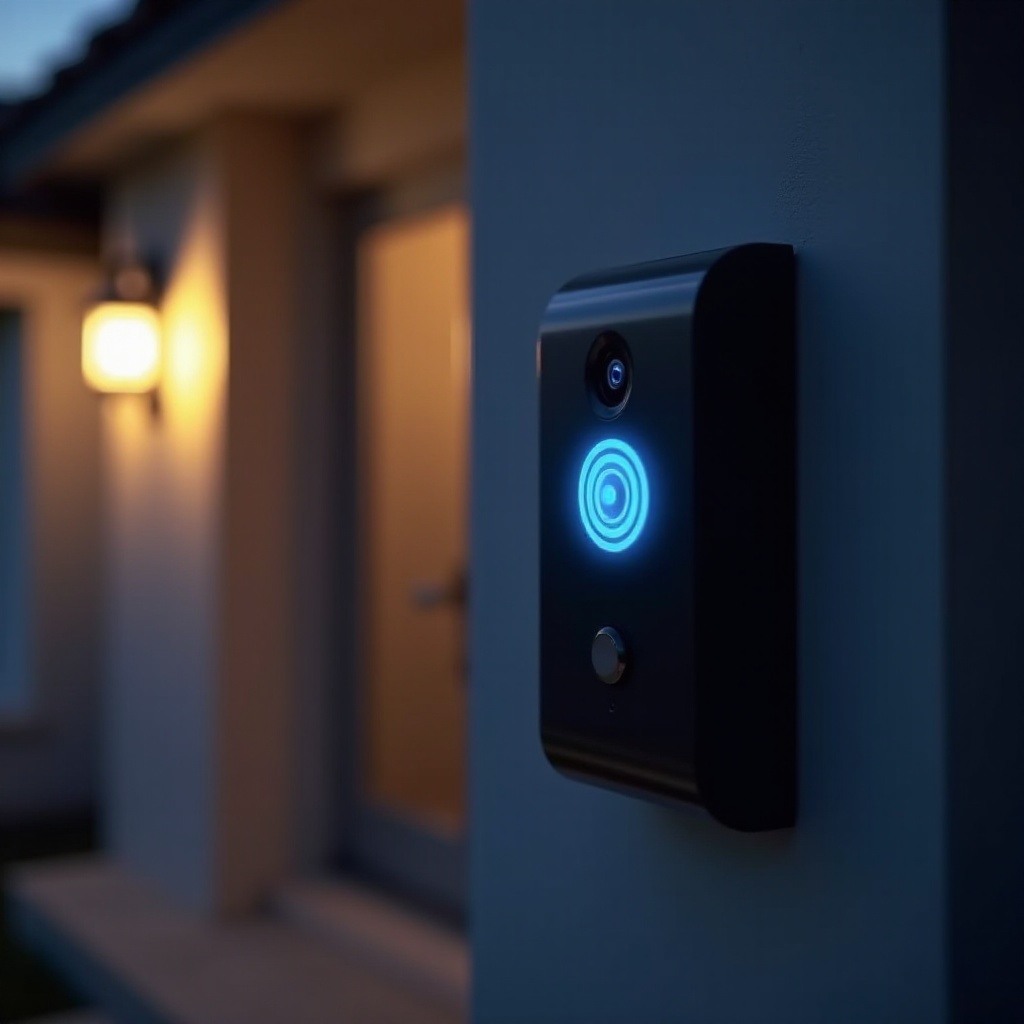
A ring doorbell camera flashing blue during setup or a firmware update is common and often harmless. The key is knowing how long those lights should last and what to do if they do not stop.
If you can tell the difference between normal setup behavior and a failed setup, you will avoid a lot of guesswork and repeated installs.
Blue light while joining Wi‑Fi
During installation in the Ring app, your doorbell:
- Starts its own temporary Wi‑Fi network.
- Connects to your home Wi‑Fi.
- Confirms the connection and registers to your account.
As it joins Wi‑Fi, you will often see slow or spinning blue lights. Short periods of flashing blue during this phase are normal. If the app shows a connection failure and the ring keeps flashing blue, the doorbell is struggling to join your network.
Common causes include:
- Wrong Wi‑Fi password.
- Weak signal at your front door.
- Router settings that block the device or certain ports.
Blue flashing when firmware is updating
After a new install or when Ring pushes an update, you might see a ring doorbell camera flashing blue in a pattern that looks like progress bars or stages. This usually means:
- Firmware is downloading.
- Firmware is being installed.
- The device is rebooting afterward.
During this time, do not remove power or press the setup button. Interrupting a firmware update can corrupt the device software and cause persistent problems, including endless flashing blue or a doorbell that will not respond.
How long setup blue lights should last in normal cases
As a general guide:
- Initial setup blue lights: a few minutes.
- Wi‑Fi connection attempts: under 1–2 minutes each.
- Firmware updates: a few minutes, occasionally up to 10, depending on connection speed.
If your doorbell has been flashing blue for more than 15–20 minutes during setup or update, something likely went wrong and you should intervene instead of waiting longer.
When a flashing blue light means setup failed
You should suspect a failed setup when:
- The Ring app reports an error, but the ring keeps flashing blue.
- The doorbell never shows as “online” in the device list.
- Live view does not work after setup appears to finish.
In that case:
- Close and reopen the Ring app.
- Check that your Wi‑Fi works on your phone near the door.
- Restart your router.
- Put the doorbell back into setup mode and try again.
If the ring doorbell camera flashing blue still does not complete setup after those steps, move on to power and battery checks, because connection problems often tie back to unstable power.
Ring Doorbell Flashing Blue While Charging or on Battery Power
For battery‑powered and battery‑assist Ring doorbells, the blue LED can also represent battery status. Misreading charging lights is common and leads people to think their device is broken when it is not.
By understanding how charging patterns work, you can tell whether you are seeing normal charging, a tired battery, or a hardware issue.
Blue light indicators on battery models
On battery models:
- Blue light during charging often shows progress.
- Short flashes can mean the battery is currently charging.
- Different segment patterns can show how full the battery is.
If the doorbell is off the mount and charging indoors, watch the blue lights on the battery or the doorbell itself. Check the Ring app too; it will show the current battery percentage so you can confirm what the LEDs are telling you.
Flashing blue vs solid blue while charging
Typically:
- Flashing blue while plugged in means charging is in progress.
- Solid blue for a brief time can indicate the battery or device reached full charge.
If your ring doorbell camera flashing blue never goes solid after many hours, you may have:
- A faulty cable or charger.
- A worn‑out battery.
- Dirty contacts between the battery and the doorbell.
What a blue light can mean for battery health
If the blue light behaves oddly along with:
- Fast draining battery.
- Doorbell shutting off, especially in cold weather.
- The Ring app always showing low battery, even after charging.
Then you may be dealing with battery aging or damage.
Basic steps to check:
- Clean contacts with a dry cloth.
- Try a different charger or outlet.
- Charge the battery fully and monitor how long it lasts.
If the battery drains quickly and the ring doorbell camera flashing blue acts strangely, you may need a replacement battery to restore normal behavior.
Troubleshooting if blue light stays on after full charge
If the blue light stays on even when the app shows 100% battery:
- Remove the battery from the doorbell, if it is removable.
- Wait 10–15 seconds, then reinsert it firmly.
- Restart the doorbell using the setup or reset button.
- Open the Ring app and check device health again.
If the blue light still will not turn off, you could have a firmware glitch. Updating the app and rebooting your router sometimes helps. If not, a full device reset and re‑add in the app is the next logical step.
If power and battery look fine but your ring doorbell camera flashing blue is still misbehaving, it is time to look at full system troubleshooting.
Flashing Blue but Doorbell Not Working: Core Troubleshooting Steps
When the blue light is active but your doorbell does not ring, record, or connect, treat it as a full system check. You will go through power, Wi‑Fi, app, and device settings in order.
Working through these in a structured way prevents you from missing a simple cause, such as a weak signal or a disabled alert toggle.
Check power source and transformer voltage
If you have a wired or battery‑assist model, unstable power can cause:
- Random restarts.
- Stuck blue lights.
- Failure to ring your existing chime.
Do the following:
- Confirm how your doorbell is powered: battery, hardwired, or plug‑in adapter.
- If wired, check the transformer rating; most models need 16–24 V AC.
- Look for signs of loose wiring, corrosion, or damage at the doorbell and at the chime.
If you are not comfortable checking voltage, call a licensed electrician. Incorrect power can damage the doorbell and create safety risks.
Test Wi‑Fi strength and network stability
A ring doorbell camera flashing blue can also signal that the device is reconnecting to Wi‑Fi.
To test:
- Stand near the doorbell with your phone connected to the same Wi‑Fi network.
- Run a quick speed test; aim for at least a few Mbps up and down.
- Check the Ring app Device Health section for signal strength (RSSI value).
If the signal is weak:
- Move the router closer if possible.
- Add a Wi‑Fi extender or mesh node near the front door.
- Make sure your router is not overloaded or blocking the doorbell.
Restart your Ring Doorbell the correct way
A proper restart can clear stuck blue light patterns.
- For most models, press and hold the setup or reset button for about 10–15 seconds, then release.
- Wait 1–2 minutes for the device to reboot fully.
- Watch the LED patterns as it starts up again.
After the restart, check the Ring app to see if live view, notifications, and recordings work correctly.
Confirm device status and alerts in the Ring app
Open the Ring app and:
- Tap your doorbell device.
- Check Device Health for network, battery, and power data.
- Make sure Motion Alerts and Ring Alerts are turned on.
- Try a live view session and see if the blue light responds.
Sometimes the doorbell works fine, but alerts are disabled, making it appear broken when it is not. Checking settings here can save you from doing more drastic resets.
Resetting and re‑adding the doorbell if issues persist
If the ring doorbell camera flashing blue continues and normal use still fails:
- Put the device into setup mode by pressing and holding the setup button until the light pattern changes.
- In the Ring app, remove the device from your account.
- Add it again as a new device, following all prompts carefully.
- Let it update firmware if the app requests it.
This full reset often clears stubborn software issues that cause constant or incorrect blue light behavior.
If, after all these steps, the blue light patterns remain wrong, the underlying problem might be specific to your model or the hardware itself.
Model‑Specific Blue Light Behavior in 2024
Most Ring doorbells use similar blue patterns, but there are small differences between models that can affect what you see and how you interpret it.
Knowing what is normal for your exact model helps you avoid chasing issues that are simply design differences.
Ring Video Doorbell (wired and battery)
For the standard Ring Video Doorbell models:
- Battery versions use blue lights more often for charging status.
- Wired versions rely more on blue for connection and recording feedback.
Both types show spinning blue during button press and short flashes during recording. If you own a battery version, expect more blue activity when you charge or when the battery gets low.
Ring Video Doorbell Pro / Pro 2
On Pro models:
- The blue LED patterns can be more segmented, especially during setup and updates.
- Because they are hardwired only, flashing blue is more often related to Wi‑Fi or firmware than to battery.
If a Pro doorbell repeatedly cycles through blue patterns and reboots, suspect transformer issues, overheating, or wiring problems rather than a simple app bug.
Ring wired doorbell models
Newer wired‑only models can:
- Use a combination of white and blue during setup.
- Show specific segment patterns to indicate update progress or errors.
These devices rely heavily on stable power, so repeated blue flashing after installation often points to wiring or transformer mismatch rather than Wi‑Fi alone.
What stays the same across all models
On nearly every Ring doorbell in 2024:
- Short blue activity after a button press is normal.
- Long, repeating blue sequences that never finish suggest a problem.
- A ring doorbell camera flashing blue plus app errors signals the need for troubleshooting.
Once you know what is normal for your model, you can shift focus from reading light patterns to preventing the main causes of blue light problems.
Preventing Future Flashing Blue Issues
Once you have fixed the immediate problem, a few simple habits will help keep your doorbell stable and reduce confusing blue lights in the future.
Prevention stands on three pillars: solid power, strong Wi‑Fi, and up‑to‑date software. Putting these in place makes future issues less likely.
Best practices for stable doorbell power
- Use a transformer that meets Ring voltage and power specs.
- Avoid sharing the transformer with too many other devices.
- Have wiring checked if your home is older or you see corrosion or loose connections.
Stable power prevents random restarts, which often show up as repeated spin‑and‑flash blue sequences and offline periods.
Optimizing router placement and Wi‑Fi channels
To support your doorbell:
- Place the router as centrally as possible, away from thick walls and appliances.
- If your doorbell is far from the router, use a Wi‑Fi extender or mesh system.
- Choose less crowded Wi‑Fi channels in your router settings when possible.
A strong, steady signal stops your ring doorbell camera flashing blue due to constant reconnections and improves video quality at the same time.
Keeping firmware and app updated
- Keep the Ring app updated on your phone or tablet.
- Allow firmware updates when the app suggests them.
- Avoid interrupting updates by cutting power or pressing buttons mid‑update.
Updated software reduces bugs, improves LED behavior, and can fix known blue light issues that affect certain models.
Seasonal and weather‑related checks
- In cold weather, watch battery performance and blue charging lights closely.
- In hot weather, keep the device out of direct afternoon sun when possible.
- After storms, check for moisture, cracks, or damage around the doorbell.
These small checks help you catch minor issues before they trigger persistent flashing patterns or full device failures.
Even with good prevention, you may still see blue lights from time to time. A quick reference makes it easier to decide what to do next.
Quick Blue Light Pattern Cheat Sheet
When you see your ring doorbell camera flashing blue, use this section as a simple mental checklist. It helps you turn a confusing pattern into a clear next step.
Start by comparing what you see to a few basic pattern types.
Pattern → cause → fix overview
Think in terms of three questions:
- How is it flashing? (spinning, slow, rapid, solid)
- When does it happen? (setup, button press, random, charging)
- What else is going wrong? (no Wi‑Fi, no chime, no recording)
In general:
- Short, brief blue activity with normal function → no action needed.
- Long, repeating blue patterns with errors in the app → follow setup or power troubleshooting.
- Blue lights during updates → wait, then verify function after a few minutes.
Blue light patterns you can safely ignore
You can usually ignore:
- Brief blue spinning when someone presses the button.
- Short flashes when motion is detected and recorded.
- A moment of solid blue during live view or two‑way talk.
These patterns show that your doorbell is working as intended and does not need a fix.
Blue light patterns that need immediate action
Act quickly if you see:
- Continuous flashing blue for more than 15–20 minutes.
- Repeated spin‑and‑pause cycles without completing setup.
- Blue light plus no Wi‑Fi connection or frequent offline status in the app.
These cases call for the full power, Wi‑Fi, and reset steps covered earlier. If those do not help, outside support is the next logical option.
When to Contact Ring Support or an Electrician
Most issues with a ring doorbell camera flashing blue are easy to fix at home, but not all. Sometimes the pattern you see is a symptom of a deeper hardware or wiring issue.
Knowing when to stop troubleshooting and get help can save you time and prevent further damage.
Signs of potential hardware failure
Contact Ring support if:
- The doorbell gets very hot to the touch in normal weather.
- The LED ring flickers strangely or some segments never light at all.
- The device stays unresponsive after a full reset and re‑add in the app.
These symptoms can point to internal hardware damage or a faulty LED ring, both of which require repair or replacement rather than more software tweaks.
Signs of wiring or transformer problems
Consider calling an electrician if:
- Your transformer does not match Ring voltage and power requirements.
- The doorbell works only sometimes and often reboots, shown by repeated blue startup lights.
- You see exposed wires, rusted terminals, or loose connections.
A professional can test voltage, replace transformers, and re‑secure wiring safely, which removes power instability as a cause of flashing blue issues.
What information to gather before opening a support ticket
To speed up help from Ring support:
- Note your doorbell model and how it is powered.
- Take screenshots of Device Health in the Ring app.
- Write down when and how the blue light flashes, including patterns and timing.
- Mention what troubleshooting steps you have already tried.
This detail helps support quickly identify whether you are seeing a known issue, a power problem, or a rare hardware fault.
Conclusion
A ring doorbell camera flashing blue does not always mean trouble. Many blue patterns simply show the device is recording, ringing, or updating normally. The real challenge is telling normal behavior from early signs of a problem.
By learning to read spinning, slow flashing, rapid flashing, and solid blue patterns, you gain control over your doorbell instead of guessing. When something is wrong, checking power, Wi‑Fi, and app settings in a structured way will resolve most issues without needing a technician.
If your doorbell still flashes blue in odd ways after you have tried the steps in this guide, do not hesitate to contact Ring support or a qualified electrician. With a stable setup and a basic understanding of the LED language, your Ring doorbell can stay reliable, responsive, and ready to protect your front door.
Frequently Asked Questions
Why is my Ring doorbell flashing blue but not connecting to Wi‑Fi?
A ring doorbell camera flashing blue but failing to connect usually means the device is stuck trying to join your network. Common causes include a weak signal at the door, an incorrect Wi‑Fi password, or router settings that block new devices.
First, confirm that your phone has strong Wi‑Fi near the doorbell. Then double‑check the password and run through setup again in the Ring app. If the problem persists, restart your router, move it closer, or add a Wi‑Fi extender or mesh node. As a last step, reset the doorbell, put it into setup mode, and re‑add it as a new device.
How long should my Ring doorbell flash blue after installation in 2024?
After installation, blue flashing during setup and updates should normally last only a few minutes. You might see slow flashing or spinning blue as it joins Wi‑Fi and installs firmware. In most cases, the LED returns to an idle pattern in under 10‑15 minutes.
If your ring doorbell camera flashing blue continues much longer without any progress in the Ring app, treat it as a failed setup. Restart your router, put the doorbell back into setup mode, and try again. If it still fails after several attempts, check power and Wi‑Fi strength, then consider a full reset or contact Ring support.
Is it safe to leave my Ring doorbell flashing blue overnight?
Whether it is safe depends on why it is flashing. If the doorbell just shows brief blue flashes when it detects motion or someone presses the button, that is safe and normal and you can leave it as is.
However, continuous or looping blue flashing overnight suggests a problem, such as a failed update, Wi‑Fi issues, or power instability. Leaving it like that will not usually damage the device, but it means your doorbell may not record or send alerts reliably. It is better to troubleshoot the cause, especially if the blue light has been active for hours and your app shows offline status or repeated errors.