Troubleshooting HP Laptop Issues: A Comprehensive Guide
Introduction
HP laptops are known for their reliability and versatility, making them a popular choice for both personal and professional use. However, even the most dependable laptops can run into issues that disrupt workflow and cause frustration. This guide aims to address the most common HP laptop problems, from performance slowdowns to hardware malfunctions, providing practical solutions to keep your device running smoothly.
Common Performance Issues
Performance issues such as slow boot times, lagging applications, and general unresponsiveness are frequently reported by HP laptop users.
-
Slow Boot Times: Often caused by excessive startup programs. To improve boot speed, access Task Manager, navigate to the ‘Startup’ tab, and disable non-essential programs. This will help your laptop prioritize necessary tasks during startup.
-
Lagging Applications: This can result from insufficient RAM or outdated software. Consider upgrading your RAM if possible and ensure all applications are up to date to mitigate lag.
-
Freezing and Unresponsiveness: Too many tasks can overwhelm the system. Regularly close unused programs and tabs, and restart your laptop occasionally to free up resources.
These performance issues may sometimes hint at underlying hardware concerns, especially as the device ages, but addressing them can often provide immediate relief.
Hardware Problems
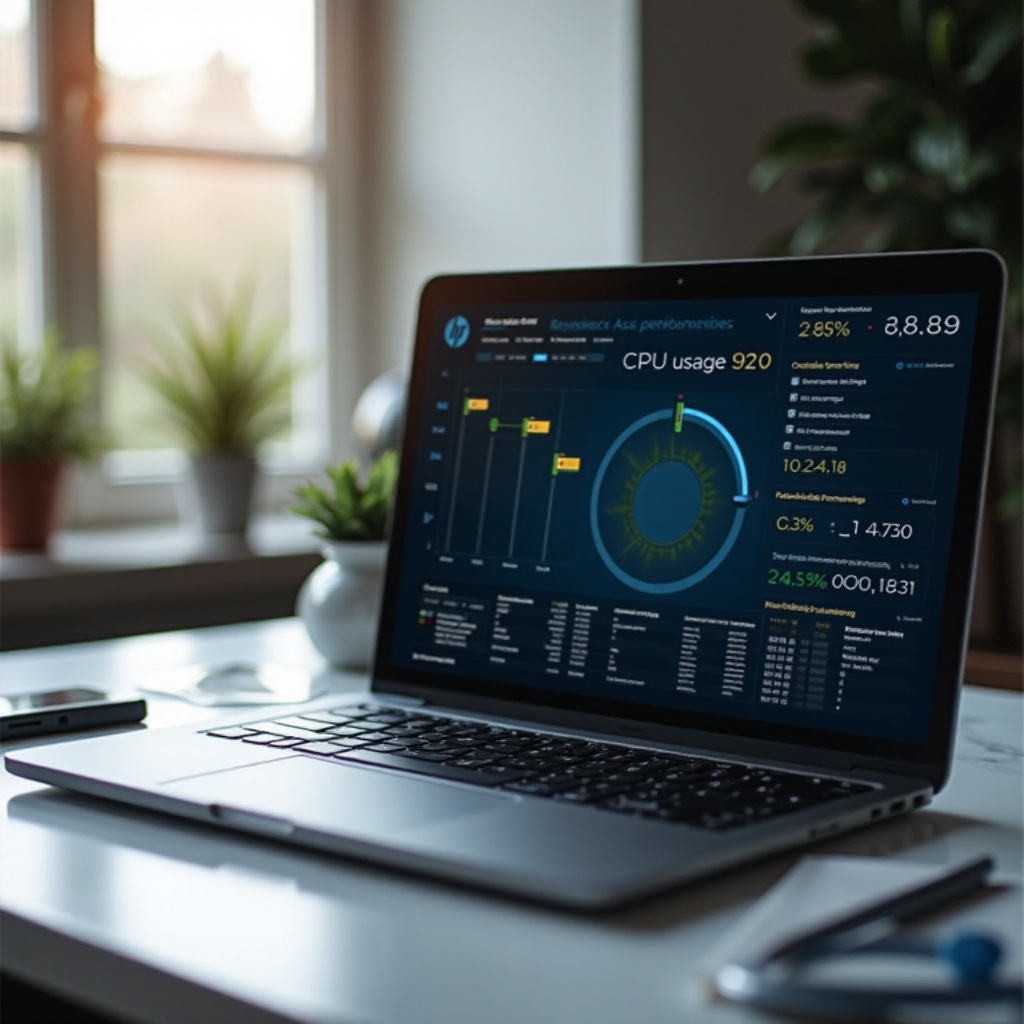
Resolving hardware issues promptly is essential to maintaining your laptop’s functionality and avoiding further complications.
-
Battery Charging Issues: If your HP laptop isn’t charging, it might be due to a defective charger or battery. Test your device with another charger, and if problems persist, consider checking or replacing the battery.
-
Overheating Solutions: Dust clogged in the vents or insufficient ventilation are common causes. Regularly clean the vents and use your laptop on a flat, hard surface to improve airflow.
-
Display Malfunctions: Issues such as flickering or distorted screens often require checking and updating your graphics drivers. Persistent problems might necessitate professional repair.
Hardware issues often lead to or coincide with software glitches, making it crucial to also examine the software aspects of your device.
Software and System Faults
Software-related issues can significantly impact your laptop’s overall functionality and user experience.
-
Operating System Errors: These can stem from corrupted files or incomplete updates. Regularly update Windows and BIOS, and use built-in HP diagnostic tools to rectify errors.
-
Software Compatibility Problems: New software might not be compatible with older operating systems. Always review system requirements before new installations to ensure compatibility.
-
Frequent Crashes and Blue Screens: Often caused by driver conflicts or faulty memory, these can be diagnosed with Windows memory testing tools and fixed by updating or rolling back drivers.
Ignoring these software faults could lead to connectivity issues, as obsolete or incompatible drivers often disrupt network and peripheral connections.
Connectivity Concerns
Reliable connectivity is crucial for maximizing the functionality of your HP laptop.
-
Wi-Fi Connection Problems: These could arise from router issues or outdated drivers. Update your Wi-Fi adapter drivers and reset the router. If issues persist, troubleshoot with Windows Network Diagnostics.
-
Bluetooth Pairing Issues: Ensure Bluetooth is enabled on both devices. If connection issues continue, remove the device from the Bluetooth list and re-pair it.
-
Troubleshooting Peripheral Device Connectivity: If a USB device isn’t recognized, verify your laptop’s USB ports are clean and unobstructed. Updating or reinstalling drivers for peripherals may solve connectivity problems.
Taking preventative measures can significantly minimize the likelihood of these connectivity issues.
Preventative Maintenance Tips
Regular maintenance practices are vital for preventing frequent issues and ensuring long-term functionality.
-
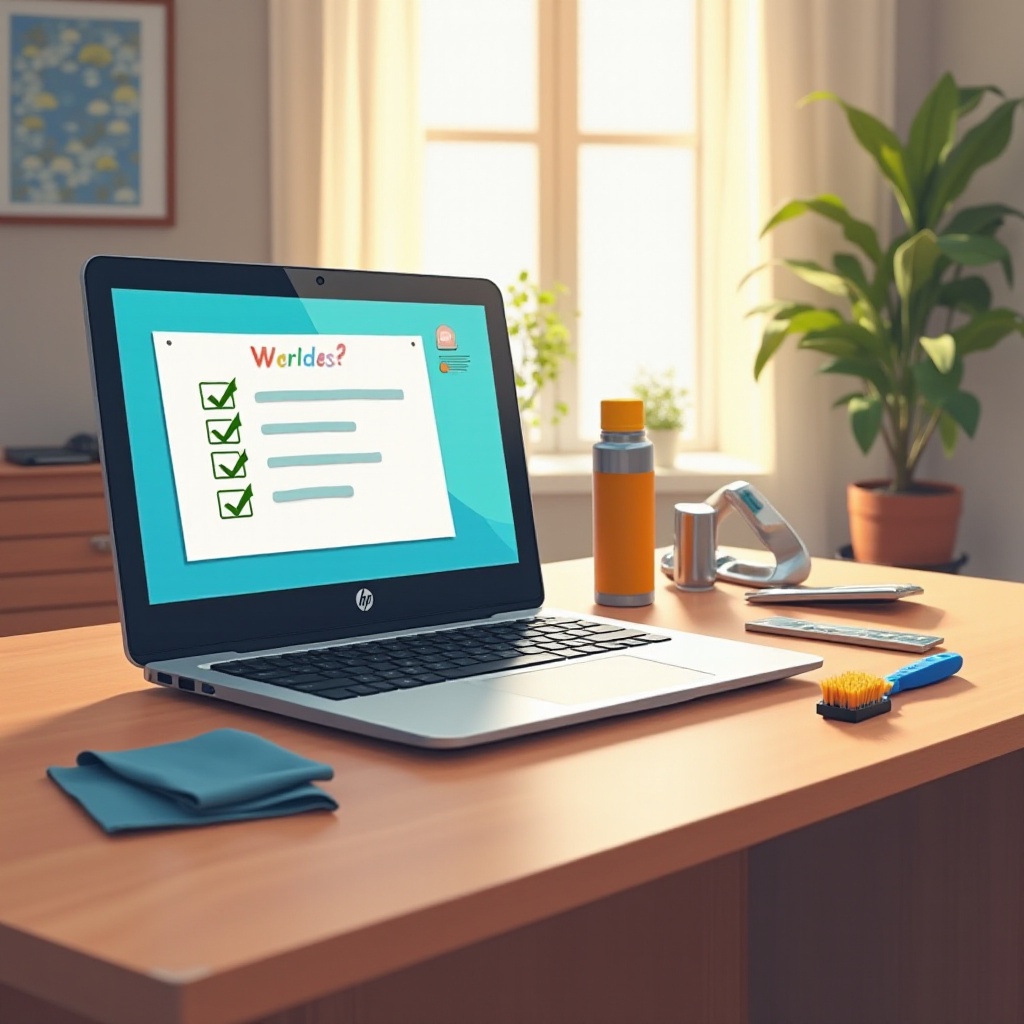
Routine Cleaning and Maintenance: Consistently clean your keyboard, screen, and vent openings to prevent dust buildup, which can lead to overheating.
-
Importance of Regular Software Updates: Keeping your operating system and applications up to date protects against vulnerabilities and ensures optimal performance.
-
Backup and Recovery Strategies: Regularly back up your data to secure your information against potential system failures. Utilize built-in Windows backup tools or external backup solutions.
These preventative measures not only fortify your device but also extend its lifespan, ensuring more reliable performance.
Conclusion
HP laptops, while dependable, can face a range of issues that affect performance and usability. By understanding common problems and implementing effective solutions, you can enhance your laptop’s longevity and functionality. Prioritizing preventative maintenance and staying up-to-date with software updates will help minimize the impact of these issues over time.
Frequently Asked Questions
How often should I update my HP laptop’s software?
It’s recommended to check for updates every month. Regular updates can fix bugs, improve performance, and enhance security.
Can a factory reset solve all HP laptop issues?
While a factory reset can resolve many software-related issues, it doesn’t address hardware problems. Use it as a last resort after backing up data.
What should I do if my HP laptop overheats frequently?
Ensure the vents are unobstructed and free of dust. Use the laptop on a flat surface and consider a cooling pad for better airflow.