How to Connect Bluetooth to Dre Beats: Complete 2024 Setup & Troubleshooting Guide
Introduction
Struggling to figure out how to connect Bluetooth to Dre Beats can turn a new pair of headphones into a source of stress. The good news: once you understand pairing mode and where to tap in your device’s settings, the process becomes quick and repeatable.
This guide walks you through every step you need. You will learn how to put different Dre Beats models into pairing mode, then connect them to iPhone, Android, Windows, and Mac. You will also see how to connect to TVs and consoles, how to reset your Beats when they misbehave, and how to fix the most common Bluetooth issues.
Follow the steps for your device, and you will get a stable connection, clear sound, and fewer dropouts. First, you need to identify which Dre Beats model you actually own, because that controls which buttons you press and which lights you should watch.
Know Your Dre Beats Model Before You Connect
Before you learn how to connect Bluetooth to Dre Beats, you need to know which Beats you have. Different models use different buttons, charging cases, and indicator lights. If you press the wrong button, your headphones may never enter pairing mode.
How to Identify Your Dre Beats Headphones or Earbuds
Use these quick checks to identify your model:
- Check the printed name
- Look on the headband, inside the earcups, or on the cable for neckband styles.
-
Common names include: Beats Solo, Beats Studio, Powerbeats, Beats Fit Pro, Beats Studio Buds.
-
Look at the charging case (for true wireless)
- Powerbeats Pro, Beats Studio Buds, and Beats Fit Pro use a case.
-
The case shape and single button location can help you match images on the official Beats site.
-
Check the original box or receipt
-
The full model name is printed on the box and in your order email.
-
Use your phone’s Bluetooth list
- If you ever connected them before, open Bluetooth and look for names like ‘Beats Solo3’ or ‘Beats Fit Pro’.
Why Different Models Have Different Bluetooth Controls
Dre Beats models evolved over time. Older over-ear headphones often use a power button and a small pairing button on the side. Newer true wireless models use the case button. The exact buttons and LED patterns change by design.
Because of this, the pairing steps for Dre Beats Solo are not the same as for Beats Fit Pro. If you follow the wrong instructions, your Beats might turn off, reset, or just sit idle instead of broadcasting a Bluetooth signal.
Knowing the exact model lets you use the right combination of button presses, so your device can discover the headphones quickly.
Quick Reference: Over-ear, On-ear, and In-ear Beats Categories
You can group Dre Beats into three broad categories to choose the right instructions later:
- Over-ear / On-ear
- Examples: Beats Studio, Beats Studio Pro, Beats Solo.
-
These have a headband and earcups that sit on or over your ears.
-
In-ear with cable or ear hooks
- Examples: Powerbeats, Beats Flex.
-
These usually have a neckband or ear hooks, but no case controls.
-
True wireless in-ear with charging case
- Examples: Powerbeats Pro, Beats Fit Pro, Beats Studio Buds.
- Each earbud is separate, and you use a case button for pairing and reset.
Once you know which group your Dre Beats sits in, it is easier to follow the Bluetooth steps and avoid confusion. With your model clear, you can better understand what happens behind the scenes when you connect.
Bluetooth Basics: How Dre Beats Wireless Connections Work
Now that you know your model, it helps to understand what happens when you connect Bluetooth to Dre Beats. A bit of Bluetooth basics makes the later steps feel less like guesswork and helps you troubleshoot faster.
What Bluetooth Pairing Actually Does
When you pair Dre Beats with a phone or computer, the two devices exchange a unique key. They store that key so they can recognize each other in the future.
The process looks like this:
- You put your Dre Beats in pairing mode.
- Your phone or computer scans for nearby Bluetooth devices.
- You tap the name of your Dre Beats to confirm the pairing.
- Both devices remember each other and can reconnect automatically.
Once paired, your device sends audio over Bluetooth to the headphones, and the headphones send control signals such as play, pause, or volume back.
Pairing vs. Reconnecting vs. Switching Devices
These three actions often get mixed up:
- Pairing
- The first time you connect Dre Beats to a device.
-
You must put the Beats in pairing mode and choose them from the Bluetooth list.
-
Reconnecting
- Happens after pairing is complete.
-
You usually just turn on your Beats, and they reconnect to the last device they used.
-
Switching devices
- You move from one paired device to another, such as from a phone to a laptop.
- You may need to disconnect from one device, then select the Beats in Bluetooth settings on the next device.
Knowing the difference helps you choose the right fix when your Dre Beats will not connect the way you expect.
LED Indicators and Status Tones on Dre Beats
Dre Beats use LED lights and tones to show status:
- Fast flashing light usually means pairing mode.
- Solid light often means connected or powered on.
- Slow blinking or changing color can indicate low battery or charging.
If you press buttons and see no lights at all, your Beats may need to charge or may have a hardware issue. If you see fast blinking, you are usually safe to open Bluetooth on your device and start pairing.
With the basics out of the way, you are ready to put your specific Dre Beats model into pairing mode so other devices can actually see it.
How to Put Your Dre Beats into Bluetooth Pairing Mode
To connect Bluetooth to Dre Beats, pairing mode is the first mandatory step. Without it, your phone or laptop cannot see the headphones in its device list.
Pairing Mode for Over-ear and On-ear Dre Beats
For models like Beats Solo or Beats Studio:
- Turn them off first
-
If they are on, hold the power button until the lights go off.
-
Press and hold the power or pairing button
- Hold for a few seconds until the LED starts to flash quickly.
-
On many models, the ‘b’ logo or small button near the earcup acts as the pairing control.
-
Watch for fast blinking lights
- This indicates the Beats are now discoverable and ready to pair.
If the light turns solid instead of blinking, release the button and try again, holding it longer this time.
Pairing Mode for In-ear and True Wireless Dre Beats
For Powerbeats, Powerbeats Pro, Beats Fit Pro, or Beats Studio Buds:
- Place the earbuds in the charging case
-
Keep the lid open.
-
Press and hold the system button on the case
-
Hold until the LED on the case begins to flash.
-
Confirm fast flashing
- When the case light flashes, your Beats are in Bluetooth pairing mode.
For neckband models like Beats Flex, you may have a small button on the control module. Press and hold it until you see flashing lights.
What to Do If Pairing Mode Does Not Start
If you cannot get into pairing mode:
- Charge your Dre Beats for at least 15 to 20 minutes, then try again.
- Make sure you are pressing the correct button, not a volume or noise control button.
- Try resetting your Beats; you will see reset steps later in this guide.
- Confirm you are not already connected to another nearby device; turn Bluetooth off on other devices to avoid auto-connect.
Once your Dre Beats are flashing and ready, the next step is to connect them to your specific device. Many users start with an iPhone or iPad, so we will begin there.
How to Connect Dre Beats to an iPhone or iPad (iOS 17 and Later)
Apple devices often make it easiest to connect Bluetooth to Dre Beats, especially for newer models. Many Beats headphones show a one-tap pop-up when you open the case near an unlocked iPhone or iPad.
Turn On Bluetooth and Find Your Dre Beats
Follow these steps:
- Put your Dre Beats in pairing mode.
- Open Settings on your iPhone or iPad.
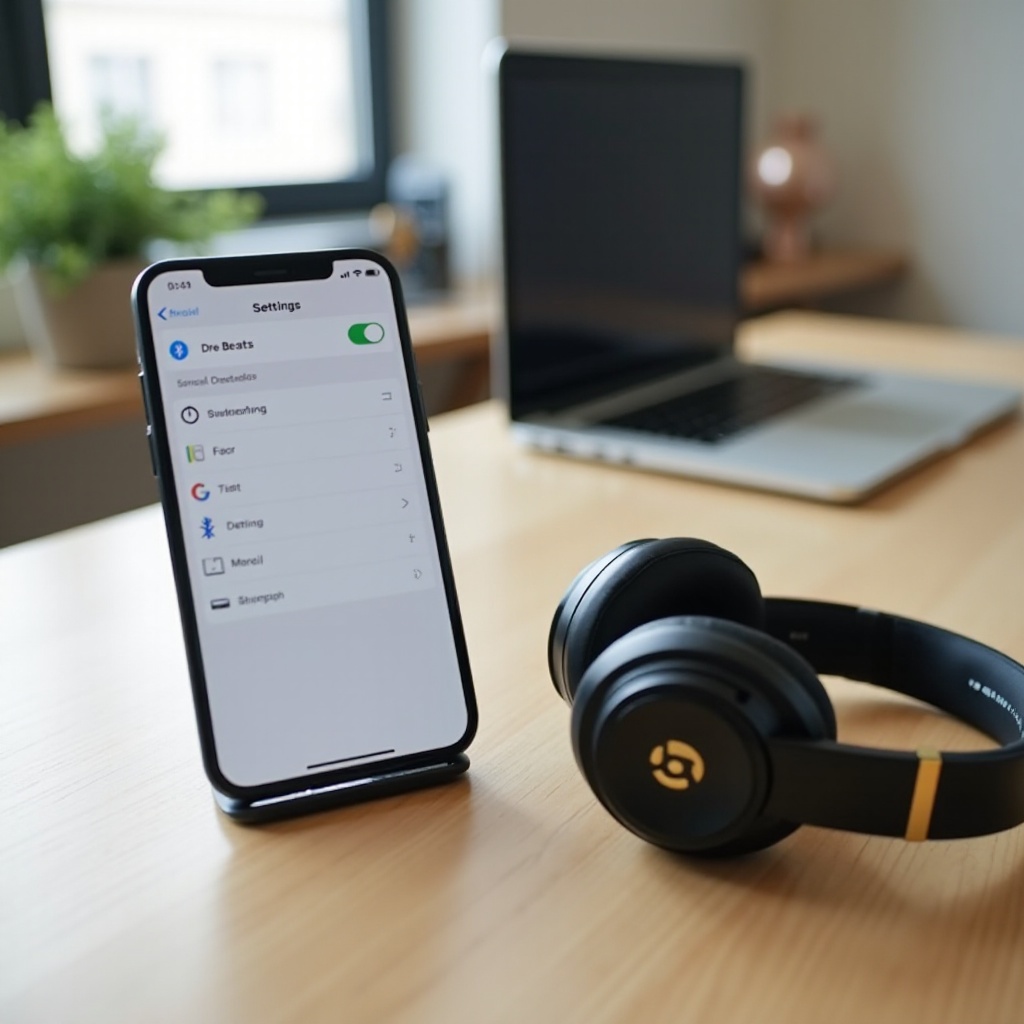
- Tap Bluetooth and switch it On if needed.
- Look under Other Devices and wait a few seconds while your device scans.
- Tap the name of your Dre Beats when it appears.
- Wait for the status to change to Connected.
You may also see a battery level indicator once your Beats connect.
Use the On-screen Pop-up for Compatible Beats Models
For newer Beats models that support Apple’s one-tap setup:
- Unlock your iPhone or iPad.
- Hold your Beats, or open the case with earbuds inside, near the device.
- A card appears on screen showing the Beats image and a Connect button.
- Tap Connect and follow any prompts.
This method handles most of the pairing steps for you and is often faster than the manual method.
Fix iPhone/iPad Connection Issues with Dre Beats
If your Dre Beats do not connect or keep disconnecting:
- Forget and re-pair
- Go to Settings > Bluetooth.
- Tap the ‘i’ next to your Dre Beats.
- Tap Forget This Device and confirm.
-
Put the Beats into pairing mode and pair again.
-
Restart both devices
- Turn off your Beats, then turn them on again.
-
Restart your iPhone or iPad, then repeat the pairing process.
-
Update iOS
- Go to Settings > General > Software Update and install any available update.
- Software updates often fix Bluetooth glitches.
Once your Dre Beats work well with iPhone or iPad, you might also want to connect them to an Android device, especially if you use more than one phone.
How to Connect Dre Beats to an Android Phone or Tablet (Android 13 and Later)
Android phones support Dre Beats through standard Bluetooth, and newer devices may even support Google Fast Pair for a smoother experience.
Enable Bluetooth and Scan for New Devices
To connect Bluetooth to Dre Beats on Android:
- Put your Dre Beats in pairing mode.
- On your Android device, open Settings.
- Tap Connected devices or Bluetooth, depending on your phone.
- Turn Bluetooth On.
- Tap Pair new device or Add device.
- Select your Dre Beats from the list.
- Tap Pair when prompted.
Your Beats should now show as Connected for audio, and you can play music to test.
Connect Dre Beats with Google Fast Pair (If Supported)
On some Android phones:
- Unlock your phone.
- Put your Dre Beats into pairing mode near the phone.
- A Fast Pair pop-up appears at the top of the screen.
- Tap Connect.
- Follow any on-screen steps to finish setup.
Fast Pair can also suggest installing the Beats app for more features, such as firmware updates and battery status.
Solve Common Android–Beats Pairing Problems
If your Dre Beats do not show up or will not connect:
- Toggle Bluetooth and Airplane mode
- Turn Bluetooth off and on.
-
Turn Airplane mode on, then off, then try pairing again.
-
Forget old entries
- In Bluetooth settings, find your Dre Beats.
- Tap the gear icon or three dots.
- Tap Forget or Unpair.
-
Put Beats in pairing mode and start fresh.
-
Clear Bluetooth cache (on many Android devices)
- Go to Settings > Apps.
- Find Bluetooth in the list, you may need to show system apps.
- Tap Storage & cache.
- Tap Clear cache.
Once your Dre Beats work with Android, the next common need is connecting them to a computer for video calls, games, or streaming.
How to Connect Dre Beats to Windows 10/11 PCs
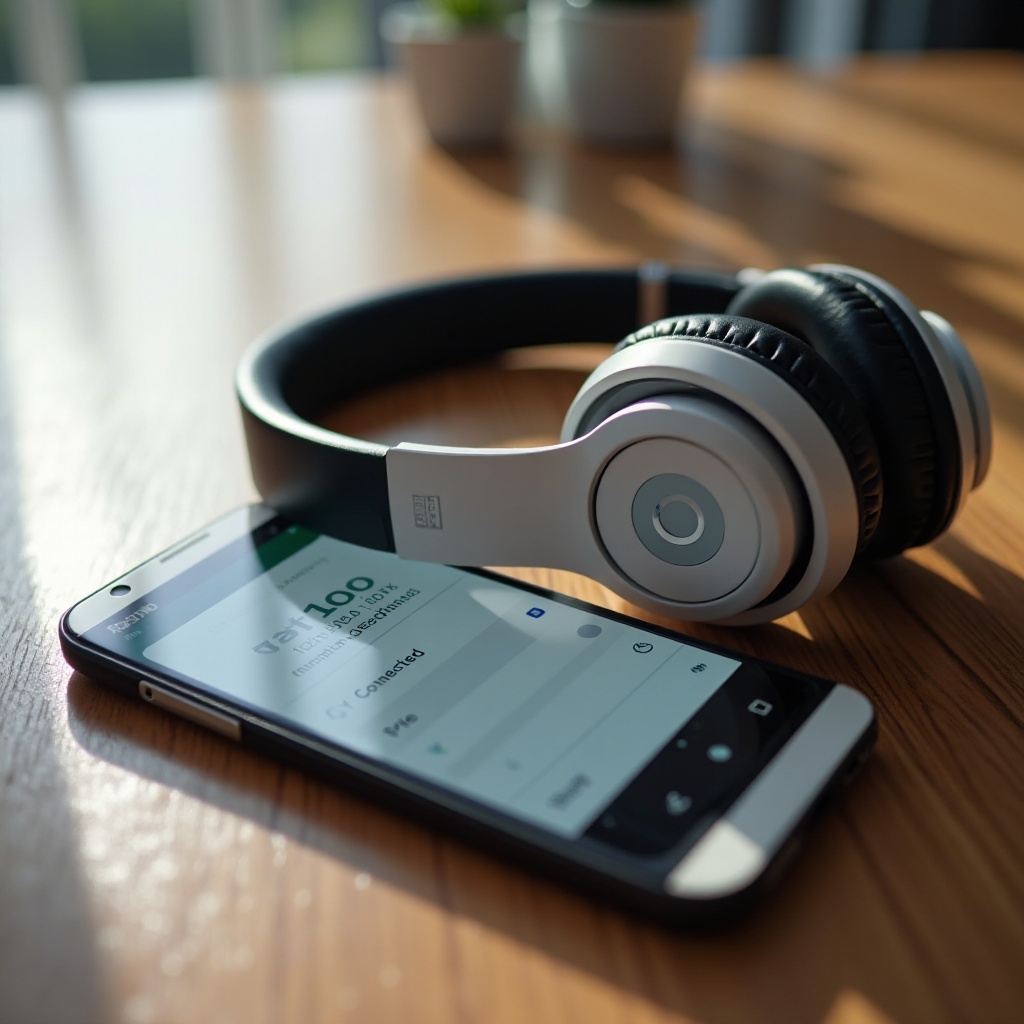
Connecting Bluetooth to Dre Beats on Windows lets you use them for meetings, streaming, and gaming. First, make sure your PC actually supports Bluetooth.
Check That Your PC Supports Bluetooth
To confirm:
- On Windows, press Windows key + I to open Settings.
- Go to Bluetooth & devices.
- If you see a Bluetooth toggle, your PC supports it.
- If not, you may need a USB Bluetooth adapter.
If Bluetooth is available, you can move on to the pairing steps.
Add Dre Beats from the ‘Bluetooth & Devices’ Menu
- Put your Dre Beats in pairing mode.
- In Settings > Bluetooth & devices, turn Bluetooth On.
- Click Add device.
- Choose Bluetooth.
- Select your Dre Beats from the list.
- Wait until Windows shows Connected or Paired.
You should see your Dre Beats listed under audio devices in the Bluetooth section.
Set Dre Beats as Default Audio and Fix PC Sound Issues
If you do not hear sound:
- Right-click the speaker icon in the taskbar.
- Click Sound settings.
- Under Output, choose your Dre Beats.
- Under Input (if your Beats have a mic), choose your Dre Beats for microphone.
If you still have trouble:
- Remove the Beats from Bluetooth devices, then add them again.
- Update Bluetooth drivers from Device Manager.
- Restart your PC and repeat the steps.
Once your Dre Beats work on Windows, you might also want them to connect to your Mac, especially if you work across multiple platforms.
How to Connect Dre Beats to a Mac (macOS Sonoma and Later)
macOS offers solid Bluetooth support and works well with Dre Beats, particularly in the Apple ecosystem.
Turn On Bluetooth and Select Dre Beats
- Put your Dre Beats into pairing mode.
- On your Mac, click the Apple menu and open System Settings.
- Click Bluetooth.
- Turn Bluetooth On if it is off.
- Find your Dre Beats under Nearby Devices.
- Click Connect next to their name.
Once connected, the status should change to Connected, and your Mac may show the battery level.
Set Audio Output to Dre Beats in Sound Settings
If audio still comes from your Mac’s speakers:
- Open System Settings again.
- Click Sound.
- Under Output, select your Dre Beats.
- Adjust volume and test with music or a video.
You can also click the volume icon in the menu bar, if enabled, to switch outputs quickly.
Use the Same Dre Beats Across Your Apple Devices
When you pair your Dre Beats with one Apple device under your Apple ID, other Apple devices such as another Mac or iPad may recognize them:
- Make sure you are signed in with the same Apple ID.
- Turn Bluetooth on across devices.
- Select your Beats from the Bluetooth list or audio output menu.
If the automatic switch does not work, manually selecting the Beats from Bluetooth settings usually solves it. With your computers ready, you can also enjoy Dre Beats with TVs, consoles, and in-flight screens using a few extra tricks.
Connecting Dre Beats to TVs, Consoles, and Other Devices
You can often connect Bluetooth to Dre Beats with smart TVs and streaming boxes directly. For older TVs and airplanes, a Bluetooth transmitter helps bridge the gap.
Pair Dre Beats with Smart TVs and Streaming Boxes
On many smart TVs:
- Put your Dre Beats into pairing mode.
- Open the TV’s Settings menu.
- Go to Sound or Bluetooth.
- Choose Bluetooth audio or Pair new device.
- Select your Dre Beats from the list.
On streaming devices like Apple TV or Fire TV:
- Open the device’s Settings.
- Go to Remotes and Devices or Controllers & Bluetooth Devices.
- Select Bluetooth.
- Choose your Dre Beats from the device list.
Use Bluetooth Transmitters for Older TVs and Airplane Screens
If your TV or in-flight system has only a headphone jack:
- Plug a small Bluetooth transmitter into the headphone or audio-out port.
- Put your Dre Beats into pairing mode.
- Put the transmitter into pairing mode, often automatic when powered.
- Wait for the transmitter light to indicate a successful connection.
This setup lets you enjoy wireless audio even when the source has no built-in Bluetooth.
Limitations and Workarounds on Gaming Consoles
Consoles like PlayStation and Xbox have Bluetooth, but they often restrict audio devices:
- PlayStation
- May block standard Bluetooth audio directly.
-
Use a USB Bluetooth transmitter plugged into the console.
-
Xbox
- Does not support standard Bluetooth audio.
- Use a transmitter connected to your controller or TV.
Lag can occur, so test the setup with casual games first before using it for competitive titles. If connections start to act up or refuse to pair, a reset often fixes the behavior, so we will cover that next.
Resetting Dre Beats and Fixing Bluetooth Connection Problems
When your Dre Beats refuse to connect, drop audio, or only play in one ear, a reset and structured troubleshooting can save you time.
When You Should Reset Your Dre Beats
Consider a reset if:
- Your Beats will not enter pairing mode.
- Your device says ‘Connected’, but no sound plays.
- Only one earbud works on a true wireless model.
- You see random disconnections across multiple devices.
Resetting clears stored Bluetooth connections and forces a fresh start.
Reset Steps for Popular Dre Beats Models
Exact steps vary, but here is a typical sequence:
- Over-ear / On-ear (for example, Beats Solo, Beats Studio)
- Hold the power button and volume down button together.
- Keep holding for about 10 seconds.
-
When the LED flashes, release the buttons.
-
Powerbeats Pro, Beats Fit Pro, Beats Studio Buds (with case)
- Place both earbuds in the case and leave the lid open.
- Press and hold the system button on the case.
- Hold until the LED flashes red and white, or changes pattern.
- Release the button; your Beats are now reset.
After a reset, place your Beats back in pairing mode and pair them again with each device you use.
Step-by-Step Troubleshooting Checklist
If your Dre Beats still will not connect:
- Confirm battery
- Charge your Beats fully.
-
Try another charging cable or port if needed.
-
Check distance and interference
- Keep the phone or laptop within a few feet.
-
Move away from busy Wi-Fi routers or microwaves.
-
Forget and re-pair on each device
- Remove the Beats from Bluetooth settings on phones, tablets, and computers.
-
Put Beats in pairing mode and add them again.
-
Test with a different device
- Try pairing with another phone or laptop.
-
If the Beats fail with multiple devices, suspect a hardware issue.
-
Update firmware
- Use the Beats app on Android or the Apple ecosystem to check for firmware updates when available.
If none of these steps fix the issue, contact Beats or Apple support, as your headphones may need repair or replacement. Once you have a stable connection again, it helps to follow a few habits that keep Bluetooth performance strong.
Tips for a Stable, High-Quality Bluetooth Connection
Knowing how to connect Bluetooth to Dre Beats is only half the story. Keeping the connection stable helps you enjoy uninterrupted music and clear calls.
Manage Distance and Interference Around Your Dre Beats
For better performance:
- Keep your phone or laptop within 10 meters, about 33 feet.
- Avoid putting your device in a bag buried under other objects.
- Move away from thick walls, metal shelves, and crowded wireless environments.
- Limit the number of Bluetooth devices active at the same time near your Beats.
These small changes can noticeably reduce dropouts.
Keep Firmware, Apps, and Devices Updated
Updates can improve Bluetooth stability:
- Check for operating system updates on iPhone, Android, Windows, and Mac.
- Install the Beats app on Android if available and look for firmware updates.
- Restart your devices periodically to clear minor glitches.
Updated software often leads to fewer pairing problems and better sound.
Battery Habits That Help Wireless Performance
Battery level affects Bluetooth behavior:
- Try to use your Dre Beats above 20 to 30 percent battery when possible.
- Avoid running them to 0 percent every day; partial charges are fine.
- Store them in their case, for true wireless models, so they stay charged and protected.
- Use quality chargers and cables to avoid charging issues.
Good battery habits extend the life of your Beats and keep connections more reliable.
Conclusion
You now know how to connect Bluetooth to Dre Beats across iPhone, Android, Windows, Mac, TVs, consoles, and more. The key steps stay the same: identify your model, enter pairing mode, select the Beats in your device’s Bluetooth settings, and set them as the audio output.
When problems appear, resets, forgetting devices, and basic checks for battery and distance usually fix them. Combine these steps with good charging and update habits, and your Dre Beats will deliver stable wireless audio for music, calls, and gaming.
If you ever change phones or laptops, simply repeat the pairing steps in this guide, and you will be up and running in minutes.
Frequently Asked Questions
Can I connect Dre Beats to more than one device at the same time?
Many Dre Beats models can pair with several devices, such as a phone, tablet, and laptop. However, they usually play audio from only one device at a time. To switch, stop playback or disconnect from the first device, then open Bluetooth settings on the second device and tap your Dre Beats to connect. Some newer Beats can switch more smoothly between Apple devices signed in to the same Apple ID, but you still choose which device actively plays audio.
Why are my Dre Beats paired but not playing sound over Bluetooth?
If your Dre Beats show as ‘Paired’ or ‘Connected’ but you hear no sound, first check that your Beats are selected as the output device in sound settings. Turn volume up on both your device and the Beats. Close and reopen the app you are using, and try another app to rule out an app-specific issue. If nothing works, forget the Beats in Bluetooth settings, reset the headphones, put them into pairing mode again, and then pair them as a new device.
Do Dre Beats work better with iPhone than Android for Bluetooth connections?
Dre Beats work with both iPhone and Android through standard Bluetooth, but some extra features integrate more deeply with Apple devices. On iPhone and iPad you may get one-tap setup with on-screen pop-ups, smooth switching between Apple devices under the same Apple ID, and tighter ecosystem integration. On Android, Beats still offer strong Bluetooth performance, and features like Google Fast Pair and the Beats app improve the experience. For everyday listening and calls, both platforms work well once you follow the pairing steps correctly.