TCL TV Not Turning On, Light Blinking: Complete 2024 Fix Guide
Introduction
A TCL TV that refuses to turn on while the standby light keeps blinking can be very frustrating. You grab the remote, press the power button, and nothing happens. The screen stays black, but the little light at the bottom blinks at you as if something is wrong.
This behavior usually means the TV is stuck in a fault or standby state. The good news is that a blinking light often gives a clue about what is happening inside the TV. Many problems are simple, like a frozen system, a bad remote, or a loose cable, and you can fix them at home without tools.
This guide focuses on the ‘tcl tv not turning on light blinking’ problem. You will learn what the blinking light means, which steps to try first, when a reset can help, and when you likely face a hardware issue. We will move from the easiest fixes to the more advanced checks, so you can follow along in order and avoid wasting time or making the problem worse.
What the Blinking Light on a TCL TV Really Means
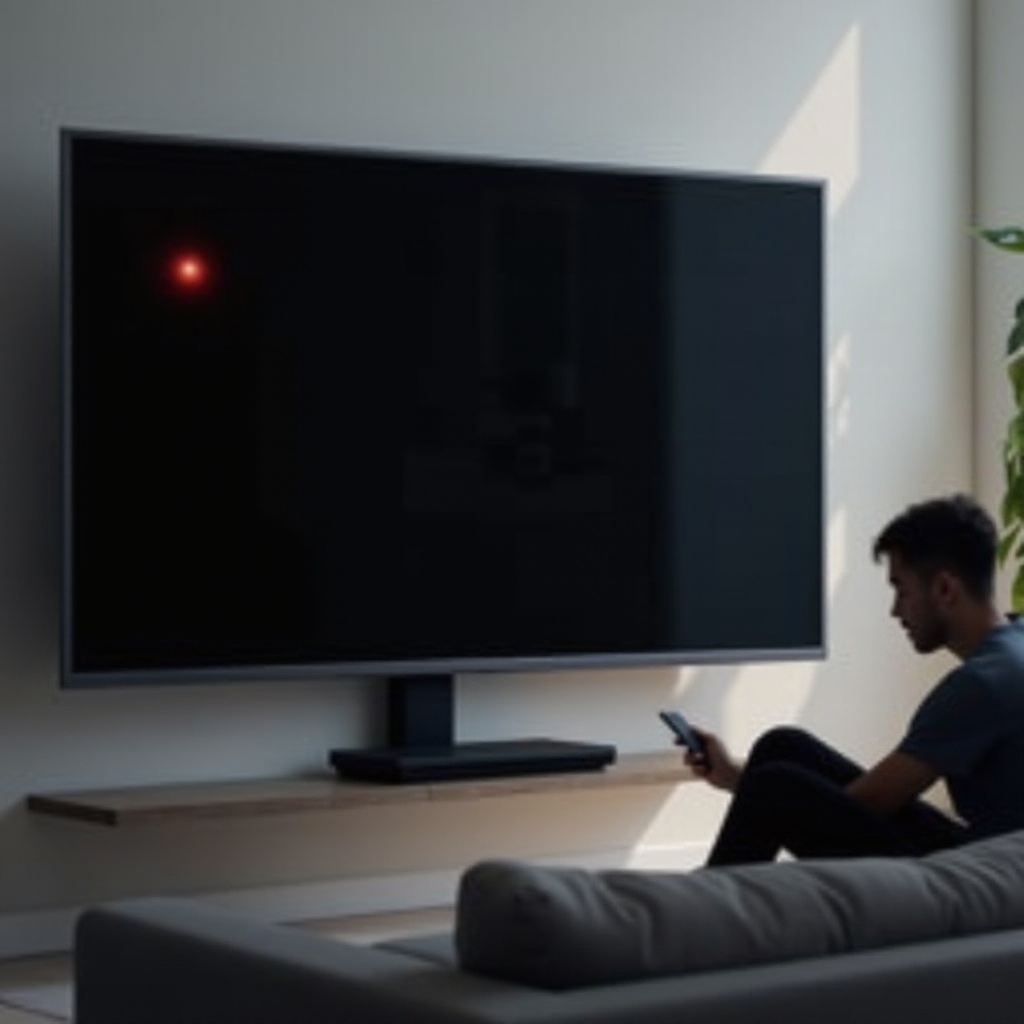
When a TCL TV will not power on and the light blinks, the TV is rarely completely dead. Instead, the TV is usually trying to start, detecting an error, or stuck in a software loop. The blinking light is your first diagnostic tool and helps you narrow down why your TCL TV is not turning on.
On many TCL TVs, the standby light can behave in several ways:
- Solid light: TV is in standby and ready to turn on.
- Light off: TV is on, or the light is disabled in settings.
- Slow blinking: TV may be booting, updating, or stuck during startup.
- Fast or patterned blinking: TV might be showing an internal error code.
For the ‘tcl tv not turning on light blinking’ issue, you usually see one of these situations:
- The light blinks a few times when you try to power on, then goes back to standby.
- The light keeps blinking and the screen stays black.
- The light flashes in a repeating pattern, and the TV never fully turns on.
These patterns can come from software problems, power issues, or internal board faults. Before you worry about hardware failure, you should look at your exact model and system type, because different TCL platforms (Roku, Google TV, Android) can behave a bit differently. That is why the next step is to identify your TCL TV model and operating system.
Identify Your TCL TV Model and System Type (Roku, Google TV, Android)
Before you dive into detailed fixes, you need to know what kind of TCL TV you own. The steps and menu labels change slightly depending on the system: Roku TV, Google TV, or Android TV. When you know your platform, you can follow the right reset paths and understand what certain lights and behaviors mean.
You can find the model number in several places:
- On a sticker on the back of the TV.
- In your purchase receipt or online order history.
- On the original box, if you still have it.
Common types in 2024 include:
- TCL Roku TV (for example: 4-Series, 5-Series, 6-Series with Roku OS).
- TCL Google TV (newer models with the Google TV interface).
- TCL Android TV (slightly older smart models with Android TV software).
This matters because:
- The reset methods and button locations can differ.
- The way the TV boots and shows errors can differ.
- Some models have a dedicated reset button; others rely on on-screen menus.
Once you identify your TV type, keep that in mind as you follow the steps below. With the model details ready, you can now start with the simplest and most important checks: power and connections.
Step 1 – Basic Power and Connection Checks
Many ‘tcl tv not turning on light blinking’ cases come down to basic power issues. The TV might not get stable power, or something in the outlet chain might interfere with it. Before you reset anything, confirm that your TCL TV actually receives clean power.
Start with these checks:
- Test the wall outlet.
Unplug the TV and plug in another device, such as a lamp or phone charger, into the same outlet. Confirm the outlet works and delivers steady power. If the other device does not work either, the outlet might be the problem.
- Bypass surge protectors and power strips.
Plug the TV directly into the wall outlet. Faulty surge protectors, smart power strips, or overloaded extension cords often cause blinking lights and no power-on. Removing them helps you see if the TV itself is the issue.
- Inspect the power cord.
Make sure the plug is seated firmly in the wall and tightly in the TV. Check the cable for visible damage, bends, or cuts. A damaged cord can interrupt power and trigger error states.
- Remove smart plugs or timers.
Smart plugs can interrupt power or send wrong commands. Use a direct wall connection while troubleshooting so the TV sees constant power.
If the TV light still blinks after these checks, you at least know the outlet and cord are likely fine. The next logical step is to clear any internal ‘stuck’ state in the TV by performing a proper power cycle, also called a soft reset.
Step 2 – Perform a Proper Power Cycle (Soft Reset)
A soft reset clears temporary errors in the TV’s electronics and software without erasing your apps or settings. This is one of the most effective fixes when a TCL TV is not turning on and the light keeps blinking. It forces the TV’s internal circuits to discharge and restart.
Follow these steps carefully:
- Turn the TV off if possible.
If the TV responds, turn it off with the remote or power button. If it does not respond, move on to the next step.
- Unplug the TV from the wall.
Pull the plug out completely. Do not just switch off a power strip or smart plug.
- Discharge residual power.
Press and hold the physical power button on the TV (not the remote) for 15–30 seconds. This helps drain leftover electricity from capacitors and can clear a stuck power state.
- Wait at least 60 seconds.
Give the TV time to reset its internal components. For stubborn cases, waiting 3–5 minutes can be helpful.
- Plug the TV back in directly to the wall outlet.
Use a reliable outlet with no surge protector or power strip connected yet.
- Turn the TV on.
Use the physical power button on the TV first. Watch the standby light closely to see if it behaves differently now.
If the TV starts normally after this, the problem was likely a temporary glitch. If the light still blinks and the TV stays black, the next thing to check is the remote control and the TV’s physical power button. You want to be sure the TV receives a clear command to power on.
Step 3 – Test the Remote and TV Power Button
Sometimes the TV is fine, but it never receives a proper ‘power on’ signal. The remote might be dead, unpaired, or blocked. With a TCL TV not turning on and the light blinking, you need to confirm both the remote and the physical button can actually wake the TV.
Try the following steps:
- Use the TV’s physical power button.
Locate it at the bottom edge, side, or back of the TV. Press and hold it for a few seconds to see if the TV powers up or if the blinking pattern changes. If nothing changes, the issue is likely not just the remote.
- Check and replace the remote batteries.
Replace the batteries with a fresh set and make sure they are installed in the correct direction. Weak batteries can cause inconsistent signals, which may look like the TV is ignoring commands.
- Check the IR sensor (for IR remotes).
Point the remote at the TV and make sure nothing blocks the line of sight. Clean the front of the TV and remote with a dry cloth to remove dust from the sensor area.
- Use a phone camera to test IR remotes.
Open the camera on your phone, point the remote at the camera, and press a button. If you see a flashing light on the phone screen, the remote sends a signal and is likely working.
- For TCL Roku TV: try the Roku mobile app.
Install the official Roku app on your phone. If the TV and phone were on the same Wi‑Fi network before the issue, you may be able to use the app’s remote feature to try turning the TV on.
If neither the remote nor the physical button can bring the TV up from the blinking state, the TV might be reacting to connected devices or HDMI‑CEC commands. That leads to the next step: disconnecting external equipment to rule out conflicts.
Step 4 – Disconnect HDMI, USB, and External Devices
External devices like game consoles, streaming sticks, soundbars, and USB drives can sometimes prevent the TV from booting correctly. HDMI‑CEC (the feature that lets devices control each other over HDMI) can also cause power conflicts that look like a TV failure.
To rule out this source of trouble:
- Turn the TV off if possible, or unplug it.
Make sure the TV is safe to work around while you remove cables.
- Disconnect all external devices.
Remove all HDMI cables (consoles, streaming boxes, PCs, Blu‑ray players). Unplug any USB devices (drives, cameras, dongles). Disconnect audio equipment that uses HDMI or optical, if possible.
- Leave only the power cord connected to the TV.
This isolates the TV from any external influence or faulty device.
- Plug the TV back in and try turning it on.
Use the physical power button and then the remote. Watch whether the light stops blinking or if the TV finally shows a picture.
If the TV turns on normally without external devices connected, one of those accessories was causing the ‘tcl tv not turning on light blinking’ problem. You can then reconnect devices one by one to find the culprit and adjust HDMI‑CEC or power settings as needed.
If the light still blinks with nothing connected, the issue is more likely inside the TV itself. At this point, a deeper reset at the system level might help you recover the TV.
Step 5 – Use the Reset Button or Factory Reset Options
If power cycling and basic checks do not solve the blinking issue, a reset at the system level might be necessary. TCL TVs often provide two reset options: a hardware reset button and an on‑screen factory reset. When the screen is black, you will rely more on the physical reset button.
Hardware reset (pinhole button)
- Look for a small reset button on the back or side of the TV. It is often inside a tiny pinhole labeled ‘Reset’.
- Use a paperclip or pin to press and hold the button.
- Hold it for about 10–15 seconds, then release it.
- Wait for the TV to restart and watch the standby light and screen.
On many TCL Roku and Google TV models, this reset forces the TV to reboot its software. In some cases, it restores factory defaults, so be ready to set up the TV again.
Factory reset via remote (if you briefly see a picture)
If the TV lights up for a moment or you manage to get a picture:
- Open Settings from the home screen.
- Go to System or Device Preferences depending on whether you use Roku, Google TV, or Android.
- Select Reset or Factory reset.
- Confirm the reset and wait for the TV to reboot fully.
A factory reset erases your Wi‑Fi settings, apps, and personal customizations. You will need to sign back into apps again. However, it can clear corrupt settings or failed updates that keep the TV stuck with a blinking light.
If the light still blinks and the TV refuses to show any image after a hardware or factory reset, then the blink pattern itself becomes important for diagnosis. The next step is to pay close attention to how the light blinks.
Step 6 – Interpret Different TCL Blinking Light Patterns
Not all blinking lights mean the same problem. Some TCL models use specific blinking patterns to indicate different types of faults. These patterns can help you decide whether to keep troubleshooting or move to professional repair.
You might see:
- Continuous fast blinking with no breaks.
- Slow, steady blinking that does not stop.
- Groups of blinks, such as 2 blinks, pause, then 2 blinks again.
Here is how to approach these patterns:
- Count the blinks.
Watch for a repeating sequence and count how many times the light blinks before it pauses. Repeat this a few times to make sure you are counting correctly.
- Look for pattern changes when you press power.
Note whether the blink speed or pattern changes when you press the remote or the TV button. A change can mean the TV is at least receiving commands.
- Check your manual or TCL support pages.
Some documentation explains what specific blink counts mean. In many cases, repeated blinks indicate faults in the power supply, backlight, or main board.
As a general guide:
- A constant, slow blink with no start-up may mean the TV is stuck in a boot loop caused by software issues.
- A repeating blink code often points to hardware failure, such as a problem with the power or main board.
- A few blinks followed by standby behavior may mean the TV tried to start but shut down to protect itself.
If you notice a consistent blink code and the previous reset steps have no effect, you are likely dealing with a deeper hardware issue. Before assuming the worst, you should still perform some basic screen and audio checks to see if the TV is actually running behind a dark panel.
Step 7 – Check for Backlight, Screen, and Audio Clues
A TCL TV can appear off even when it actually powers on. If the backlight or panel fails, the screen stays dark, and you might only see a blinking light. To narrow down the problem, you should check for signs that the TV is alive behind the black screen.
Try these checks:
- Flashlight test.
Turn on the TV or try to. In a dark room, shine a bright flashlight very close to the screen at an angle. Look for faint images or menus behind the darkness. If you see a faint picture, the backlight is likely dead, but the TV software is running.
- Listen for sound.
Turn the volume up using the remote and press the mute button a few times. If you hear sound from apps, inputs, or menu clicks, the TV is on but the display or backlight is failing.
- Watch the screen edges.
In a dark room, look at the edges of the panel when the TV tries to power on. A very slight glow can indicate the backlight is on, even if no image appears.
- Check for logo or startup animation.
Some TCL sets show a logo (like Roku or Google TV) at startup. If the logo appears briefly then disappears, the TV might be crashing during boot, possibly due to a faulty board or corrupted software.
These clues help you decide whether you face a software or startup issue, or a physical display or backlight issue. When you see faint images or hear sound with no visible picture, the problem is almost always hardware. At that point, simple resets will not fix the issue, and you move into the advanced checks and repair decision stage.
Advanced Checks and When Hardware Is Likely the Problem
Once you have tried soft resets, factory resets, remote tests, and external device removal, and you still see the ‘tcl tv not turning on light blinking’ symptoms, hardware becomes the most likely cause. The TV may have power, but one of its critical components may have failed.
Common hardware issues include:
- Power supply board failure.
Symptoms: TV will not turn on, blinking light, no backlight, sometimes clicking sounds from inside the TV. Causes include age, power surges, and defective components.
- Backlight failure.
Symptoms: sound works, faint image visible with a flashlight, blinking light during startup. The LEDs that light the screen or the backlight driver may have failed.
- Main board (motherboard) failure.
Symptoms: boot loops, logo flash then black screen, unusual blink codes, or no response to resets. Causes include overheating, failed firmware updates, or defective chips.
If you are experienced with electronics, you might visually inspect the boards after unplugging the TV and allowing it to discharge fully. You might look for:
- Burn marks or a burned smell near the power components.
- Swollen or leaking capacitors.
- Loose connectors or obvious physical damage.
However, opening a TV is risky and can void your warranty. Modern TVs contain high‑voltage components that can hold a charge even when unplugged. For most people, these advanced checks should stop at external observations and careful note-taking of blink patterns and symptoms.
At this stage, if your TCL TV still will not power on and the light keeps blinking, you should consider professional support or warranty service. The next step is to contact TCL support or a trusted repair technician.
When to Contact TCL Support or a Professional Technician in 2024
If your TCL TV remains stuck with a blinking light after all the steps above, you have completed the key user‑level troubleshooting tasks. Further attempts at DIY repair may cause damage or safety issues. This is the point where official support or a qualified technician can help you move forward.
Before you contact support, gather this information:
- Exact model number and serial number from the back label or your purchase details.
- Approximate purchase date and proof of purchase for warranty checks.
- Detailed description of the issue, such as ‘TCL TV not turning on, light blinking’ and any blink patterns.
- Whether you hear sound or see any faint picture.
- The steps you have already tried: power cycle, reset, different outlet, remote tests, and device removal.
TCL support can guide you through model‑specific steps and check your warranty status. If the TV is still within the warranty period, they may cover repair or replacement. They may also explain what the blink codes mean for your specific model.
If the TV is out of warranty, you can request an estimate from a local repair shop. Compare the repair cost with the price of a new TV. For older or budget models, a major board or backlight repair can cost close to the price of a replacement. For newer or high‑end models, a repair might still be worth it.
Whether you repair or replace, you should still think about how to prevent the same power and blinking issues in the future. Good habits can extend the life of your next TV and reduce the chance of seeing the same error again.
Preventing Future ‘Light Blinking, No Power’ Problems on TCL TVs
Once you resolve the ‘tcl tv not turning on light blinking’ issue, you probably want to avoid seeing it again. While no TV lasts forever, you can reduce the risk of power and startup problems with a few simple habits and accessories.
Consider these preventive steps:
- Use a quality surge protector or UPS.
Protect the TV from power spikes during storms or outages. A surge protector is a basic layer of protection. A UPS (uninterruptible power supply) can also give the TV time to shut down cleanly during a power loss.
- Avoid cramped, hot spaces.
Give your TV room to breathe. Heat kills electronic components over time and can cause boards to fail early. Make sure vents are not blocked and leave space around the TV for airflow.
- Shut the TV down properly.
Use the power button or remote instead of pulling the plug or flipping the breaker. Let the TV complete any firmware updates without cutting power. Sudden power loss during an update can cause software corruption.
- Update firmware when available.
Keep the TV’s software current to fix bugs and improve stability. Most TCL smart TVs can update automatically when connected to the internet. Check for updates periodically in the Settings menu.
- Check cables regularly.
Make sure HDMI and power cables are snug and not pulling on the ports. Replace damaged cables quickly. Poor connections can cause intermittent problems and confusing symptoms.
By following these practices, you lower the chance of sudden failures and mysterious blinking lights. If something does go wrong again, you will know the right order of steps to diagnose it quickly and safely.
Conclusion
A TCL TV not turning on with a blinking light is alarming, but the problem is not always serious or permanent. The blinking light is actually helpful because it tells you the TV is trying to start or has detected a fault. By moving through a clear sequence of checks, you can often fix the issue yourself.
You started with basic power checks, then performed a proper power cycle, tested the remote and power buttons, and removed external devices. If the problem persisted, you tried reset options, studied the blink patterns, and looked for signs of life in the backlight, screen, and audio. Those steps helped you separate simple software issues from deeper hardware faults.
When those steps did not restore normal operation, the likely cause was a hardware fault in the power board, backlight, or main board. At that point, contacting TCL support or a professional technician is the safest and most efficient choice. You also learned practical ways to protect your TV from surges, heat, and bad connections, which all reduce the chance of seeing the ‘tcl tv not turning on light blinking’ problem again.
With the right troubleshooting process and some preventive care, your TCL TV can stay reliable and avoid the ‘light blinking, no picture’ situation in the future.
Frequently Asked Questions
Why is my TCL TV power light blinking but the screen is black?
A blinking power light with a black screen usually means the TV is stuck in a startup or error state. The TV may have power, but it cannot complete the boot process or cannot light the screen. Common causes include a temporary software glitch, a failed firmware update, a backlight failure, or a problem with the power or main board.
Start with a proper power cycle: unplug the TV, hold the power button on the TV for 15–30 seconds, wait at least 60 seconds, then plug it back in. Test a different outlet, try the physical power button, and remove all HDMI and USB devices. If the screen stays black and you see a repeating blink pattern, hardware is likely the problem and you may need service.
How do I reset my TCL TV if it won’t turn on and only the light is blinking?
If your TCL TV will not turn on and the light keeps blinking, try a hardware reset using the reset button, if your model has one. Look for a small pinhole labeled ‘Reset’ on the back or side of the TV. Use a paperclip to press and hold the button for about 10–15 seconds. Release it and wait for the TV to reboot.
If there is no reset button or the reset does not help, perform a soft reset: unplug the TV, press and hold the TV’s physical power button for 15–30 seconds, wait at least 60 seconds, then plug it back in and try again. If you can briefly see the menu, you can try a factory reset through Settings. If the TV never shows any image, the reset options are limited and professional support may be required.
When should I stop troubleshooting and replace my TCL TV instead of repairing it?
You should consider replacing your TCL TV instead of repairing it when you have tried all user‑level steps—power cycle, reset, outlet checks, remote tests, and device removal—and the light still blinks with no picture. Clear signs of hardware failure, such as repeated blink codes, faint images only visible with a flashlight, or no response to any reset, are also strong repair or replace signals.
If the TV is out of warranty and repair estimates for the power board, main board, or backlight approach the cost of a new TV, replacement usually makes more sense. For newer, higher‑end TCL models still under warranty, repair or replacement through TCL support is often the better option. For older or budget models with major hardware problems, putting that money into a new TV is often more cost‑effective.