Blink Doorbell Not Working After Battery Change? Step-By-Step Fix
Introduction
You pop in fresh batteries, snap the cover back on, and suddenly your Blink doorbell is dead, offline, or refusing to record. Many Blink users see this right after a battery change: the doorbell worked fine, then stopped the moment they swapped batteries.
The good news is that this problem usually has a simple cause. In most cases, the issue comes down to one of a few things:
- Wrong battery type or weak ‘new’ batteries
- Poor contact inside the battery compartment
- Wi-Fi or Sync Module connection problems
- Minor app, firmware, or account glitches
This guide walks you through clear, practical steps to fix a Blink doorbell not working after battery change. You will start with the basics, then move into Wi-Fi checks, app and firmware fixes, and finally reset and replacement options. Follow the sections in order so you can tell whether you can fix it quickly yourself or if the hardware needs support.
How Your Blink Doorbell Works (And Why Battery Changes Break It)
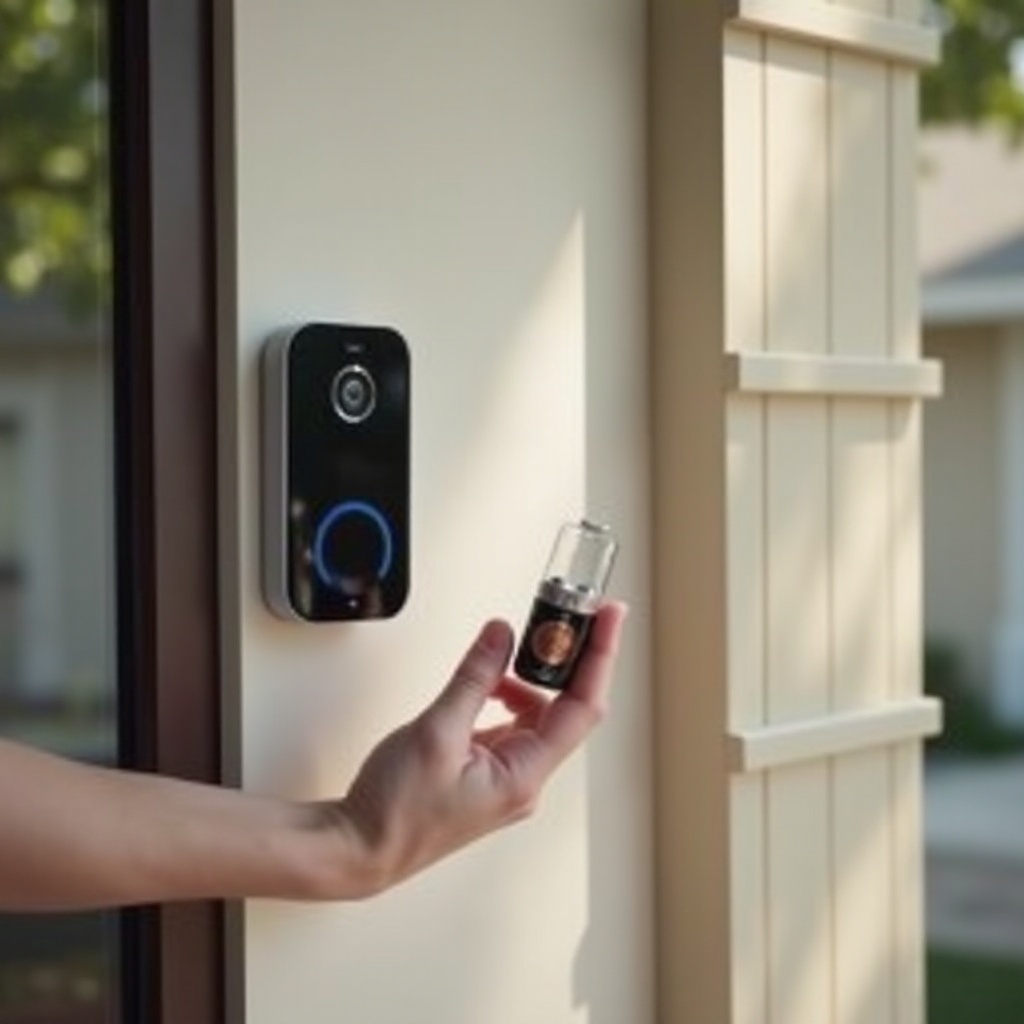
To fix a Blink doorbell that stopped working after a battery change, you need to know what changed when you removed the old batteries. A Blink doorbell is a small, connected device that depends on steady power and a stable network. When you take the batteries out, you cut power. When you put new ones in, the device has to reboot and reconnect.
During that short reboot window, two things matter most: how the doorbell gets power and how it connects to your Wi-Fi and Sync Module. If anything goes wrong in these steps, the doorbell can stay offline or appear dead, even though you have brand new batteries installed.
Power Sources: Battery-Only vs Battery + Wired
Blink video doorbells can work in more than one power setup, and that affects how they act after a battery swap:
- Battery-only:
- The doorbell runs entirely on AA batteries.
- Your existing mechanical chime may not ring unless the system is wired and configured correctly.
- Any problem with battery type, placement, or contact can shut the device down.
- Battery + wired:
- The doorbell connects to your existing doorbell wires.
- The wiring can power or support the chime and help provide a more stable source.
- A loose or corroded wire can show up as a failure right after you remove and reinstall the doorbell to change batteries.
Knowing which setup you have helps you decide whether to focus only on the battery compartment or also check wiring and your indoor chime.
Role of Wi-Fi and the Sync Module
Your Blink doorbell also needs a strong, reliable connection to your home network. It uses:
- Your 2.4 GHz Wi-Fi network for live view, alerts, and clip uploads
- A Blink Sync Module in many setups to coordinate recording and storage
When you change the batteries, the doorbell restarts its software and then tries to reconnect to both Wi-Fi and the Sync Module. If the signal at the door is weak, the router changed settings, or the Sync Module is offline, the doorbell can stay offline after the battery swap.
Now that you understand how power and connectivity work together, you can start with basic checks that often fix the issue in minutes.
First Things to Check Right After a Battery Change
When your Blink doorbell is not working after battery change, avoid hard resets or complex network tweaks at first. Small mistakes during the swap are common and easy to fix. By checking the simple things first, you save time and reduce the risk of wiping settings you still need.
Start with the batteries and the physical installation. If you can rule those out, you will know the problem lies deeper in power, Wi-Fi, or software.
Confirming the Correct Battery Type and Orientation
Blink officially recommends AA 1.5V lithium batteries for the doorbell. Using the wrong type is one of the top reasons the device will not start or will behave oddly after a battery change.
Follow these steps:
- Remove the cover and take out the batteries.
- Check the label on each battery. Make sure they are AA 1.5V lithium batteries, not alkaline or rechargeable NiMH.
- Look inside the battery compartment for the ‘+’ and ‘-‘ symbols.
- Match those symbols with the ends of the batteries and insert each one firmly until it sits flat and secure.
A single reversed battery is enough to keep the doorbell completely dead. Even if you think you installed them correctly, it is worth checking again.
Inspecting Battery Contacts, Cover, and Mount
If the type and orientation are correct, inspect the physical parts that hold the batteries and connect the doorbell to the mount.
Check the following:
- Battery contacts:
- Look for bent, flattened, or pushed-in metal tabs.
- Inspect for dark spots, rust, or greenish buildup that can signal corrosion.
- Cover and latch:
- Confirm the back cover closes fully and clicks into place.
- A loose or warped cover can let the batteries shift and break contact after you release the doorbell.
- Mount:
- Make sure the doorbell is seated properly on its mounting plate.
- Check that it has snapped securely into the mount and does not wobble.
Gently remove and reattach the doorbell to the mount. Sometimes, reseating it firmly after a battery change restores proper contact and solves the issue.
Checking for Obvious Damage or Moisture
Battery changes often expose problems you might not see during normal use. When the cover is off, take a moment to look for damage.
Look for:
- Cracks or splits in the plastic housing
- Water spots, condensation, or rust inside the battery compartment
- Any white, powdery residue around the contacts or screws
- A faint ‘burnt electronics’ smell near the device
If you see moisture:
- Remove the batteries immediately.
- Bring the doorbell indoors and let it dry in a warm, dry room.
- Dab visible moisture with a soft, dry cloth. Do not use a hair dryer or direct heat.
If the unit shows heavy corrosion or clear water damage, there is a chance the internal electronics are affected. You can still try the later steps, but keep in mind that hardware repair or replacement may be needed.
If a quick visual inspection does not reveal the problem, the next step is to look more closely at the batteries themselves, since even ‘new’ batteries can cause trouble.
Battery Problems That Stop Your Blink Doorbell From Working
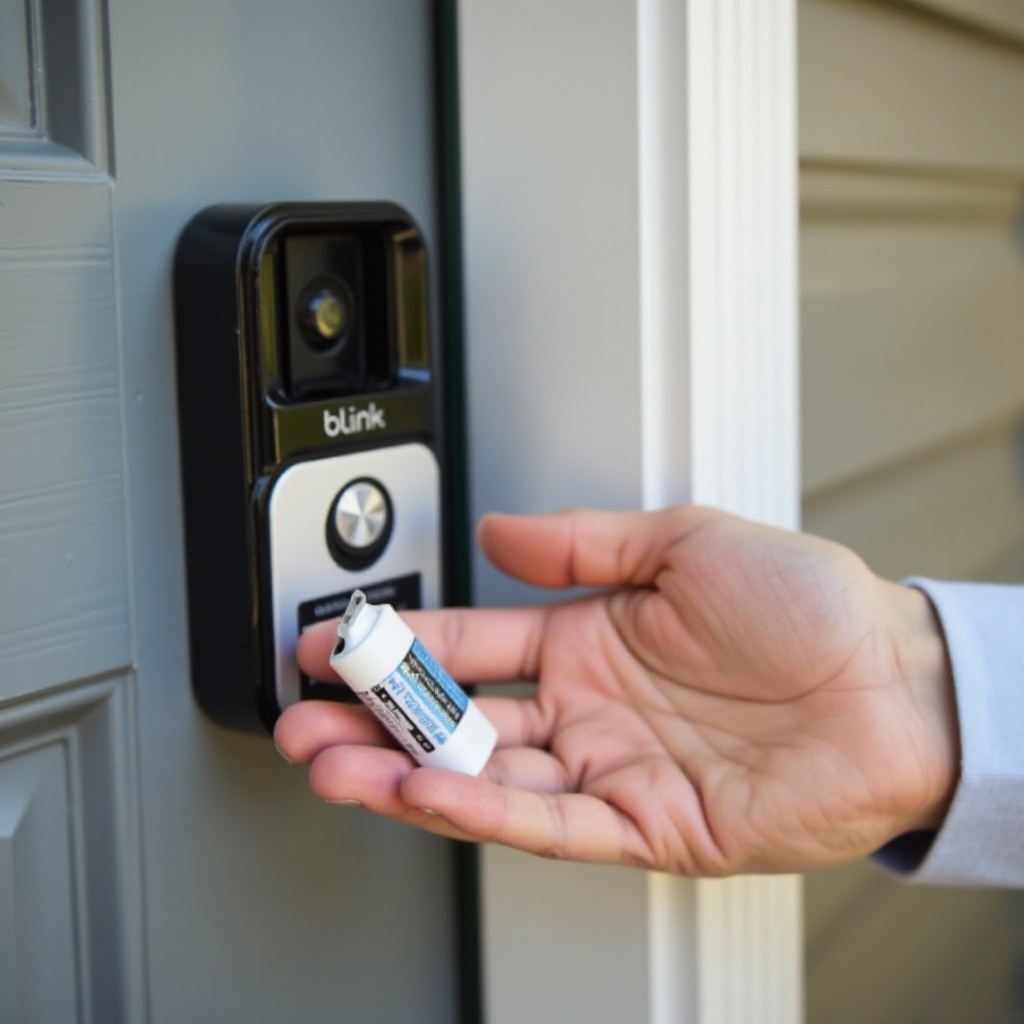
If your Blink doorbell still will not work after checking type, orientation, and physical contact, focus on the batteries themselves. The doorbell is sensitive to voltage drops and battery quality. Issues that never show up in a simple remote or flashlight can cause a smart doorbell to fail.
Many owners assume that if the packaging says ‘new’, the batteries must be good. But age, storage conditions, and battery chemistry all affect how well they perform once installed.
Using Alkaline or Rechargeable Instead of Lithium
Blink designs the doorbell around AA 1.5V lithium batteries. Other options often cause unstable behavior, particularly right after restarts and during recording.
Here is why:
- Alkaline batteries:
- Voltage drops quickly under load.
- They may test as ‘full’ but dip too low when the camera starts recording or connects.
- Rechargeable NiMH batteries:
- Typically provide around 1.2V instead of 1.5V.
- The lower voltage can cause frequent disconnections and failed startups.
If you are using anything other than lithium, replace them with brand-name AA 1.5V lithium batteries and test again. Many Blink doorbell issues disappear as soon as you use the recommended battery type.
Weak ‘New’ Batteries and Cold-Weather Issues
Even if the battery type is correct, they may still be weak or partially drained. This happens when:
- The batteries sat in storage for years before you used them.
- They are from a cheap, low-capacity brand.
- They have been exposed to extreme temperatures.
Cold weather is especially hard on batteries. At low temperatures, voltage and capacity drop, and the doorbell might reboot or shut down under load.
To rule out these issues:
- Try a second set of known-good AA lithium batteries, ideally from a reputable brand.
- If it is very cold outside, bring both the doorbell and the batteries indoors to warm up to room temperature.
- After 30 minutes, insert the warm batteries and test the doorbell again.
If the doorbell comes back to life with a new set of lithium batteries, you have likely found the cause.
Poor Contact, Corrosion, or Bent Battery Terminals
Sometimes, the batteries are fine but the contacts are not. Over time, metal contacts can corrode or lose their spring tension.
Check for:
- Dull, pitted, or discolored contact surfaces
- Green or white buildup at the ends of the contacts
- Springs that look compressed and no longer press firmly on the battery
To clean light corrosion:
- Remove the batteries.
- Use a cotton swab lightly dampened with isopropyl alcohol.
- Gently rub the contacts to remove residue.
- Let the compartment dry completely before inserting batteries again.
If a spring looks flattened, you can carefully lift it a little to restore contact, but do not bend it too far. If contacts are severely corroded, loose, or broken, the doorbell may require professional repair or replacement.
If the doorbell powers on and still will not stay online or respond correctly, it is time to look beyond the batteries and check the Wi-Fi and Sync Module.
Fixing Wi-Fi and Sync Module Issues After a Battery Swap
If the doorbell has power but shows offline in the Blink app or fails to load Live View, the problem is likely with Wi-Fi, the Sync Module, or both. A short power loss from the battery swap can expose weak spots in your network setup.
When the doorbell restarts, it has to reconnect to your router and, in many setups, the Sync Module. If it cannot find a strong signal or the Sync Module is not ready, the doorbell may stay offline even though the batteries are fine.
Why Your Doorbell Shows Offline After the Battery Change
Right after a battery change, the Blink doorbell goes through this basic sequence:
- Boots its internal software.
- Searches for your configured Wi-Fi network.
- Connects to the router and gets an IP address.
- Reconnects to the Sync Module if one is set up.
The doorbell might remain offline if:
- The Wi-Fi signal at the door is too weak or unstable.
- The Wi-Fi network name (SSID) or password changed recently.
- The router is offline or in the middle of a reboot.
- The Sync Module is powered off, too far away, or not fully online.
Open the Blink app and check these details:
- Does the doorbell show ‘Offline’ or a network error?
- Do other Blink devices in your system show as connected?
- Is the Sync Module light solid or blinking, and what color is it?
These clues will tell you whether you should focus on Wi-Fi, the Sync Module, or both.
Reconnecting to Wi-Fi and Checking Signal Strength
If you suspect a Wi-Fi issue, start by refreshing the network and checking signal strength.
Try this sequence:
- Restart your router.
- Unplug it from power for 30 seconds.
- Plug it back in and wait a few minutes for it to fully restart.
- Check signal strength in the Blink app.
- Open the Blink app and go to your doorbell’s device settings.
- Look for a signal strength or RSSI indicator.
- If the signal is weak, consider moving the router closer to the door or reducing obstacles such as thick walls and metal doors.
- Reconnect the doorbell to Wi-Fi if needed.
- In the app, find the option to change or set up Wi-Fi for the doorbell.
- Follow the on-screen steps and enter the correct Wi-Fi password.
- Make sure you select your 2.4 GHz network, not a 5 GHz band.
After you complete these steps, check whether the doorbell shows online and responds to Live View.
Restarting or Resetting the Sync Module Safely
If you are using a Sync Module, it can also keep your doorbell offline after a battery change if it is stuck or out of sync.
To fix this:
- Restart the Sync Module.
- Unplug it from power.
- Wait 10 to 15 seconds.
- Plug it back in and wait for the light to turn solid (usually green).
- Check the module’s status in the Blink app.
- Confirm it appears online and not in an error state.
- Verify that other cameras attached to the same module are working.
- If needed, reset the Sync Module.
- Press and hold the reset button on the module until the status light flashes.
- Use the Blink app to re-add the module to your system.
Once the Sync Module is online and stable, check the doorbell again. Often, restarting the router and Sync Module together resolves persistent offline issues after a battery change.
If Wi-Fi and Sync Module checks do not solve the problem, the next step is to look at software, firmware, and account settings that may have been disturbed during the restart.
App, Firmware, and Account Troubleshooting
When power and network look stable but your Blink doorbell still behaves oddly after a battery change, you should check the app, firmware, and account configuration. A small software glitch, an outdated app, or a mismatch in account settings can block notifications, recording, or even basic connectivity.
Resetting hardware before checking software can create extra work. It is better to make sure the app and firmware are up to date and that your account is set up correctly before you move on to full resets.
Updating the Blink App and Doorbell Firmware
First, update the Blink app on your phone or tablet:
- Open the App Store or Google Play Store.
- Search for ‘Blink Home Monitor’.
- If an update is available, tap to install it.
Next, check the doorbell firmware:
- Open the Blink app and go to the device settings for your doorbell.
- Look for firmware or device information.
- If the app prompts you to update firmware, follow the instructions and keep the doorbell powered and connected until the process completes.
Firmware updates often fix stability, battery, and connectivity issues that may appear right after a restart or battery change.
Removing and Re-Adding the Doorbell in the Blink App
If the doorbell still shows offline, fails to start Live View, or does not record clips, removing it from the app and adding it again can clear hidden configuration errors.
Here is how to do it:
- Open the Blink app and go to the doorbell’s device settings.
- Select the option to remove or delete the device.
- Confirm you want to remove it from your system.
- Return to the home screen and tap the ‘+’ or ‘Add Device’ button.
- Select ‘Video Doorbell’ and follow the pairing steps, scanning any QR code if required.
Re-adding the doorbell gives it a fresh link to your account, Wi-Fi, and Sync Module. Many users find that this step solves stubborn problems that appear right after a battery swap.
Checking Account, Time Zone, and Smart Home Links
If the doorbell connects but acts strangely, review your account-level settings and smart home integrations.
Check the following:
- Account and region:
- Make sure you are logged into the correct Blink account, especially if you use more than one email.
- Confirm your region settings match your location.
- Time zone and schedules:
- Open app settings and set the correct time zone.
- Check any schedules for arming and disarming to make sure they still match your local time.
- Smart home connections:
- If you use Alexa, Google Assistant, or other smart platforms, re-link the Blink skill or service if needed.
- After re-linking, test a doorbell press or live view through the smart assistant.
If app, firmware, and account checks do not fix the issue, and the doorbell has power and appears online, the next step is to test specific functions such as ring, video, and alerts.
When the Doorbell Has Power but No Ring, Video, or Alerts
Sometimes, the doorbell powers on and shows online in the app, yet it does not ring your indoor chime, send notifications, or record clips. This often points to settings or minor network performance issues rather than a complete failure.
By testing live view, motion detection, and button presses one by one, you can narrow down where the problem is and adjust the right settings.
Testing Live View, Motion Detection, and Button Presses
Start with a quick function test:
- Test Live View.
- Open the Blink app.
- Tap the Live View button for your doorbell.
- If it connects and shows video, the camera and Wi-Fi are working.
- Test a button press.
- Press the doorbell button.
- Check if your phone receives a notification or call-like alert.
- See whether any linked smart display shows the doorbell feed.
- Test motion detection.
- Walk in front of the doorbell at normal speed.
- Check if the app records a motion clip or lists a motion event.
If Live View works but button presses or motion do not trigger anything, the problem is likely in notification, motion, or chime settings.
Doorbell Online but No Indoor Chime or Notifications
If the doorbell appears online but your indoor chime and phone stay silent, follow these steps:
- Indoor chime:
- Open doorbell settings in the Blink app and look for chime options.
- Confirm that chime settings match your existing mechanical or digital chime.
- If your doorbell is wired, check that the wires are firmly attached and not corroded.
- Phone notifications:
- In the Blink app, ensure notifications are enabled for motion events and doorbell presses.
- On your phone, check system notification settings and make sure the Blink app can send alerts.
- Turn off Do Not Disturb or Focus modes and test again.
After adjusting these settings, do a fresh test with a button press and some motion in front of the camera to confirm everything works.
Advanced Network Checks: Routers, Mesh, and Interference
If features work sometimes but not always, your network may be unstable. In that case:
- Log into your router’s admin page and look for signs of frequent Wi-Fi disconnects.
- If you use mesh Wi-Fi, make sure the doorbell connects to the nearest node instead of one farther away.
- Reduce interference by keeping the router away from microwaves, cordless phones, and large metal objects.
- Disable network features that may block devices, such as MAC filtering, until you finish testing.
Once you have tested features and tuned your network, you should have a clear picture of whether the issue is configuration-based or something deeper. If problems persist, you may need to try reset options and consider possible hardware failure.
Reset or Replace? Knowing When Hardware Is the Problem
After you have checked batteries, Wi-Fi, app, firmware, and settings, and your Blink doorbell still is not working after a battery change, hardware issues become more likely. Before you decide to replace the device, it is worth trying a soft reset and, if needed, a factory reset.
Resets can clear internal errors caused by sudden power loss, but they also remove some settings. That is why you should attempt them only after simpler steps fail.
Soft Reset vs Factory Reset: Which to Try First
Begin with a soft reset, which is quick and low risk:
- Remove the batteries from the doorbell.
- Wait 30 to 60 seconds.
- Insert two fresh AA lithium batteries with correct polarity.
- Watch the LED to see if the doorbell boots normally.
If a soft reset does not restore normal operation, consider a factory reset. The exact method can vary by model, but it usually involves:
- Pressing and holding a reset button on the doorbell for a specific number of seconds.
- Waiting for a particular light pattern that confirms the reset.
- Re-adding the doorbell in the Blink app as a new device.
Remember that a factory reset wipes configuration. Make a quick note of your important settings before you proceed.
Signs of a Failing Doorbell You Probably Can’t Fix
Some symptoms strongly suggest a hardware fault that you cannot solve with resets:
- The doorbell never powers on, even with multiple sets of known-good AA lithium batteries.
- The LED flickers once and then goes dark every time you insert batteries.
- The button feels stuck, mushy, or does not click at all.
- You see heavy corrosion, melted plastic, or clear internal water damage.
When you see these signs, continued troubleshooting may not help. Instead, you should focus on support and possible replacement options.
Using Warranty and Support Before Buying a New Device
Before you purchase a new Blink doorbell, check whether you can get a repair or replacement under warranty.
Follow these steps:
- Find your purchase date and keep your receipt or order confirmation handy.
- Write down the model number and serial number of your doorbell.
- Take clear photos of the device, battery compartment, and any visible damage.
- Make a list of all troubleshooting steps you have already tried, including battery types, Wi-Fi resets, and app updates.
- Contact Blink support through their official website or app and provide this information.
Explain that your Blink doorbell stopped working after a battery change and detail the tests you performed. Support agents can guide you through final checks and, if the device is still under warranty, may offer repair or replacement.
If you decide to keep or replace the doorbell, it is worth adopting a few simple habits that reduce the risk of running into the same issue the next time you change batteries.
How to Prevent Blink Doorbell Problems After Future Battery Changes
Once your doorbell is working again, you can avoid repeat problems by following some easy prevention tips. A small amount of planning during each battery swap goes a long way toward keeping your Blink doorbell online and reliable.
By choosing the right batteries, using a repeatable swap routine, and performing light seasonal maintenance, you can make future battery changes quick and painless.
Choosing the Right Batteries and Change Interval
To keep your Blink doorbell stable across battery changes, follow these guidelines:
- Use brand-name AA 1.5V lithium batteries only.
- Avoid alkaline and rechargeable batteries, which can cause unstable voltage and shorter life.
- Replace batteries when the Blink app reports low battery, rather than waiting for a complete shutdown.
- If your doorbell faces extreme heat or cold, consider changing batteries just before the harshest season to reduce stress.
Store spare batteries in a cool, dry place. Do not mix old and new cells in the doorbell, as this can reduce performance and cause uneven drain.
A Simple, Repeatable ‘Battery Swap Routine’
Create a short routine you follow every time you change batteries. For example:
- Open the Blink app and note your current settings and device status.
- Remove the doorbell from its mount carefully.
- Take out the old batteries and inspect the compartment for dust, moisture, or corrosion.
- Clean any light debris or residue with a soft, dry cloth.
- Insert two fresh AA lithium batteries, matching the ‘+’ and ‘-‘ symbols.
- Close the battery cover until it clicks and feels secure.
- Re-mount the doorbell, ensuring it snaps firmly onto the plate.
- Open the app, confirm the doorbell is online, and test Live View, motion detection, and a button press.
This routine adds just a few extra seconds but helps catch small problems early, before they turn into full outages.
Seasonal Maintenance and Protecting Against Weather
Because your Blink doorbell sits outside, it faces rain, dust, sun, and temperature swings. A little seasonal maintenance reduces the risk that a simple battery change will reveal deeper damage.
Consider these simple steps:
- Wipe the lens and body with a soft, dry cloth to remove dirt and spider webs.
- Inspect rubber seals and gaskets around the battery door to ensure they are intact and flexible.
- If your doorbell is exposed to heavy rain or direct sun, consider installing a small weather hood or shield designed for smart doorbells.
- Once or twice a year, check the mounting screws and, if wired, look at the wiring connections for signs of corrosion or looseness.
By maintaining both the doorbell and its power source, you reduce the chance that the next battery change will trigger surprises. With a good routine, future swaps should be quick, simple, and trouble-free.
Conclusion
A Blink doorbell not working after battery change can feel frustrating, especially when the device seemed fine just moments before. In many cases, though, the battery swap does not cause a new problem. It simply exposes an existing weak point in your batteries, contacts, Wi-Fi, or settings.
By moving step by step through power checks, recommended battery types, Wi-Fi and Sync Module status, app and firmware updates, and finally reset options, you can usually bring the doorbell back to life without professional help. When these steps point to hardware failure, a careful review with Blink support and a check of your warranty can guide you toward repair or replacement.
Once everything works again, a simple battery swap routine and light seasonal maintenance will help keep your Blink doorbell online and responsive every time you change batteries. That way, your doorbell can keep doing its job: recording video, sending alerts, and helping you see who is at the door when it matters most.
Frequently Asked Questions
Why is my Blink doorbell still offline even after installing fresh batteries?
If your Blink doorbell is still offline after a battery change, the batteries may be fine but the connection is not. Check Wi-Fi signal strength in the Blink app, restart your router and Sync Module, and make sure the doorbell connects to a 2.4 GHz network with the correct password. Removing and re-adding the device in the app can also refresh the connection.
Can I use rechargeable batteries in my Blink doorbell without causing problems?
Rechargeable NiMH batteries typically provide about 1.2V instead of the 1.5V that Blink recommends. This lower voltage can lead to frequent disconnects, failed startups, and shorter runtime. For best performance, especially after restarts or battery changes, use non-rechargeable AA lithium batteries from a reputable brand.
Do I need a Sync Module for my Blink doorbell to work reliably after a battery change?
A Blink doorbell can operate without a Sync Module, but many systems use one for better clip storage and more stable coordination. A Sync Module can improve reliability and make reconnecting smoother after a battery swap. If your doorbell goes offline after changing batteries and you use a Sync Module, restart or reset the module along with your router to restore a stable link.