
How to Transfer Clips from PS5 to Phone: A Complete Guide
Introduction
Capturing iconic gaming scenes on your PS5 is an absolute thrill. Sharing these moments with friends on your mobile makes it even better. To enhance your gaming experience, you’ll want to know the best ways to transfer clips from your PS5 to your phone. This comprehensive guide will help you navigate through effective methods to ensure your gaming clips are always handy and easily shareable.
Setting Up Your PS5 for Clip Transfers
Before you begin transferring clips, it’s essential to have your PS5 optimally configured.
-
Ensuring Software is Up-to-Date: Start by verifying that your PS5’s firmware is current. Navigate to ‘Settings’, go to ‘System’, then ‘System Software’, and select ‘System Software Update and Settings’. This will ensure all new features are compatible, which in turn avoids any possible hitches during the transfer process.
-
Configuring Capture Settings: Enhance transfer ease and clip quality by adjusting your capture settings. Head to ‘Settings’, choose ‘Captures and Broadcasts’, and configure the settings as you desire. Selecting the right resolution and video format greatly impacts both clip quality and transfer speed.
With these preliminaries in place, you’re now ready to explore various clip transfer methods.
Using the PlayStation App for Transfers
The PlayStation App is a convenient tool that connects your mobile device directly to your PS5, facilitating smooth clip transfers.
-
Installing and Setting Up the PlayStation App: Begin by downloading the PlayStation App from your device’s app store. Once installed, log in using your PlayStation Network credentials. Ensure that both your PS5 and phone are on the same Wi-Fi network to establish a seamless connection.
-
Syncing PS5 with the PlayStation App: Within the app, your PS5 should be visible under available devices. Select it to connect. This connectivity allows easy access to your game captures.
-
Accessing and Downloading Clips via the App: Head to the ‘Library’ tab in the app, tapping on ‘Captures’ to view your saved clips. Choose the ones you’d like to download straight to your phone. This method not only maintains the original clip quality but is also one of the swiftest ways to transfer.
In instances where internet connectivity is irregular, using a wired LAN connection for your PS5 can rectify any issues. For users preferring physical transfers, the USB method below offers a robust alternative.
Transferring Clips via USB
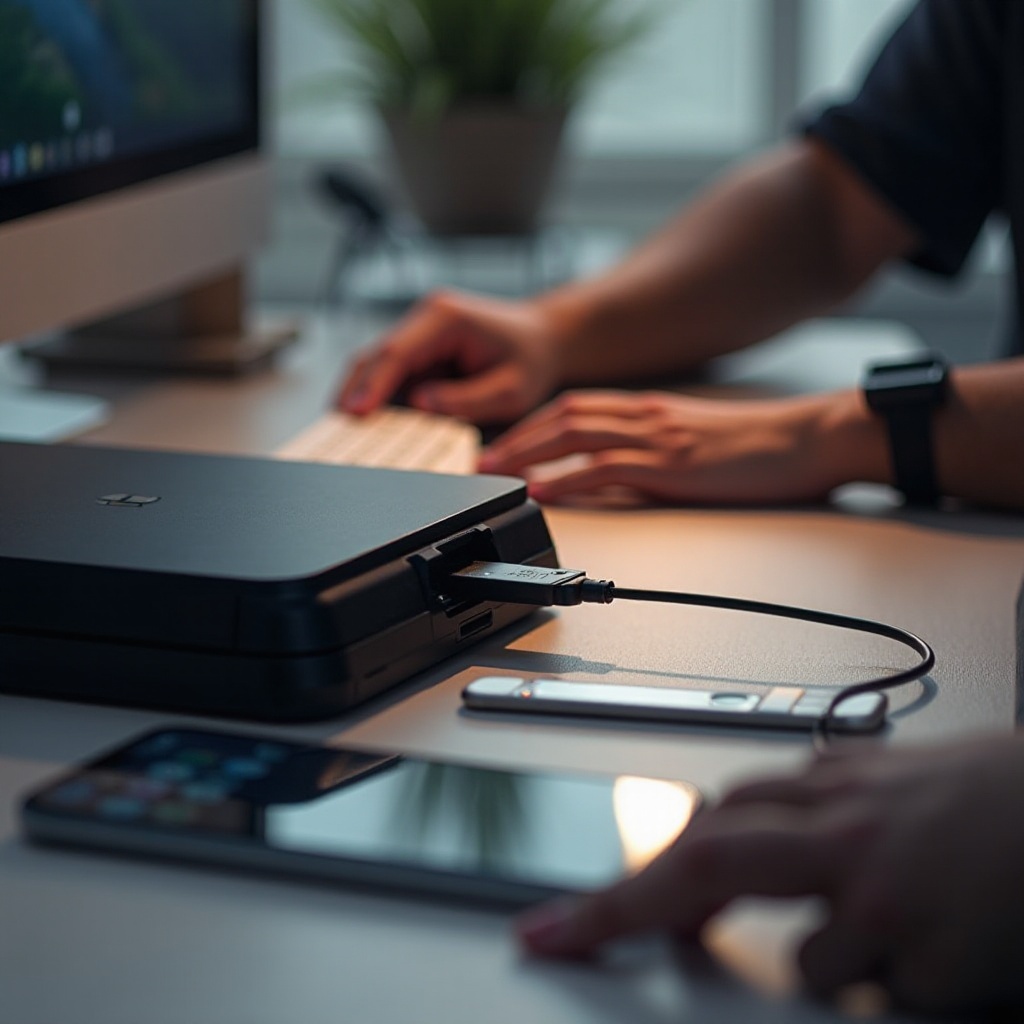
Transferring clips through a USB drive provides a tangible and reliable approach.
-
Choosing the Right USB Drive: Opt for a USB drive formatted to either exFAT or FAT32. Make sure it has adequate capacity for your clips.
-
Formatting USB for PS5 Use: Insert the USB into your PS5’s USB slot, then navigate to ‘Settings’, find ‘Storage’, and ensure the system recognizes it. Format as exFAT if necessary.
-
Steps to Transfer Clips to USB and Phone:
- Navigate to ‘Media Gallery’ on your PS5.
- Select the clips to be transferred.
- Choose ‘Copy to USB Drive’.
- Remove the USB, and connect it to a computer or your phone to complete the file transfer.
Once clips are on the USB, ensure your mobile device supports the video format for optimal playback.
Alternative Cloud-Based Methods
Cloud storage offers a flexible, remote way to manage PS5 clips, bypassing the need for physical connections.
-
Utilizing Cloud Storage Services: Services such as Google Drive, Dropbox, or OneDrive allow effortless uploading and downloading of clips.
-
Uploading PS5 Clips to Cloud: Using a computer, upload your clips to the cloud service of your choice. Many of these services offer app platforms that enable rapid uploads.
-
Downloading Clips on Mobile Devices: Post-upload, use the mobile app of the respective cloud service to pull your clips to your phone. This pathway gives you the added benefit of creating backups that are accessible from various devices.
Each transfer method has its benefits, but maintaining clip integrity is crucial.
Tips for Maintaining Clip Quality and Format
To ensure your clips maintain high quality during and after transfers, observe these pointers:
-
Understanding File Types and Video Quality: Choose universally recognized formats like MP4 which provide excellent viewing quality and manageable file sizes.
-
Recommended Apps for Editing Clips on Phone: Once clips are on your phone, consider editing them with apps like Adobe Rush or InShot to enhance presentation for sharing.
When issues arise, troubleshooting is key.
Troubleshooting Common Transfer Issues
Occasional bumps in the process are normal; here’s how to deal with them:
-
Fixing Connectivity Errors: Verify if your devices share the same network and check your USB for secure digital connections. Physical damages should also be inspected.
-
Resolving File Format Problems: Use tools like video converters if files need converting. For versatile playback, apps such as VLC Player cater to numerous formats on mobile.
With your clips now transfer-ready and available on your phone, let’s conclude.
Conclusion
Transferring your PS5 clips to your phone can be simple and effective, thanks to the diverse options available. Whether favoring the PlayStation App, USB drives, or cloud storage services, each method caters to varying preferences and ensures your gaming achievements are always ready for viewing and sharing.
Frequently Asked Questions
Why can’t I see my clips in the PlayStation App?
Ensure your PS5 is connected to the app and both devices are on the same network. Logging out and back in or refreshing the app may help.
What is the best format to use when transferring clips?
MP4 format is recommended as it ensures compatibility with most devices without compromising quality.
How do I fix a USB not recognized by my PS5?
Check that your USB is formatted correctly (exFAT or FAT32) and try a different USB port. Inspect the drive for any physical damage.