Where Is the App Store on Samsung Smart TV? Complete 2024 Guide
Introduction
You buy a new Samsung Smart TV, turn it on, and start hunting for the ‘App Store.’ The screen looks modern and full of icons, but there is no button that says ‘App Store’ anywhere. It is easy to think something is wrong with the TV or the setup.
Samsung does things differently from phones and many other smart TV brands. Instead of a clear ‘App Store’ label, Samsung hides its app marketplace behind a simple ‘Apps’ icon inside the main Home screen. If you do not know this, you can spend a lot of time searching for something that is not there.
This guide explains exactly where the app store is on a Samsung Smart TV, what Samsung calls it, and how to open it in just a few clicks. You will also learn how to set up the TV for app downloads, how to install and organize apps, and how to fix common problems when the app store or apps are not showing. Finally, you will see what to do about Google Play Store and which apps you should install first to get the most from your TV.
What Samsung Calls Its ‘App Store’ on Smart TVs
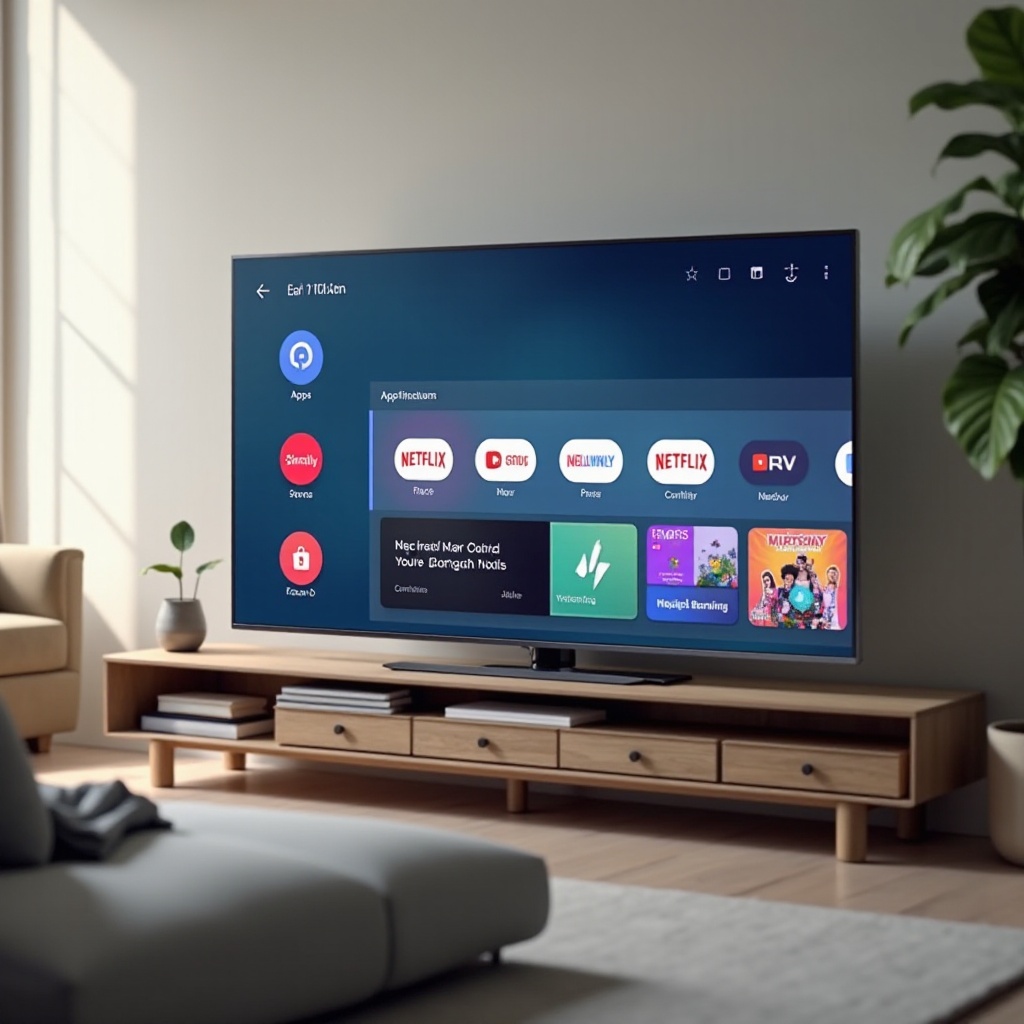
The main reason people search ‘where is app store on Samsung Smart TV’ is that Samsung does not use the phrase ‘App Store’ at all. On Samsung Smart TVs, the app store is simply called Apps.
Here is how Samsung organizes things:
- Home screen / Smart Hub: This is the main dashboard that appears when you press the Home button on your remote. It shows a horizontal row or panel of apps, inputs, and recommendations.
- Apps: This is the section inside the Home screen that acts as the app marketplace. It lets you browse, search, install, update, and manage apps.
On a modern Samsung Smart TV, the ‘Apps’ icon is usually visible in the main row when you press the Home button. It may appear as a tile labeled ‘Apps,’ often with a small grid icon. When you open that tile, you are effectively inside Samsung’s app store, even though the word ‘store’ is never used.
This naming can be confusing if you expect a dedicated ‘App Store’ or ‘Google Play’ button. Once you understand that ‘Apps’ is the app store, the next step is learning how to open it quickly on your own TV.
How to Quickly Find the App Store on Samsung Smart TV (Step-by-Step)
Finding the app store on your Samsung TV is straightforward when you know which buttons to press. The process is similar across current Samsung Smart TVs, which keeps things simple once you learn it.
Using the Home Button to Open the Smart Hub
Start with your remote in hand:
- Press the Home button. On many remotes, it has a small house icon.
- The Home screen, sometimes called Smart Hub, will appear. You will see a row or panel of apps and options along the bottom or middle of the screen.
This Home screen is your main control center. Every time you want to use apps, change sources, or open settings, you will begin here.
Locating the ‘Apps’ Icon on the Home Screen
Once the Home screen is open, you can find the app store like this:
- Use the left and right arrow buttons on your remote to move along the row of icons.
- Look for a tile labeled Apps. It may be near the middle or right side of the row, depending on your model and layout.
- When the ‘Apps’ tile is highlighted, press the Enter/OK button in the center of the directional pad.
You are now inside the Samsung app marketplace. This is where you browse categories, search for specific apps, and install or manage them. Think of this screen as your Samsung TV’s app store.
Opening Apps (App Store) with Voice Control
If your Samsung remote has a microphone button, you may be able to use voice commands to reach the app store even faster:
- Hold down the mic/voice button on the remote.
- Say something like ‘Open Apps’ or ‘Open Samsung Apps’.
- Release the button and wait for the TV to respond.
On models that support Bixby, Alexa, or Google Assistant, the TV should open the ‘Apps’ section directly. This is a quick shortcut if you do not want to scroll through the Home bar.
Now that you can reliably reach the app store on your Samsung Smart TV, you need to make sure the TV itself is ready to download and run apps without errors.
Setting Up Your Samsung Smart TV for App Downloads
Knowing where the app store is only helps if your TV can connect to the internet and is properly set up. If these basics are not in place, you will see connection errors, missing apps, or problems installing anything.
To avoid headaches, you should confirm three things: network connection, Samsung account sign-in, and Smart Hub setup.
Connecting to Wi-Fi or Ethernet
Your Samsung Smart TV must be online for the app store to work:
- Press Home on the remote.
- Go to Settings (the gear icon).
- Select Network or Connection, depending on your model.
- Choose Wireless to use Wi-Fi, or Wired for Ethernet.
- If using Wi-Fi, pick your network from the list, enter your password, and confirm.
A wired Ethernet connection often gives the most stable performance for 4K and long streaming sessions. However, a strong Wi-Fi signal close to your router usually works very well too.
Signing In with a Samsung Account
Samsung encourages you to use a Samsung account to unlock all features of Smart Hub and the app store:
- Press Home and open Settings.
- Select General or All Settings.
- Choose System Manager or Accounts, then pick Samsung Account.
- Sign in with your existing Samsung account, or create a new one by following the on-screen prompts.
With a Samsung account, you can download apps, sync some preferences, and receive more personalized suggestions. It also helps if you use multiple Samsung devices.
Accepting Smart Hub Terms and Privacy Policies
If your TV is new or recently reset, Samsung will ask you to agree to certain terms before Smart Hub and Apps work correctly:
- When prompted during setup, read and accept the Smart Hub terms and privacy policies.
- If you skipped this step earlier, some app store features may be blocked.
- To check or accept them later, go to Settings > Support > Terms & Policy (or a similar path on your model).
After you have a stable network, a signed-in Samsung account, and accepted terms, your TV is ready to use the app store fully. The next step is actually installing, managing, and arranging your apps so they are easy to reach.
Installing, Managing, and Organizing Apps from the App Store
With the app store open and the TV set up, you can turn the ‘Apps’ section into the center of your entertainment. You will use it not only to find and install apps but also to keep them organized and easy to access.
Searching for Apps by Name or Category
Inside the ‘Apps’ section, the TV shows featured apps and recommendations. To find specific services:
- Open Apps from the Home bar.
- Use the Search icon, usually a magnifying glass in the top right or top left corner.
- Type the name of the app you want, such as Netflix, Disney+, or Prime Video.
- Alternatively, browse by categories like Video, Sports, Lifestyle, or Games if you are exploring new apps.
Search is ideal when you know exactly what you want. Categories help when you are looking for ideas or comparing services.
Installing and Launching New Apps
Once you find the app you want:
- Highlight the app tile and press Enter/OK to open its detail page.
- Read the description if needed, then choose Install.
- Wait while the app downloads and installs. A progress bar usually appears.
- When the process completes, click Open to launch the app right away.
After installation, the app is added to your Apps list, and often to your Home screen bar. You can always find it again by opening the Apps store and looking in the ‘Downloaded’ or ‘My Apps’ area.
Adding, Reordering, and Removing Apps on the Home Bar
To keep your favorite streaming services and tools close at hand, you should customize the Home bar:
- Press Home to open the main row of apps.
- Highlight the app you want to change.
- Press and hold the Enter/OK button, or press the Options button if your remote has one.
- Choose one of the available options:
- Add to Home: Pins the app to the main Home bar if it is not already there.
- Move: Lets you move the app left or right to set your preferred order.
- Remove: Removes the app from the Home bar. It may remain installed and visible in the Apps section unless you uninstall it.
A well-organized Home bar means you rarely need to open the full Apps store. Your most-used apps will sit right at the front of the row, ready to launch in one or two clicks. If you still do not see the app store or certain apps inside it, there may be underlying issues to address.
Why You Might Not See the App Store on Your Samsung Smart TV
Sometimes you follow all the steps, but the ‘Apps’ icon seems missing, empty, or limited. This can be frustrating when you just want to watch something. Several common factors can cause this problem: region settings, network issues, or software glitches.
Understanding these causes helps you pick the right fix and avoid unnecessary resets or support calls.
Region and Location Settings Problems
Samsung restricts some apps based on your region or country:
- If the TV’s region is set to the wrong country, many apps might not appear.
- Some services only operate in specific locations, so they simply will not show in the store if you are outside those areas.
To check region-related settings:
- Go to Settings > General.
- Look for options like System Manager or Location.
- Check the region, and adjust only if you understand the impact. Changing region can reset Smart Hub and remove installed apps.
If you are unsure, contact Samsung support before switching regions, as doing so can lead to more setup work.
Network or Server Connection Issues
When your TV cannot reach Samsung’s servers, the app store may fail to load or show incomplete content:
- You might see messages such as ‘Unable to connect to Samsung server.’
- The Apps screen may appear blank, slow, or stuck on loading.
Common causes include weak Wi-Fi, router issues, or a temporary problem with your internet provider. In many cases, a simple network test and router restart will fix the issue, which we cover in detail in the next section.
Outdated TV Software or Smart Hub Glitches
Outdated firmware can also block features inside the app store or cause icons to vanish:
- Some newer apps or functions require the latest Samsung software update.
- Smart Hub data can sometimes become corrupted, which affects how the Apps section appears.
If you suspect this, updating your TV software and resetting Smart Hub are strong next steps. These actions often restore missing options without needing a full factory reset.
Now that you know the typical reasons why the app store may not appear or may not work properly, you can move on to concrete troubleshooting steps.
Fixing Common App Store Issues on Samsung Smart TV
You do not need to be a technician to fix most app store problems on a Samsung Smart TV. A few targeted steps can restore access in many cases. Work through them in order so you do not perform a full reset before trying simpler solutions.
Running a Network Test and Resetting the Router
Start by making sure your TV can reach the internet:
- Press Home and open Settings.
- Select Network.
- Choose Network Status or Test Connection.
If the test shows no connection or errors:
- Restart your router and modem by unplugging them for about 30 seconds, then plugging them back in.
- On the TV, disconnect from Wi-Fi and reconnect, or reboot the TV by turning it off and on.
If problems continue, you can also move the router closer to the TV or use a wired Ethernet connection for more stability. Only adjust DNS settings if you are comfortable working with network details.
Updating Samsung TV Software Manually
Next, make sure your TV runs the latest software version:
- Press Home, then open Settings.
- Select Support.
- Choose Software Update.
- Click Update Now.
If an update is available, allow it to download and install. The TV may restart during this process. When it powers back on, open the Apps store again and check if the missing features or apps are back.
Resetting Smart Hub and When to Use a Factory Reset
If network and software checks do not solve the issue, reset Smart Hub:
- Go to Settings > Support.
- Select Device Care or Self Diagnosis, depending on your model.
- Choose Reset Smart Hub.
- Enter your PIN when asked, usually 0000 unless you changed it.
This step signs you out of apps and clears some Smart Hub data. After the reset, you will need to sign in again and re-add apps to the Home bar. However, it often fixes app store malfunctions.
Only consider a full factory reset if nothing else works:
- Open Settings > General.
- Select Reset.
- Enter your PIN and confirm.
A factory reset returns your TV to its original state. You will have to repeat network setup, Samsung account sign-in, and app installation. If issues remain after that, contact Samsung support for further help.
Once your app store is healthy again, you might wonder if you can expand it further with Google Play Store or other third-party app solutions.
Can You Install Google Play Store or Third-Party Apps on Samsung Smart TV?
Many people who ask ‘where is app store on Samsung Smart TV’ hope they can install the Google Play Store next. It is important to understand the limits of Samsung’s system before you spend time chasing methods that do not work or create risks.
Why Google Play Store Is not Available on Samsung TVs
Samsung Smart TVs run on Tizen OS, which is different from Android TV or Google TV. Because of this:
- You cannot install the Google Play Store directly on a Samsung Smart TV.
- Android APK files are not designed to run natively on Tizen OS.
The built-in Apps section is the only official app marketplace on Samsung Smart TVs. Anything else you see online that claims to install Google Play directly on Tizen is most likely outdated or unsafe.
Safe Alternatives: Streaming Sticks and Casting
If the Samsung app store does not include a service you want, you still have practical options:
- Streaming devices:
- Chromecast with Google TV
- Amazon Fire TV Stick
- Roku streaming players
- Apple TV
Plug one of these devices into an HDMI port on your TV, follow its setup steps, and use its own app store alongside Samsung’s Apps store.
- Casting from phones or tablets:
- Cast content from Android or iOS apps to compatible services on your Samsung TV.
- Use screen mirroring options like Smart View or AirPlay (where supported) to show your phone screen on the TV.
This approach gives you more apps without changing the TV’s software or risking security.
Security Risks of Unofficial Workarounds
You may find guides that promise ‘side-loading’ Android apps or installing Google Play Store through hidden menus. These methods usually come with serious downsides:
- They can void your TV warranty.
- They may expose your TV and home network to malware or security threats.
- They are often designed for older models and no longer work correctly on current TVs.
For a safe and stable setup, stick to the official Apps store and reputable external streaming devices. With that in mind, it is time to look at which apps you should install first to get the most out of your Samsung Smart TV.
Must-Have Apps to Install First from the Samsung App Store
Now that you know exactly where the app store is on your Samsung Smart TV and how it works, you can fill it with the apps you use every day. While choices depend on your country and subscriptions, some app types are useful for almost everyone.
Popular Streaming and Live TV Apps
For movies, shows, and series, start with:
- Netflix
- Disney+
- Amazon Prime Video
- Hulu
- Max (HBO content)
- YouTube
- Peacock
- Paramount+
If you watch live TV or sports via streaming, look for services such as:
- YouTube TV
- Sling TV
- Hulu + Live TV
- Fubo
Availability can vary by region, but these are common options that cover most viewing needs.
Sports, Kids, and Lifestyle Apps
Beyond general streaming, you can tailor your Samsung TV to match your interests:
- Sports: Look for league apps and dedicated sports networks where offered. They often provide live games, highlights, and analysis.
- Kids: Choose child-friendly streaming apps and channels with strong parental controls and curated content.
- Lifestyle: Install fitness, yoga, workout, cooking, and music apps to turn your TV into a tool for exercise, learning, and background music.
With the right mix, your TV becomes a central hub for the whole family, not just a screen for movies.
Utility Apps for Casting and Media Playback
You may also want some utility apps and features that make your TV more flexible:
- Built-in screen mirroring (like Smart View), which lets you mirror your phone or tablet screen.
- Local media player apps for watching videos from USB drives or your home network.
- Apps that help you cast or share content from devices if your TV model needs them.
Once you have your app lineup installed and your Home bar organized, you will rarely need to think about where the app store is. You will simply press Home, choose an app, and start watching.
Conclusion
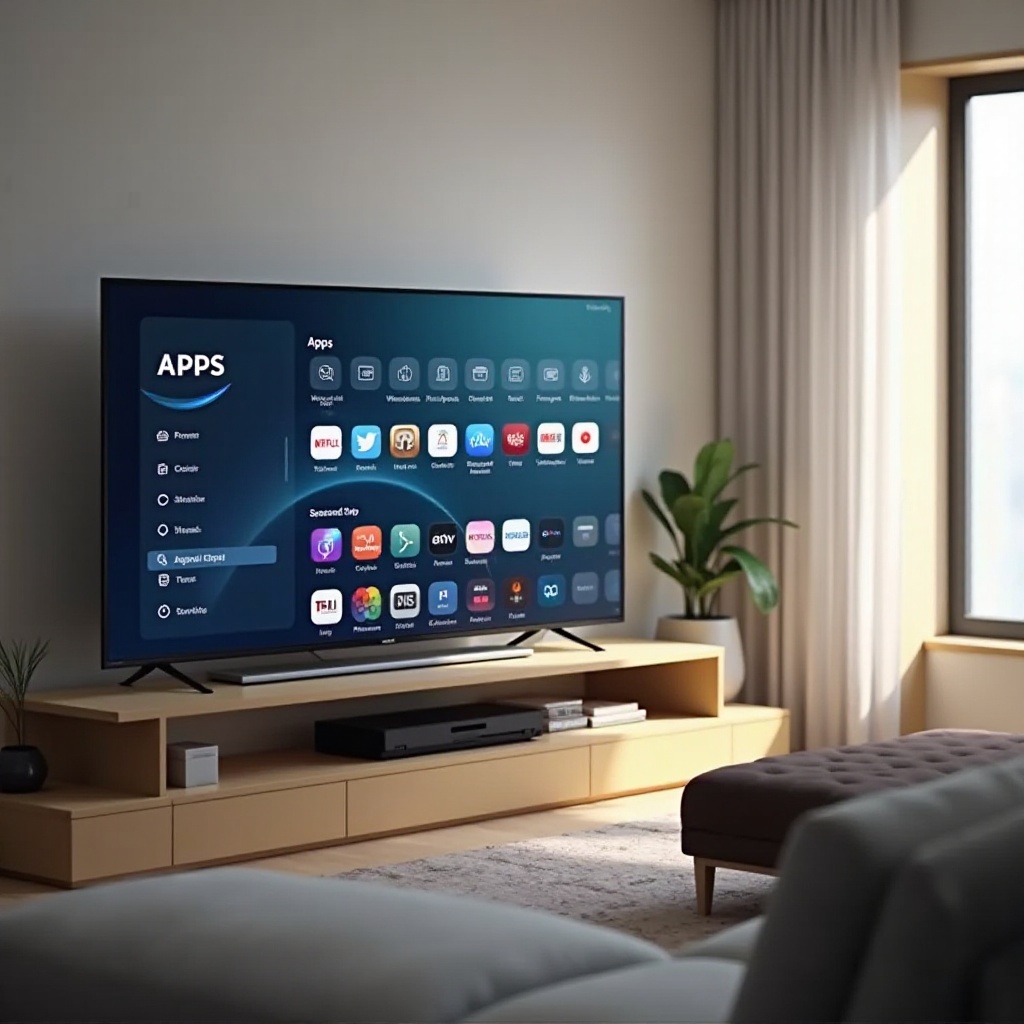
On a Samsung Smart TV, the answer to ‘where is app store on Samsung Smart TV’ is simple once you know the trick. There is no button called ‘App Store.’ Instead, Samsung hides the app marketplace behind the Apps tile on the Home screen. That section is your full app store, where you can find, install, and manage everything you need.
You have learned how to open Apps from the Home button, how to use voice commands, and how to set up your network and Samsung account so downloading works smoothly. You have also seen how to install and organize apps, why the app store might not show, and how to fix issues through network checks, software updates, and Smart Hub resets.
While you cannot install Google Play Store directly on Samsung’s Tizen OS, you can expand your options with safe solutions like streaming sticks and casting. Once your TV is configured and filled with must-have apps, the whole experience becomes simple: press Home, select an app, and enjoy your content without wondering where the app store went.
Frequently Asked Questions
Why can’t I find the Apps icon on my Samsung Smart TV home screen?
If the Apps icon does not appear, your TV may not be fully set up, the Smart Hub may have a glitch, or the TV may be offline. First, go to Settings > Network and run a network test. Restart your router and the TV, then check again. If the Apps icon is still missing, open Settings > Support > Device Care or Self Diagnosis and choose Reset Smart Hub. After the reset, sign in with your Samsung account and look for the Apps tile on the Home screen.
How do I update apps if the Samsung App Store isn’t working properly?
Start by confirming your internet connection under Settings > Network > Network Status. Next, update your TV software via Settings > Support > Software Update > Update Now. When the TV restarts, open Apps and go to the settings menu inside the app store. Turn Auto Update on so apps update by themselves. If the Apps store still behaves oddly, use Reset Smart Hub under Settings > Support > Device Care or Self Diagnosis. This step often restores normal app updating.
Is there any way to get the Google Play Store on a Samsung Smart TV in 2024?
You cannot install the Google Play Store directly on a Samsung Smart TV because the TV runs Tizen OS, not Android TV or Google TV. Any method that claims to put Play Store on Tizen usually involves risky hacks or outdated tricks. Instead, connect a streaming device such as Chromecast with Google TV, Amazon Fire TV, Roku, or Apple TV to an HDMI port. These devices include their own app stores and work alongside your Samsung TV without altering its software.