Does Ring Camera Show When Someone Is Watching? A Complete 2024 Privacy & Indicator Guide
Introduction
Smart home cameras make it easy to check on a package, see who rang the doorbell, or make sure your kids got home. But many people feel uneasy and ask a simple question: does Ring camera show when someone is watching?
You might worry that a housemate, landlord, or even a hacker could peek through your Ring camera without you noticing. On the other side, guests and neighbors want to know if they can tell when they are on camera and when someone is watching them live.
This guide breaks down exactly what Ring devices show when someone starts Live View, what the lights mean, what the app tells you, and how to lock down access. You will also learn how Ring compares with other brands and how to use cameras fairly with people who share your space.
Next, we will start with how Ring cameras actually work and what ‘watching’ really means in a technical sense.
How Ring Cameras Work and What ‘Watching’ Really Means
When people ask if a Ring camera shows when someone is watching, they usually mean ‘Live View.’ To understand what the camera reveals, you need to know how Ring handles video and who can start a live stream.
Live View vs Motion-Triggered Recording
Ring cameras work in two main ways:
-
Motion-triggered recording
The camera wakes up and records when its motion sensor detects movement or when someone presses the doorbell. It then uploads the clip to the cloud (if you have a subscription) and sends alerts to your phone.
-
Live View
You open the Ring app, tap the camera, and start a live stream. This is the moment people worry about: someone actively choosing to watch the feed right now.
In this context, ‘watching’ means somebody has started a Live View session, not just that the camera is powered on or capable of recording.
Who Can Access Your Ring Camera Feed
By default, the account owner controls the camera. However, they can:
- Add shared users who can view the live feed and recordings
- Connect Ring to Alexa devices, like an Echo Show or Fire TV, that can also view the feed
- Use the Ring app on several phones or tablets under the same login
Each of these access points can start a Live View session. That is why it is vital to manage who has that access.
Ring Devices Covered (Doorbells, Indoor, Outdoor, Floodlight, Stick Up)
Ring has several device types, and indicators can differ slightly:
- Video Doorbell models (wired and battery)
- Indoor cameras
- Outdoor cameras and Stick Up Cams
- Floodlight and Spotlight Cams
All support Live View, but not all have big, obvious lights when someone watches. In the next section, we will look at the physical signs on the devices themselves that might show when someone is watching.
Physical Signs on Ring Devices When Someone Is Watching
Now that you know what ‘watching’ means, the next question is: can you see it on the device itself, without opening the app?
Ring Doorbell Light Patterns During Live View
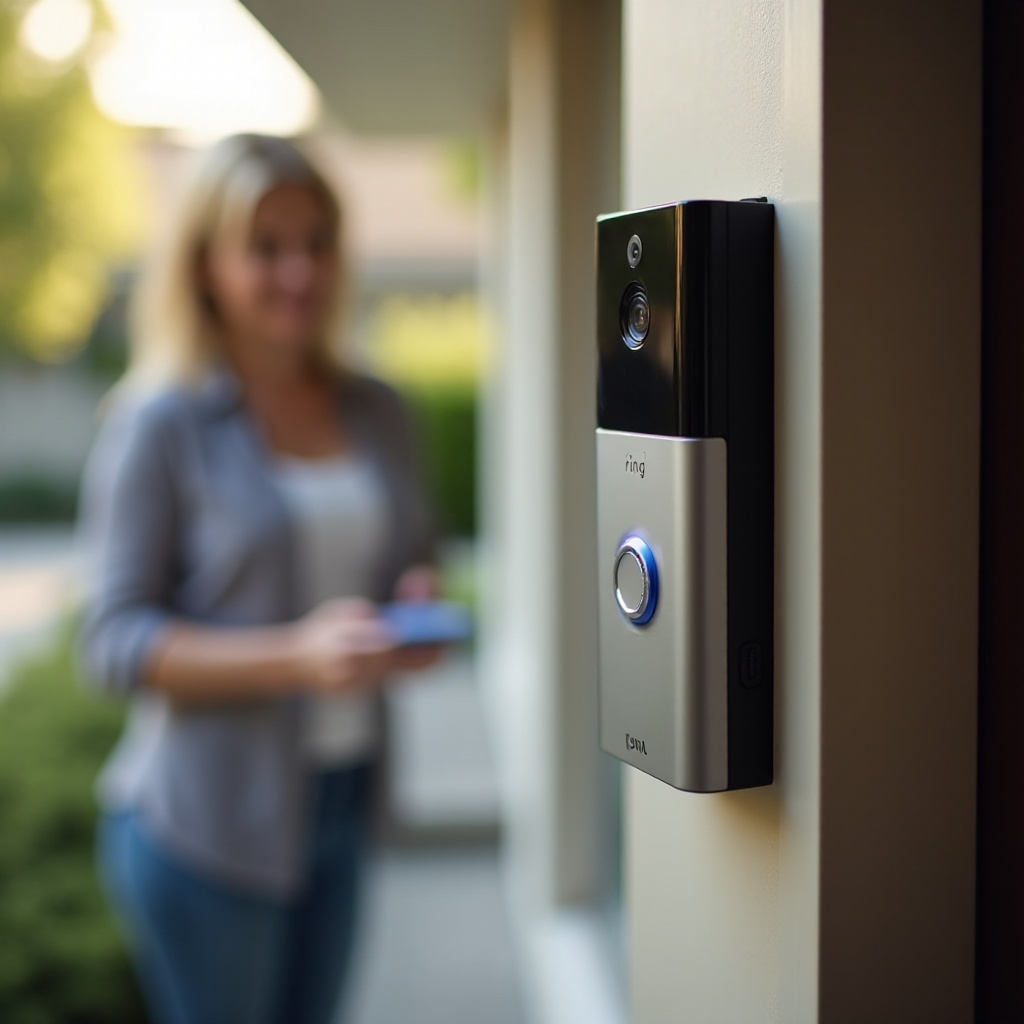
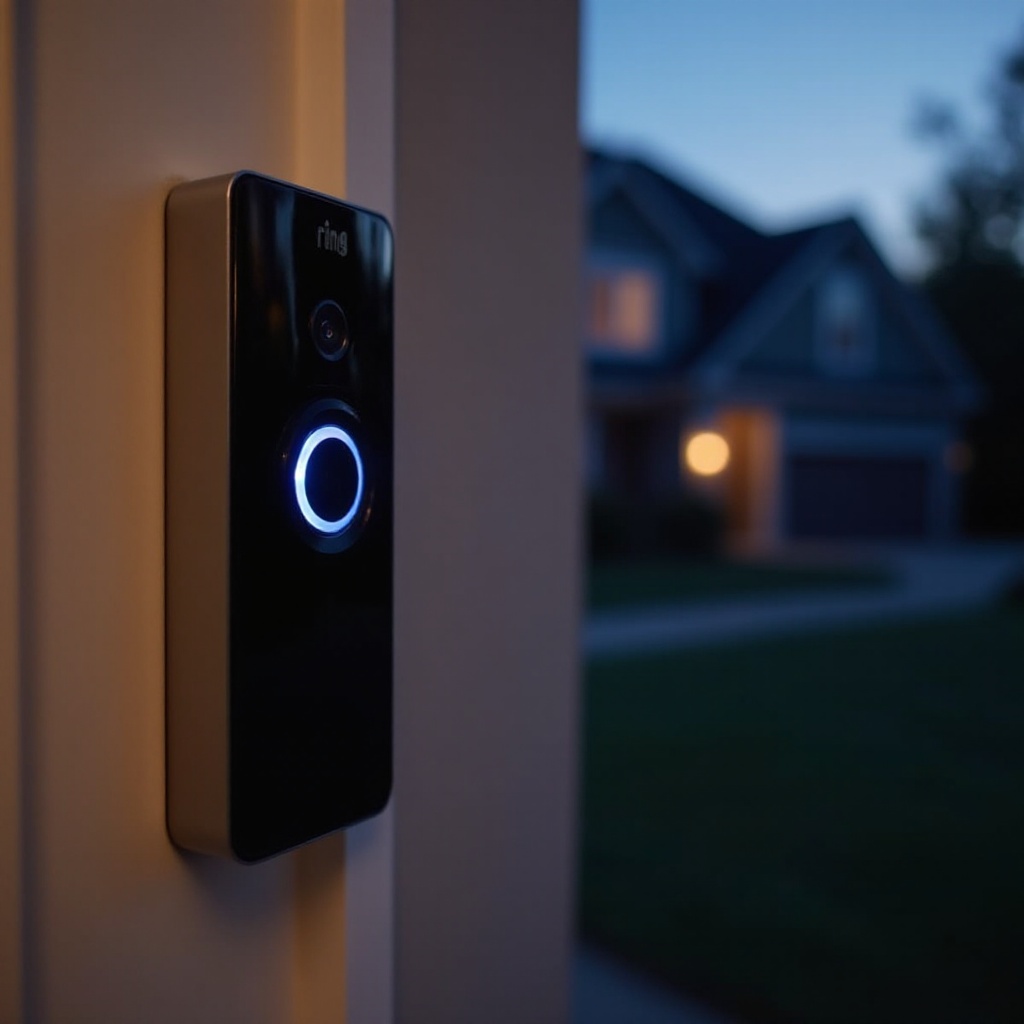
On most Ring Video Doorbells, the light ring around the button is your main status indicator. Typical patterns include:
- Solid blue or spinning blue when the doorbell streams video (this can be during Live View or when someone presses the button)
- White light for normal idle or Wi‑Fi connection status
- Flashing patterns during setup or firmware updates
A Live View session usually makes the light turn blue while the camera is active. However, this is not always obvious to a casual visitor, especially in bright daylight or from a distance. They may just see that the device is ‘on’ without knowing why.
Status LEDs on Indoor and Outdoor Ring Cameras
Indoor Cams, Stick Up Cams, and some outdoor models have a small LED near the lens. Common behavior:
- The LED turns solid blue or blinks when the camera actively streams
- The LED may stay off when the camera is idle
Because these LEDs are small, someone in the room might miss them unless they are close and know what to look for. Still, they are often the only physical clue that Live View is active.
Floodlight and Spotlight Behavior When the Camera Is Active
On Floodlight and Spotlight Cams, the lights respond mostly to motion, not necessarily to Live View. That means:
- The floodlights or spotlights turn on when motion triggers them (depending on your settings)
- You can start Live View without the floodlights turning on, especially at night, which makes the camera harder to notice
Light activation does not always equal ‘someone is watching right now.’ It could simply be motion detection or another automated rule.
Night Vision, Infrared Lights, and What People Can Actually See
Ring uses infrared (IR) LEDs for night vision. These:
- Help the camera see in low light
- May appear as a faint red glow around the lens in a dark room
- Do not tell you who is watching; they only show that night vision is active
So Ring devices often show some physical sign when recording or streaming, but it is subtle and easy to miss. To really confirm when someone is watching, you need to check the app. That is where the Event History and device logs become crucial.
App Indicators: How to Tell in the Ring App If Someone Is Watching
Physical lights give limited clues. The Ring app provides more precise information about who watched and when. It is the best place for owners to see if someone started Live View on their cameras.
Understanding the Event History and Timeline
Open the Ring app and go to the device’s ‘History’ or ‘Event History’ section. You will see a list of events, such as:
- Motion events
- Doorbell rings
- Live View sessions
This list is your main record of when someone started watching. Each entry has a timestamp and a short label so you can scan quickly for patterns.
How Live View Sessions Are Labeled in the App
Live View sessions typically appear as ‘Live View’ or ‘Live’ in the history. When you tap them:
- You may see a short clip (if your subscription plan saves it)
- You can see the time someone started the Live View session
If you did not start that Live View, then another person with access to your account or a linked device did. Repeated unrecognized Live View entries are a red flag.
Differences Between Motion Events and Manual Viewing
It is important to distinguish:
- Motion events – triggered automatically when the camera detects movement
- Live View events – triggered manually when someone chooses to watch
If your history shows frequent Live View events that you do not recognize, it could mean:
- A shared user is checking the camera
- Someone else with your login is watching
- There is a security issue that you need to address
Checking Which Devices and Users Have Access
Within the app, you can review:
- Which phones or tablets use your Ring account
- Which shared users have access to each device
- Which Alexa or smart displays are linked
This context helps you decide if a Live View event is normal or suspicious. After you know how to check the logs, the next concern is how the people in front of the camera experience all this. That brings us to guests, neighbors, and delivery drivers.
Can Guests, Neighbors, or Delivery Drivers Tell When You are Watching?
From your side, the app shows Live View events and detailed history. But what about the people in front of the camera? Can they tell that you are watching them at that exact moment?
What People Outside Can Notice on a Ring Doorbell
A visitor might see:
- The Ring doorbell’s light turn blue while they are at the door
- A faint glow from the camera lens at night
However, they usually cannot tell whether the camera is recording because of motion, because they pressed the button, or because you started a Live View session. To them, the device mostly looks the same in all of these cases.
Subtle Cues vs No Obvious Indicators
In many cases, visitors will not notice anything specific that clearly signals ‘someone is watching you live.’ The device:
- Looks like it always does on the wall or door frame
- Might show the same lights whether recording, streaming, or just active
Even when you are watching via Live View, guests typically cannot distinguish this from normal operation. That is why clear communication and ethical use matter so much.
Visitor Expectations Around Cameras in 2024
By 2024, many people expect cameras at front doors, apartment lobbies, and building entrances. Still, expectations differ:
- Some visitors assume cameras are recording whenever they see a doorbell cam
- Others expect clear signs or verbal notice when cameras are active
Because Ring does not provide a unique, bold indicator for Live View, the burden often falls on the owner to use devices fairly and transparently. To do that well, you need strong privacy and security settings, which we will cover next.
Privacy and Security Settings to Control Who Can Watch
Knowing what the lights and logs show is useful, but real control comes from settings. You can reduce unwanted watching and protect privacy with a few key steps inside the Ring app and on your accounts.
Managing Shared Users and Revoking Access
Start with the people who have legitimate access:
- Open the Ring app and check the list of shared users for each device.
- Remove anyone who no longer needs access, such as ex-partners, old roommates, or former tenants.
- If you suspect misuse, remove everyone and then add back only trusted users.
Shared users can often start Live View, so keeping this list short and current is crucial.
Enabling Two-Factor Authentication and Strong Sign-In Methods
Two-factor authentication (2FA) adds a one-time code to your login. To secure your account:
- Turn on 2FA in your Ring account settings.
- Use a strong, unique password that you do not reuse on other sites.
- Consider using a password manager to generate and store complex passwords.
This step makes it much harder for a hacker to log in and watch your cameras without your knowledge.
Configuring Privacy Zones and Audio Settings
Ring lets you:
- Create privacy zones that block parts of the camera’s view from recording
- Turn audio recording on or off
Use these features to:
- Avoid filming neighbors’ windows or private areas
- Reduce the sense that every conversation is recorded
- Focus the camera only where you truly need security coverage
Adjusting Modes (Home, Away, Disarmed) for Better Control
Ring’s Modes feature lets you set behavior based on whether you are home:
- Home – you might disable indoor cameras or audio
- Away – you can enable full recording and alerts for all cameras
- Disarmed – limit or stop recording for certain devices
With clear modes, you and your family know when cameras are more active and when the system is quieter. Once these basics are in place, it is just as important to defend them from unauthorized users, which is our next step.
Protecting Your Ring Cameras From Unauthorized Watching
Even with proper settings, you need to guard against people who try to bypass them. That means watching for signs of suspicious activity and securing your Wi‑Fi and accounts.
Recognizing Signs of Suspicious Account Activity
Watch for:
- Live View events in your history that you did not start
- Logins or alerts from unfamiliar devices or locations
- Shared users you do not recognize
If anything looks off, treat it as a potential security issue and act quickly.
Securing Your Wi‑Fi Network and Smart Home Devices
Your home network is the backbone of your smart home. To secure it:
- Change the default router username and password.
- Use WPA3 or WPA2 encryption; never use open Wi‑Fi.
- Create a separate guest or IoT network for smart devices if your router supports it.
- Keep router firmware and Ring devices updated.
A secure network makes it much harder for someone to snoop on your camera traffic or hijack your devices.
Handling Data Breach Warnings and Password Reuse
If you receive a notice that a site you use had a data breach:
- Change your Ring password right away if you reused that password.
- Turn on 2FA if you have not done so already.
- Consider changing passwords for any other accounts that used the same login.
Password reuse is one of the easiest ways for attackers to gain access to smart home accounts.
What to Do If You Think Someone Is Watching Without Permission
If you suspect unauthorized viewing:
- Log out of all devices through your Ring account settings.
- Change your password and enable 2FA.
- Remove all shared users and then re-add trusted people only.
- Review your Event History to spot recent Live View sessions.
- Contact Ring support if you still see suspicious activity.
After you secure your system, you might wonder whether another camera brand would give clearer indicators or more control. That leads into a comparison with other smart cameras.
How Ring Compares With Other Smart Cameras on ‘Watching’ Indicators
Ring is one of many smart camera options. Each brand handles status indicators and privacy a bit differently, and those design choices affect how easy it is to see when someone is watching.
Ring vs Google Nest on LEDs and Status Lights
Google Nest cameras:
- Often have a prominent status light that shows when they are actively recording or streaming
- May let you control some aspects of light behavior, though not always turn it off completely
Ring uses smaller LEDs and doorbell light rings that can be easier to overlook, which might feel less transparent to some users who want a clear ‘on-air’ signal.
Ring vs Arlo, Eufy, Wyze, and Other Smart Cameras
Other brands may:
- Offer louder chimes or clearer LEDs when recording or streaming
- Include physical shutters that cover the lens when you want privacy
- Focus more on local storage, which can reduce cloud privacy concerns
Ring tends to emphasize app controls, modes, and remote access rather than large, obvious ‘recording’ signs on the device itself. For some owners, that is convenient; for others, it feels less reassuring.
Brands That Offer Stronger Physical or On‑Screen Indicators
If physical indicators matter a lot to you:
- Look for cameras with mechanical shutters or sliding covers
- Choose models with bright, always-on status LEDs when streaming
- Consider smart displays that show camera status on a central screen
However, many people stay with Ring because of its ecosystem, ease of use, and integrations. To use that ecosystem responsibly, you also need to think about how cameras affect people who share your home.
Using Ring Cameras Ethically in Shared Homes and Rentals
Beyond security, there is a trust issue. People who share your space should not feel secretly watched. Ethical use builds that trust and reduces conflict.
Informing Roommates, Guests, and Household Members
If you live with others:
- Tell them where cameras are and what they cover.
- Explain when they record and who can watch Live View.
- Agree on basic rules, such as no cameras in bedrooms or bathrooms.
Clear communication goes a long way toward preventing conflicts and distrust. It also helps everyone understand what the camera lights and app logs really mean.
Special Considerations for Short‑Term Rentals and Home Offices
For short‑term rentals:
- Never place cameras inside private guest spaces like bedrooms or bathrooms.
- Clearly disclose any indoor common-area cameras and all outdoor cameras in your listing.
- Make sure guests know how to contact you if they have privacy concerns.
For home offices:
- Be thoughtful about cameras that might capture sensitive work or client information.
- Use privacy zones and audio controls to reduce unnecessary recording.
Placement Tips to Reduce the Feeling of Being Constantly Watched
To balance safety and comfort:
- Keep most cameras at entrances, hallways, and exterior areas.
- Avoid placing indoor cameras where people relax or sleep, unless absolutely necessary.
- Use Modes to disable indoor cameras when everyone is home and safe.
Handled well, Ring can protect your home without making it feel like a surveillance zone. With that in mind, we can pull everything together and answer the core question about whether Ring shows when someone is watching.
Conclusion
Ring cameras do show some signs when someone is watching, but those signs are subtle. Doorbells and cameras use small LEDs and light patterns, while floodlights react mainly to motion rather than Live View. These indicators rarely tell a visitor or guest that someone has started Live View right now.
The Ring app is your real window into who is watching and when. The Event History shows Live View sessions, and device access lists reveal which users and smart displays can view your cameras. With strong passwords, two-factor authentication, and careful shared user management, you stay in control of who can watch your Ring camera.
If you use privacy zones, audio settings, and Modes, you can keep family and guests more comfortable while still protecting your home. Compared with other brands, Ring leans on app controls more than bold physical indicators, which makes it even more important to understand your settings.
By learning what Ring does and does not show when someone is watching, you can use the system confidently, avoid surprises, and respect the privacy of everyone who comes near your door or lives in your home.
Frequently Asked Questions
Does Ring always show a light when someone is watching Live View?
Most Ring cameras show some kind of light when streaming, such as a blue LED on doorbells or a small light near the lens on indoor and outdoor cams. However, these lights are often small, and they may look similar whether the camera is recording due to motion or streaming via Live View. That means someone standing in front of the camera might not know the difference. There is no big, special ‘Live View’ light that clearly announces ‘someone is watching you right now’.
Can Ring owners see exactly who watched the camera and when?
Ring owners can see when someone started a Live View session by checking the Event History in the app. Each Live View session appears with a timestamp and a label. However, the history does not always show which specific user or device started that Live View. To narrow it down, the owner needs to check which shared users and Alexa devices have access and compare that with the timing of the events. If the owner is the only person with access, any Live View entry they did not start is a warning sign.
Can law enforcement or Ring employees watch my camera without my knowledge?
Ring states that employees do not have free access to live camera feeds and that law enforcement must follow legal processes to request video. Law enforcement can ask owners for recordings, and in some cases Ring may respond to lawful requests for stored video. They should not be able to secretly start Live View on your personal camera. To stay informed, review Ring’s current privacy policy, keep your account secure with strong passwords and two-factor authentication, and regularly check your Event History for unfamiliar Live View sessions.