
Can I Have Ring Cameras at Two Different Locations? A Complete Multi-Home Setup Guide
Introduction
Homeowners and renters often find themselves responsible for more than one place: a primary residence, a vacation home, a parent’s house, or a rental property. That is exactly when one crucial question comes up: can I have Ring cameras at two different locations on the same account?
The short answer is yes. You can run Ring cameras and doorbells at more than one address without juggling multiple logins or creating extra accounts. The challenge is keeping everything organized so you know which camera belongs to which property, which alerts matter most, and which subscriptions you actually need.
This guide walks you through how Ring handles multiple locations, how to add a second (or third) property in the app, and how to avoid confusion when you manage more than one home. You will also learn about Ring Protect plans, privacy and legal issues, smart home integrations, and how to share access safely with family, guests, or tenants.
Once you understand how Ring structures multiple locations inside one account, you can start planning a setup that stays clear and manageable as you add more devices.
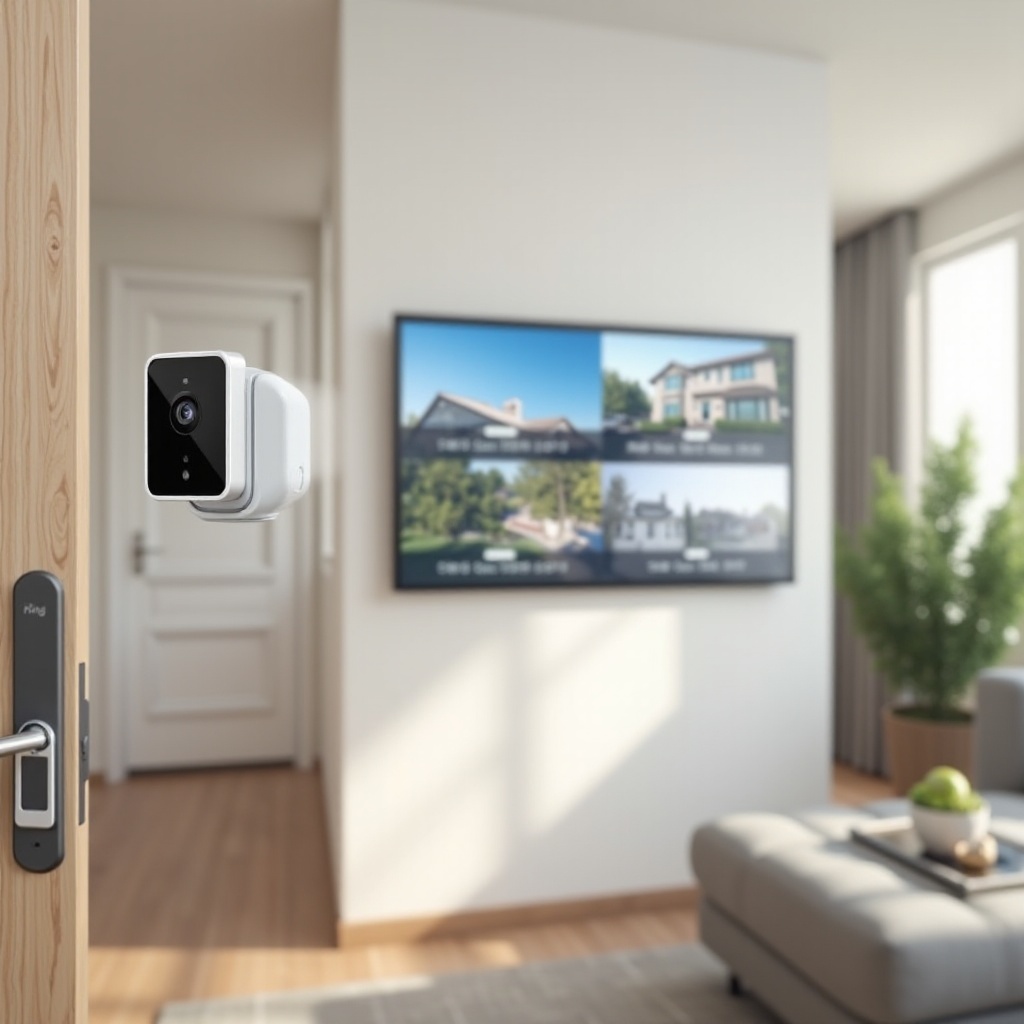
Can I Use Ring Cameras at Two Different Locations?
You can absolutely use Ring cameras at two different locations. Ring built its platform so one account can manage multiple ‘Locations.’ A Location usually matches a physical address, such as:
- Your primary residence
- A second home or vacation property
- A rental or investment property
- A parent’s or relative’s house you help manage
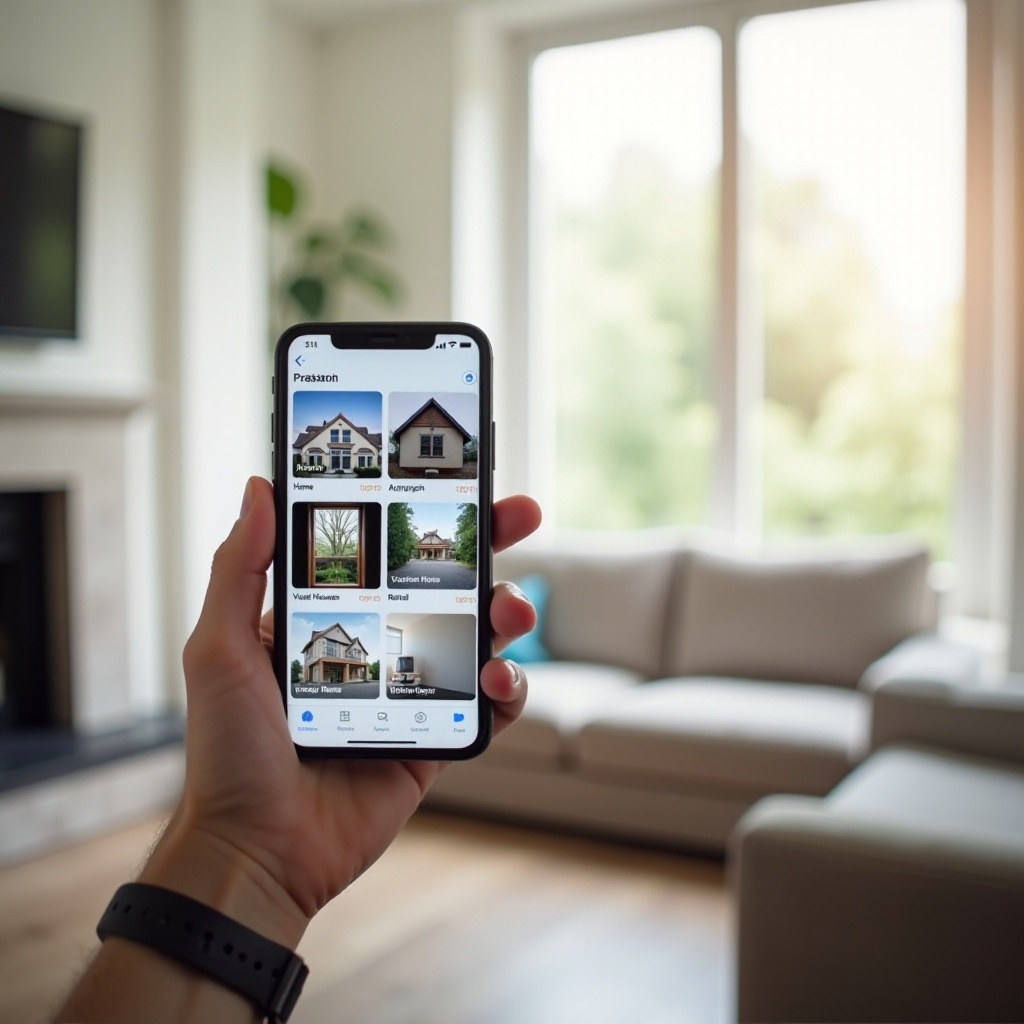
Each Location holds one or more devices: video doorbells, indoor and outdoor cameras, alarms, and other Ring products. You can switch between Locations inside the app in just a few taps.
In practice, this setup means:
- You do not need separate Ring accounts for each home.
- You can see all your Locations inside one app, under one login.
- You can give different people access to specific Locations only.
The main trade-off comes from subscriptions. In most cases, each Location needs its own Ring Protect plan if you want cloud recording and some advanced features there. Understanding how Locations are structured in your account makes it easier to plan subscriptions without wasting money.
Before you start subscribing or installing devices everywhere, it helps to understand exactly how Ring Locations work inside your account.
How Ring Locations Work Inside Your Account
Think of a Ring ‘Location’ as a folder that belongs to one address. Every camera, doorbell, and security device you install must live inside one of these folders.
Inside your Ring account, each Location has:
- Its own list of devices
- Its own modes (Home, Away, Disarmed)
- Its own notification and alert settings
- Its own Ring Protect subscription status
You can create multiple Locations under the same email address and password. When you open the Ring app, you select which Location you want to view. After that, you see only the devices tied to that address.
This structure helps you:
- Separate alerts and events by address.
- Use different rules and schedules for each property.
- Share access with different people at each Location without exposing all your homes.
Because Ring treats each address as a separate Location, you can keep your main home, vacation house, and any rentals neatly divided. To take full advantage of this, you should plan out how you want to organize your multi-location setup before you start adding cameras.
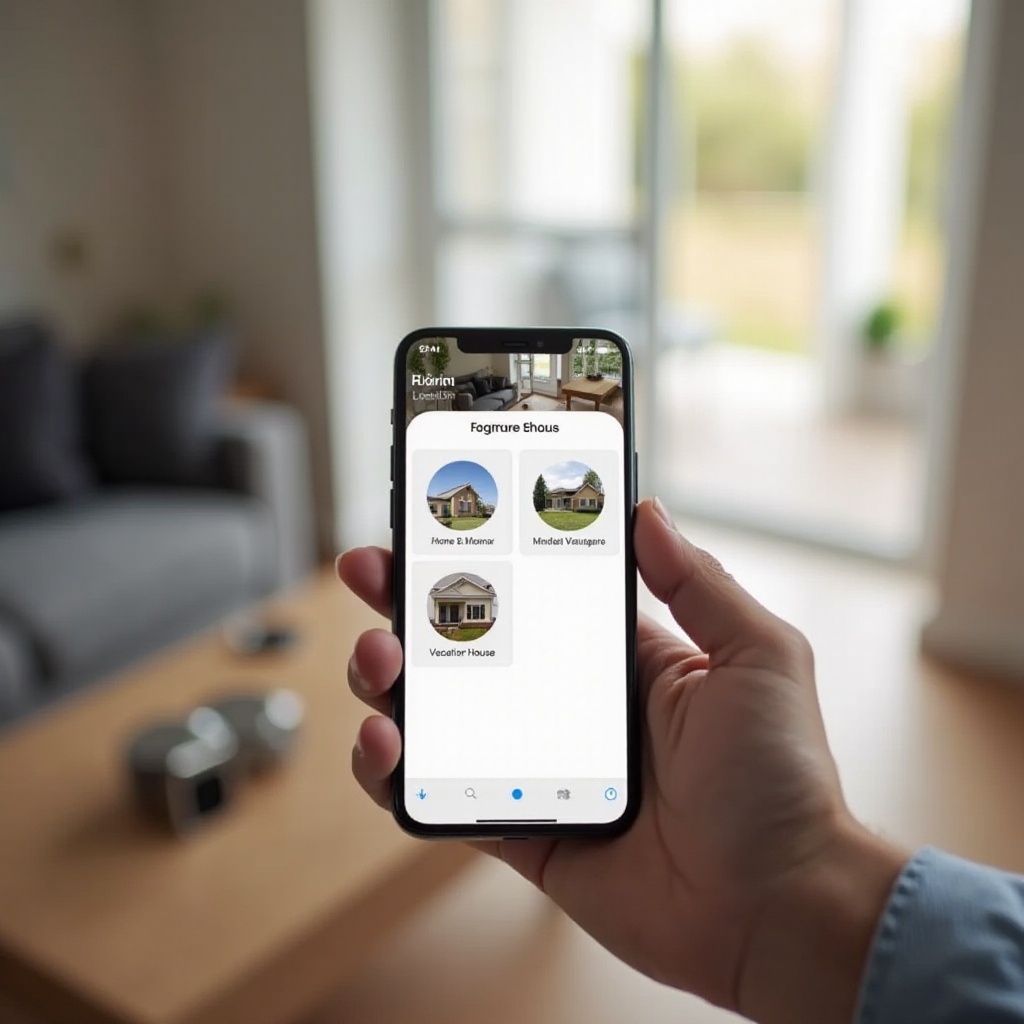
Planning a Multi-Location Ring Camera Setup
Good planning turns a multi-home Ring system from a confusing mess into a clear, easy-to-manage network. Before you add a second Location in the Ring app, spend a few minutes outlining what each property needs.
Create a simple checklist for each address:
- How many entry points do you want to cover? (front door, side doors, garage)
- Do you need indoor cameras, or is outdoor coverage enough?
- Are there high-risk areas such as alleys, detached garages, or sheds?
- Who needs access: family, roommates, property managers, tenants, house sitters?
Then plan a clear naming system for Locations and devices. Use names like:
- ‘Home – Main Street’
- ‘Lake Cabin – North Shore’
- ‘Rental – Oak Avenue’
For devices, avoid generic labels such as ‘Camera 1.’ Use names like ‘Front Door,’ ‘Back Patio,’ ‘Garage Driveway,’ or ‘Living Room.’ These labels help you instantly know which camera triggered an alert, even when you are far away.
Once you have this basic structure in mind, you are ready to create a second Location in the Ring app and start assigning devices to the correct property.
Step-by-Step: Adding a Second Location in the Ring App
You add a second Location for your Ring cameras right inside the Ring app. The process is quick and does not require a new account.
Follow these steps:
- Open the Ring app and sign in to your existing account.
- Tap the menu icon (three lines) in the top left corner.
- Tap the current Location name at the top of the menu.
- Select ‘Add a Location’ or tap ‘Set Up a Device’ and choose to create a new Location if prompted.
- When asked for an address, enter the new property address accurately.
- Give the Location a clear name, such as ‘Beach House’ or ‘Rental – Elm Street.’
- Confirm and save your changes.
Once you create the new Location, the app will be ready for you to add devices there. You can either install new cameras directly at this Location or reconfigure existing devices and move them from one Location to another when that makes sense.
Back on the main screen, you will now see a Location selector at the top. Tap it to switch between ‘Home – Main Street’ and ‘Beach House,’ for example.
After the new Location exists, the next step is to install or assign Ring devices so that each one appears under the right property and does not cause confusion in the app.
Installing and Assigning Ring Devices to the Correct Location
Every time you set up a new Ring camera or doorbell, the app asks which Location it should belong to. This is where your naming plan pays off. A clear Location name reduces the chance that you assign a device to the wrong property.
To install a new device at your second Location:
- Go to the property where you will install the device.
- In the app, switch to the correct Location (for example, ‘Mountain Cabin’).
- Tap ‘Set Up a Device’ and choose the device type (doorbell, camera, etc.).
- Follow the on-screen instructions to connect it to Wi-Fi at that property.
- When prompted, confirm the Location and give the device a clear name, such as ‘Cabin Front Door’ or ‘Cabin Driveway.’
If you accidentally assign a device to the wrong Location, remove it from that Location in the app and then set it up again while you are viewing the correct Location. This step ensures the device appears only where it belongs and that any recordings and notifications attach to the right address.
When every device sits under the proper Location, daily management becomes much easier. The next piece is learning how to switch between Locations and control your cameras without mixing properties up.
Managing Multiple Locations in the Ring App Without Confusion
Once you have more than one Location, the Ring app gives you a simple way to move between them. At the top of the main screen, you see the current Location name. Tap that name to reveal a list of all your Locations, then choose the one you want to manage.
To keep your experience clear and stress-free:
- Always check the Location name at the top before changing settings.
- Group devices by room or area (for example, ‘Front Yard,’ ‘Backyard,’ ‘Hallway’).
- Use short, descriptive names so you can understand alerts at a glance.
You can also customize notifications by Location. For example, you might:
- Turn on all motion alerts at your vacation home when it is empty.
- Limit notifications at your main home to doorbell presses and a few key cameras.
- Mute certain low-priority cameras at night so your phone does not overload you with alerts.
Tuning these settings helps you stay informed without feeling constantly interrupted. The way you manage Locations in the app also affects how you choose and manage Ring Protect plans, which are essential if you want video history at each address.
Ring Protect Plans and Costs for Multiple Locations
Ring Protect plans unlock cloud video recording, extended storage, and some advanced features for your Ring devices. When you spread Ring cameras across two or more locations, you need to understand how these plans work.
Here are the core principles:
- Ring Protect plans attach to a Location, not to your entire account in one global bundle.
- A basic plan typically covers a single device at one Location.
- Higher-tier plans usually cover all cameras and doorbells at one Location for a flat monthly or yearly fee.
If you have cameras at two different addresses, you may need:
- One plan for each Location if you want recordings at both properties.
- A top-tier plan at your main home and a smaller plan at your second home if it has fewer devices.
- No plan at a Location where you only need live view and instant notifications but not stored video.
Before subscribing, list the devices at each Location and decide which ones need cloud recording. This list will make it easier to choose the right mix of Ring Protect plans and avoid paying for more storage than you use.
Once you have the right plans in place, the next important step is deciding who should have access to each Location and how to share that access safely.
Sharing Access to Different Locations with Family, Guests, or Tenants
Ring lets you share access to specific Locations with other people through the ‘Shared User’ feature. This is useful when you have:
- Family members living at your primary home
- A partner or spouse who visits both homes
- Tenants or property managers at a rental or investment property
- Trusted friends or neighbors who check on a vacation home
To share access to one Location:
- Select the Location you want to share in the app.
- Open the Location settings and choose ‘Shared Users.’
- Enter the email address of the person you want to invite.
- Choose which devices at that Location they can view or control.
- Send the invitation and ask them to accept it from their email.
The invited user creates their own Ring account if they do not already have one. They can then see only the Locations and devices you shared with them. This keeps your other homes private and secure.
For short-term rentals and guests, you might:
- Share access only to exterior cameras or shared areas.
- Avoid using interior cameras that could invade guest privacy.
- Remove access as soon as a tenant or guest moves out.
Sharing is a powerful feature, but it must be balanced with privacy and legal awareness, especially when you monitor more than one location.
Privacy, Security, and Legal Considerations for Multi-Location Ring Use
Multi-location setups raise important questions about privacy and the law. You must think carefully about where your cameras point and whose activity they record.
Some general guidelines include:
- Avoid pointing cameras directly into neighbors’ windows or private spaces.
- Focus rental property cameras on entryways, exteriors, and common areas.
- Be cautious with audio recording; some states have strict consent rules for recorded conversations.
You should also secure your Ring account across all Locations:
- Use a strong, unique password for your Ring account.
- Turn on two-factor authentication (2FA) for extra protection.
- Review shared users regularly and remove access for anyone who no longer needs it.
Maintaining strong privacy and security practices protects both you and the people who live in or visit your properties. With these foundations in place, you can focus on solving practical issues that often appear in multi-location setups.
Troubleshooting Common Multi-Location Ring Camera Issues
Even with a well-planned setup, multi-location systems sometimes run into problems. Many of these issues are easy to fix once you know what to look for.
Common problems and solutions include:
- Cameras seem to be missing from the app
Often you are viewing the wrong Location. Check the Location name at the top of the app and switch to the correct property. - Devices assigned to the wrong Location
If a camera appears under the wrong address, remove it from that Location and set it up again while viewing the correct Location in the app. - Connectivity problems at one property
One home might have weaker Wi-Fi or slower internet service. Consider upgrading the router, adding a mesh Wi-Fi system, or improving bandwidth at that address. - Too many notifications from multiple homes
Adjust motion sensitivity, alert types, and schedules per Location. Turn off low-priority alerts at properties where you spend more time.
Solving these issues makes your day-to-day experience smoother and more reliable. Once you get comfortable managing two Locations, you may want to expand to additional properties such as more rentals or another vacation home.
Scaling Beyond Two Locations: Vacation Homes, Rentals, and More
After you successfully manage Ring cameras at two different locations, scaling to three or more follows the same structure. The main challenge becomes organization and staying on top of devices, users, and subscriptions.
To scale cleanly beyond two locations:
- Use consistent naming for every Location and device so you never guess where a camera is.
- Keep a simple document or digital note that lists each property, its devices, and its subscription level.
- Decide which properties need full coverage and which can rely on minimal monitoring.
For example, you might set up:
- A full system with several cameras and a high-tier plan at your main home.
- A smaller setup with a video doorbell and one outdoor camera at a cabin.
- External-only cameras at a rental property to protect privacy while still monitoring access.
As your system grows, you may also want to connect Ring with other smart home devices at each property, so your multi-location security ties into lights, locks, and voice assistants.
Smart Home Integrations for Ring Cameras Across Multiple Locations
Ring works well with popular smart home platforms, especially Amazon Alexa. When you have multiple Locations, these integrations can make control easier and more powerful if you organize them properly.
Here are some practical ideas:
- Place Echo devices at each property and link them with nearby Ring cameras so you can say, ‘Alexa, show me the front door’ and see the correct feed.
- Create Alexa routines that turn on smart lights when a Ring camera detects motion at night.
- Use compatible smart locks so you can unlock a door remotely when you see a trusted person at the doorbell camera.
Be as careful with naming smart home devices as you are with Ring Locations. Use labels like ‘Cabin Living Room Echo’ or ‘Rental Front Light’ so you do not trigger the wrong device by accident.
These integrations help your multi-location Ring setup feel like one coordinated security system that follows you wherever you go.
Conclusion
You now know the answer to ‘can I have Ring cameras at two different locations?’ is a clear yes. A single Ring account can manage multiple Locations, each with its own devices, settings, and people who can access it.
The key steps are straightforward:
- Plan each property’s coverage and use clear names for Locations and devices.
- Add a second Location in the Ring app and assign devices carefully.
- Manage notifications and Ring Protect plans per Location to stay informed and control costs.
- Share access only with the right people and review it regularly.
- Protect privacy and follow local legal rules, especially with rental properties.
With thoughtful setup, you can protect your main home, vacation houses, and rental properties from one app without confusion. Your multi-location Ring system becomes a reliable, well-organized part of your smart home, helping you keep every place you care about a little safer.
Frequently Asked Questions
Do I need a separate Ring account for each location?
No. One Ring account can handle multiple Locations. You create separate Locations inside the same account for each property and assign devices to those Locations. This lets you manage every home from a single login while keeping devices and settings neatly separated by address.
Can one Ring subscription cover cameras at multiple locations?
In most setups, a Ring Protect plan applies to devices at a single Location, not to all Locations in your account at once. If you want cloud recording and premium features at more than one property, you usually need a plan for each Location. Review the latest Ring Protect details so your subscriptions match the number of devices and the level of coverage you need at each address.
How many locations can I have on my Ring account?
Ring allows you to add multiple Locations under one account, and most households never reach the practical limit. You can set up your main home, one or more vacation properties, and several rental units as separate Locations. As you add more, stay organized with clear names and a simple list of devices and plans for each address so you can manage all your cameras without confusion.
