Why Is My Computer Fan So Loud on Mac? A Comprehensive Guide
Introduction
Many Mac users encounter unexpected fan noise, which can be more than a mere annoyance. A noisy fan often hints at underlying issues that, if ignored, might impact your Mac’s performance and lifespan. This guide delves into why your computer fan is so loud on a Mac and offers actionable solutions to alleviate the noise.

Understanding Mac Fan Functionality
Before addressing the noisy fan, it’s crucial to understand its role in your device.
The Purpose of a Mac Fan
Your Mac’s fan plays an essential part in cooling the system by dissipating heat generated by internal components. It typically runs quietly in the background but can become noisy when dealing with demanding applications that increase the machine’s temperature.
Normal Fan Activity vs. Loud Fan Noise
Generally, your Mac’s fan noise is subtle. However, when the noise escalates significantly, it indicates that your computer is exerting more effort to keep temperatures in check. Identifying when the noise is excessive can guide you in addressing potential issues effectively.
Understanding the role and functionality of your Mac’s fan sets the stage for investigating why it might become excessively loud. Recognizing the link between fan activity and system performance is the first step toward identifying solutions.
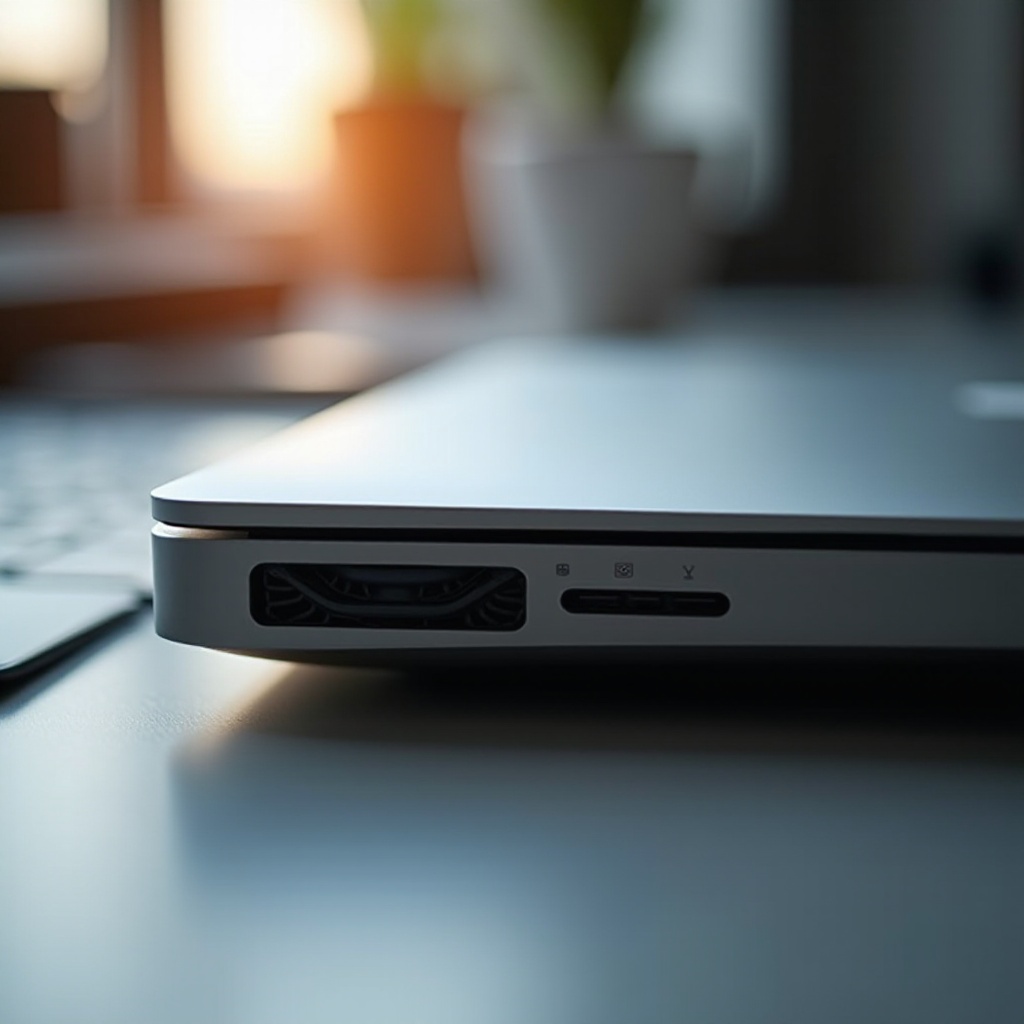
Common Causes of Loud Fan Noise on Mac
Knowing why your Mac’s fan is loud involves pinpointing what drives its increased activity.
High CPU Usage and Background Processes
- Running numerous applications at once can overload your Mac’s CPU, prompting the fan to work harder to cool the device.
- Background processes that persist after closing apps continue to stress the CPU, triggering the fan’s increased activity.
Dust and Dirt Accumulation
Over time, dust accumulates within your Mac, blocking vents and airflow, thus causing the fan to operate at higher speeds to maintain cooling.
Software Glitches and Bugs
Occasionally, software bugs lead to overheating by inadvertently activating unnecessary background processes. Keeping your software current can help resolve such issues.
Addressing high CPU usage, cleaning internal components, and ensuring software is up-to-date are fundamental steps to managing fan activity.
Immediate Troubleshooting Steps
When your Mac’s fan gets too loud, immediate action can often resolve or reduce the noise.
Identifying Resource-Intensive Programs
- Utilize Activity Monitor to spot applications heavily consuming the CPU.
- Shut down unnecessary apps or processes to lighten the CPU’s workload.
Resetting the SMC and PRAM
Resetting these settings often resolves performance glitches.
1. Turn off your Mac.
2. Press and hold the Shift, Control, Option, and Power keys for 10 seconds.
3. Release and restart your device normally.
Ensuring Adequate Ventilation and Airflow
Position your Mac on a flat, hard surface to promote airflow. Avoid placing it on soft surfaces that may block ventilation.
These troubleshooting steps serve as immediate fixes that can relieve your Mac’s fan noise, setting the foundation for more extensive solutions.

Long-Term Solutions to Reduce Fan Noise
For persistent fan noise, adopting a long-term approach can provide sustained relief.
Regular Cleaning and Maintenance
- Regularly clean the fan and vents using compressed air to maintain optimal airflow.
- Schedule periodic internal cleanings to prevent dust buildup.
Keeping Software Updated
Continuously update your Mac’s operating system and applications. Developers periodically issue patches that resolve overheating issues caused by bugs.
Using Cooling Accessories for Macs
Invest in cooling pads or stands designed to enhance airflow and assist your Mac’s cooling system.
Implementing these solutions ensures continuous performance improvement and fosters a quieter fan environment.
Advanced Solutions for Persistent Fan Noise Issues
Should basic measures fall short, consider advanced interventions.
Replacing Thermal Paste
Old thermal paste can reduce heat transfer. Replacing it can help improve cooling efficiency.
Utilizing Third-Party Cooling Software
Consider software like Mac Fan Control to adjust your fan’s speed settings. Employ these tools judiciously, as improper adjustments can cause overheating.
Seeking advanced solutions is advisable for persistent issues that resist basic troubleshooting, ensuring your Mac’s optimal function.
When to Seek Professional Help
Complex issues may require expert intervention.
Recognizing Hardware Issues
If fan noise persists despite your attempts, hardware problems might be the cause. Leaving these to professionals prevents further damage.
The Importance of Professional Diagnostics
Professional diagnostics ensure a thorough evaluation, addressing issues beyond surface level repairs and maintaining your Mac’s health.
Conclusion
A loud fan is more than an inconvenience—it can signal urgent internal problems needing attention. By exploring and addressing the causes, adopting immediate measures, and integrating long-term strategies, you can restore serenity to your Mac’s operations.
Frequently Asked Questions
How do I know if my Mac fan is too loud?
If the fan noise becomes consistently louder and doesn’t subside during basic tasks, it is likely too loud.
Can a loud fan damage my Mac?
Yes, prolonged loud fan activity can indicate overheating, potentially harming internal components over time.
Is it safe to use third-party software to control fan speed?
While it can be safe with careful use, improper settings may lead to issues. When using third-party tools, proceed cautiously.