How to Upgrade RAM in Your Toshiba Satellite Laptop in 2024
Introduction
Upgrading the RAM in your Toshiba Satellite laptop can significantly enhance its overall performance. By increasing the memory, your laptop can process tasks more quickly, allowing for smoother multitasking and a more efficient computing experience. Whether you’re using your laptop for work, study, or personal use, more RAM can be a worthwhile investment.
Understanding RAM’s role is essential in optimizing your laptop’s performance. In the following sections, we’ll guide you through the preparation steps and the upgrade process to ensure a successful RAM installation.
Understanding RAM and Its Impact on Performance
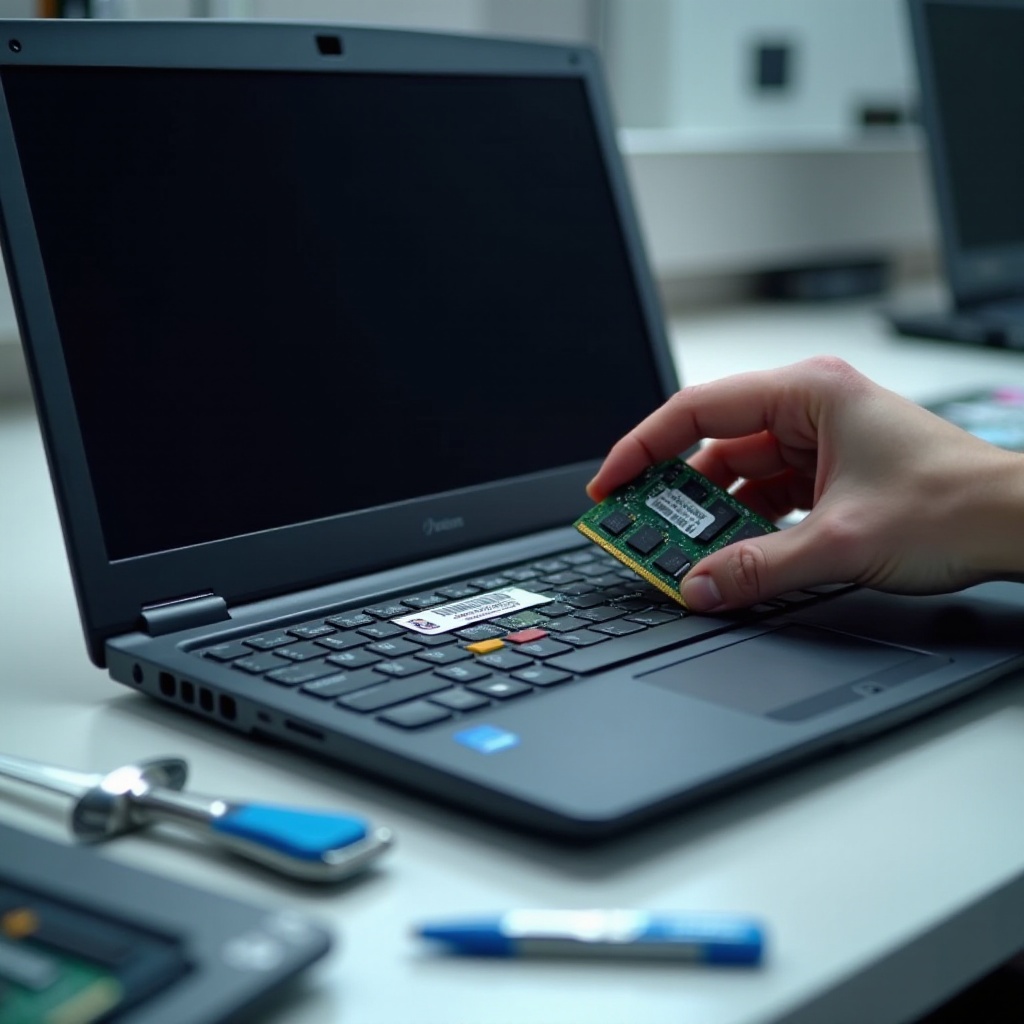
RAM, or Random Access Memory, serves as the immediate workspace for your laptop’s processor. It temporarily stores data that your system actively uses, playing a crucial role in multitasking and application handling. When your laptop runs low on RAM, tasks can slow down, producing a less-than-satisfactory experience.
Upgrading your RAM is one of the simplest and most cost-effective ways to boost performance. More RAM enables your laptop to run more applications simultaneously and manage more data, leading to faster load times and improved responsiveness.
With this foundational knowledge, let’s move on to the practical steps you need to take before starting the upgrade.

Preparing for the RAM Upgrade
Checking Your Toshiba Satellite Specifications
Before purchasing additional RAM, it is vital to know your laptop’s current configuration:
– Model Number: Locate this on your laptop’s underside or within your system settings for precise information.
– Current RAM Amount: Verify the installed RAM and the maximum your system can support.
– Type of RAM: Determine if your laptop requires DDR3, DDR4, or another specification.
Choosing the Right RAM
With your specifications in hand, select a compatible RAM module. Opt for well-reviewed brands to ensure quality and compatibility. It might be worthwhile to upgrade to the maximum RAM supported for sustained performance improvement.
Tools You’ll Need
Prepare these tools for a seamless upgrade:
– Phillips-head screwdriver
– Anti-static wristband
– Plastic opening tool
With the preparation complete, you’re ready to dive into the upgrade process itself.
Step-by-Step Guide to Upgrading RAM
1. Shutting Down and Unplugging Your Laptop
First, ensure your Toshiba Satellite laptop is entirely powered off. Remove all connected peripherals and unplug the power adapter to minimize electrical risks.
2. Safely Accessing the RAM Slot
- Remove the Battery: Flip your laptop upside down, locate the battery latch, and carefully slide out the battery to prevent power flow.
- Unscrew the RAM Cover: Using a Phillips-head screwdriver, carefully remove screws from the RAM cover, then gently pry it open with a plastic tool.
3. Installing the New RAM Module
- Remove Existing RAM (if necessary): Release the clips securing the current RAM, tilt it up, and slide it out.
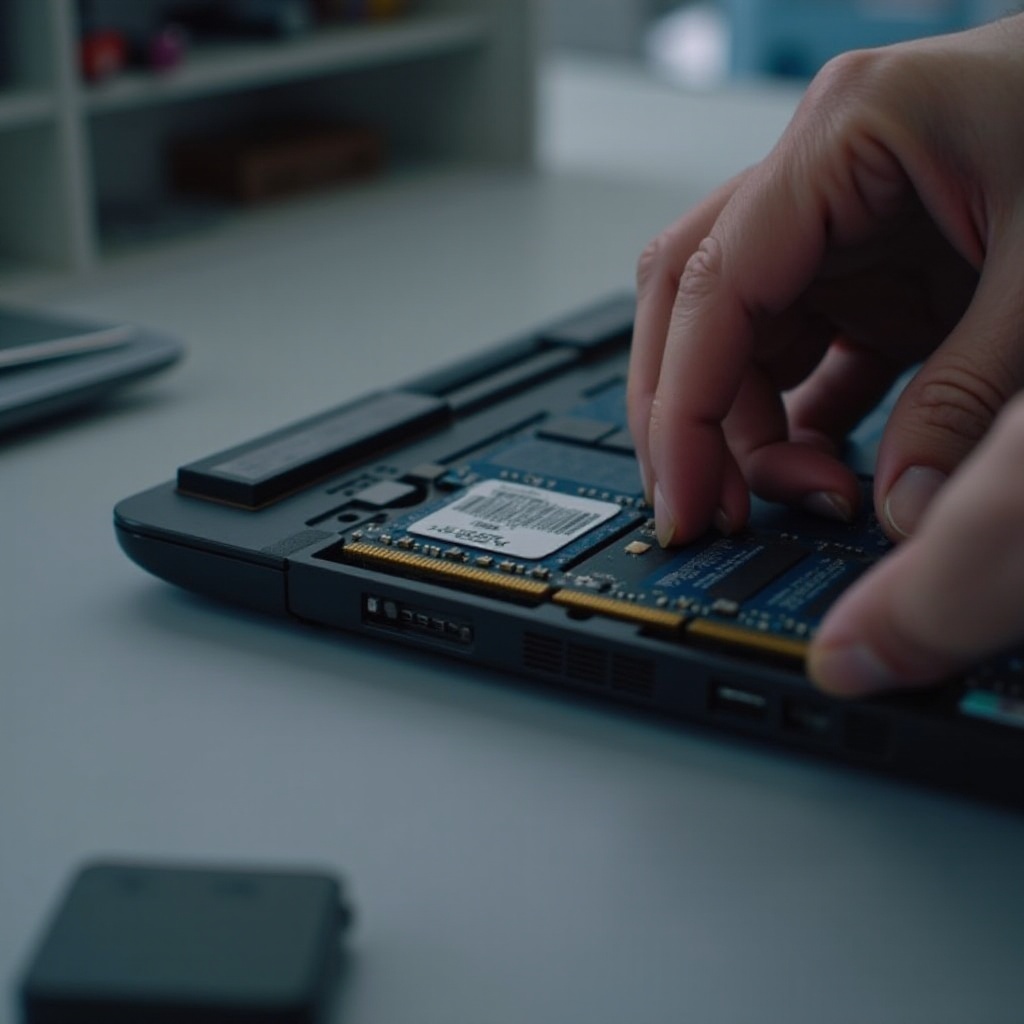
- Insert the New RAM: Align the new RAM stick accurately with the slot, insert it at an angle, and press down until it locks into place.
Once the new RAM is installed, verifying the upgrade is the next essential step to ensure everything is in order.
Verifying Your Upgrade
Checking for BIOS Recognition
Restart your laptop and quickly press the key to enter the BIOS setup (often F2 or ESC). Verify the new RAM is detected under system information.
Running a Performance Test
Deploy benchmarking software to measure your laptop’s performance. Check for improvements in multitasking efficiency and quicker application launches, confirming the upgrade’s success.
If you face any problems, troubleshooting guidance might help address common issues.
Troubleshooting Common Problems
Laptop Fails to Boot
Should your laptop not power on, check if the RAM is seated correctly. If issues persist, reinstall the original RAM to determine whether the new RAM was incompatible.
RAM Not Detected
Revisit the BIOS settings to confirm if the new RAM appears under system information. If it doesn’t:
– Reinsert the RAM carefully
– Double-check compatibility with your specific laptop model
These solutions typically resolve frequent challenges in RAM installation processes.
Conclusion
Boosting your Toshiba Satellite laptop’s RAM is a straightforward way to enhance speed and functionality, providing a noticeable improvement in everyday tasks and overall experience. With careful preparation and adherence to these guided steps, you’ll successfully complete the upgrade.
Frequently Asked Questions
Can I upgrade RAM on all Toshiba Satellite models?
Not all models allow RAM upgrades. Always check your specific model’s manual or online specifications for upgrade potential.
What is the maximum RAM capacity for a Toshiba Satellite laptop?
Maximum capacity depends on the model. Common limits range from 8GB to 16GB. Refer to your model’s documentation for accurate details.
How often should I upgrade my laptop’s RAM?
Consider upgrading RAM when current performance feels insufficient, especially if running newer, more demanding software or operating systems. Generally, RAM should last several years with typical use.