The Comprehensive Guide to Fixing Xbox One Display Issues
Introduction
Experiencing display issues on your Xbox One can be incredibly frustrating, especially when you’re eager to dive into gaming. Common issues include flickering, incorrect resolution, or a complete lack of display. These can result from incorrect settings, hardware malfunctions, or software glitches. Identifying the cause of these issues is crucial to finding the right solution. In this guide, you’ll find comprehensive steps to troubleshoot and fix these display problems, ensuring you’re back in the game quickly.
Understanding Xbox One Display Issues
Display malfunctions on the Xbox One can show up in several ways, such as a flickering screen, a complete blank screen, or incorrect resolution settings. Before diving into solutions, it’s important to pinpoint potential causes. Most often, display issues are linked to loose HDMI connections, incorrect display settings, or outdated software on the console.
Understanding the symptoms and their potential causes is the first step in effectively addressing these problems. Armed with this understanding, you’ll be better prepared to apply the appropriate fix.
Basic Troubleshooting Steps
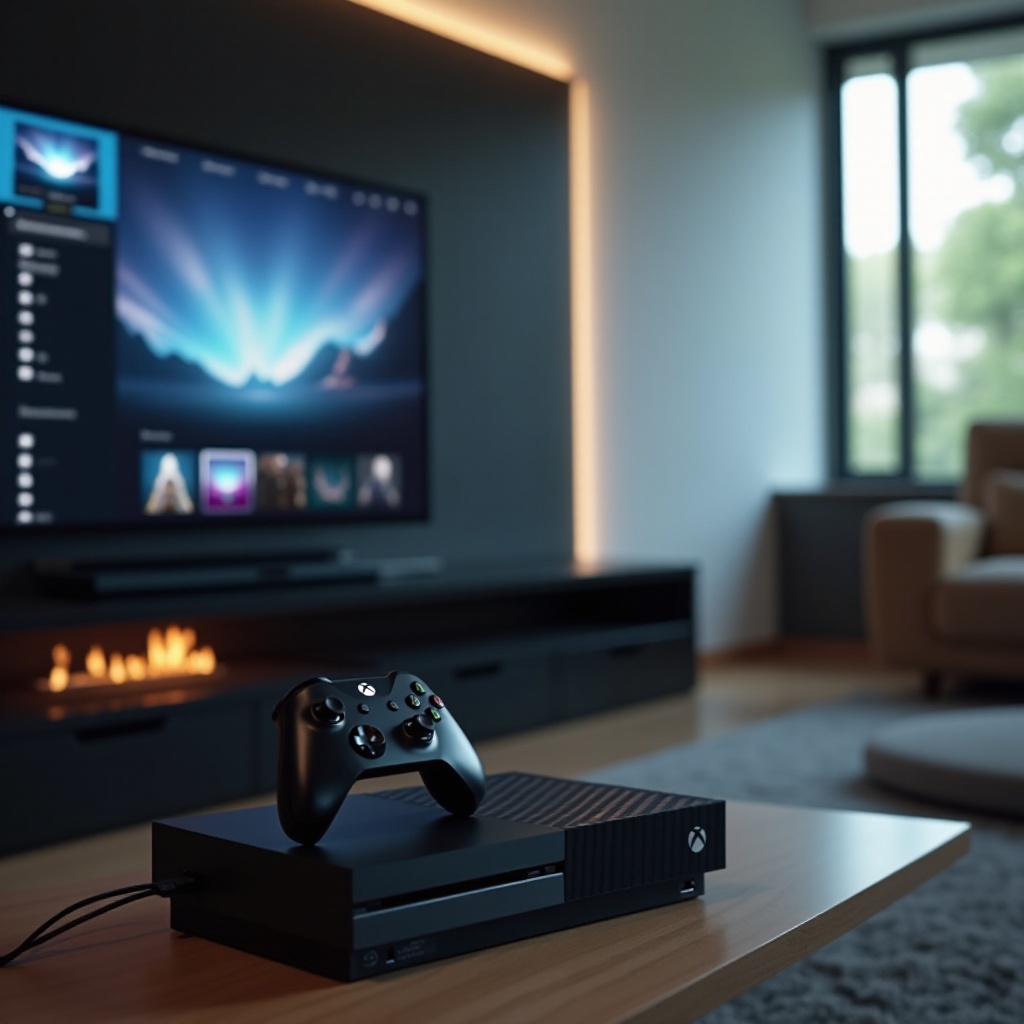
Basic troubleshooting can often resolve Xbox One display issues without much hassle. Here’s how you can begin:
- Check HDMI Connections:
-
Ensure the HDMI cable is securely connected to both the console and the TV or monitor. Loose or faulty connections are a common cause of display issues.
-
Reset Console’s Display Settings:
- If your screen remains blank, attempt to reset the console’s display settings:
- Power off the Xbox One.
- Hold the power button on the console while simultaneously pressing the eject button until you hear a beep.
- Release the buttons to reset the display settings.
These steps often address the most straightforward problems. If these initial measures don’t fix the issue, more in-depth troubleshooting may be required.
Advanced Troubleshooting Techniques
If basic troubleshooting isn’t enough, consider these advanced solutions, which can correct more complex display problems:
- Update Xbox One Software:
- Keeping your console’s software current can resolve systemic display issues. To update:
- Navigate to Settings > System > Updates & downloads.
-
Check and install any available system updates.
-
Change Video Output Resolution:
- The Xbox One might automatically select a resolution that doesn’t fit your TV. Adjusting this manually can be beneficial:
- Go to Settings > Display & sound > Video output.
- Select a resolution that matches your display capabilities.
By following these advanced techniques, you can address more ingrained issues. Next, consider the external factors that might affect your display performance.
External Factors Affecting Display
Sometimes, the problem does not stem from the console itself but from surrounding elements. Electronics around the Xbox One can impact the display signal, and incorrect settings on your TV can further complicate things.
- Interference from Other Devices:
-
Check that other electronic devices aren’t causing interference. Position the console away from potential interference sources.
-
TV or Monitor Settings Adjustment:
- Your TV or monitor’s settings might require adjustments to display content accurately:
- Ensure the TV input matches your Xbox One.
- Enable ‘Game Mode’ on your TV to enhance display performance.
Addressing these factors helps improve overall display quality, providing a consistently better gaming experience.
Ensuring Optimal Display Performance
Routine maintenance and the right equipment use are key to avoiding display issues.
- Regular Maintenance Tips:
- Regularly clean your console to prevent dust buildup that could lead to overheating.
-
Ensure proper ventilation to avoid heat-related hardware issues.
-
Using Certified Accessories:
- Invest in certified HDMI cables and accessories to ensure compatibility and optimal performance.
By maintaining your console and employing certified accessories, you can prolong its life and enhance the Xbox One’s overall performance.
When to Contact Xbox Support
If these steps don’t solve the issue, reaching out to Xbox Support or a professional technician might be necessary. Persistent display issues may point to a hardware problem that needs expert analysis.
Recognizing when to seek help will save time and prevent further complications.
Conclusion
By identifying symptoms, understanding causes, and applying the outlined troubleshooting steps, most Xbox One display issues can be resolved. Regular maintenance and correct settings are crucial for optimal performance. Remember, professional support is always available if needed, ensuring your gaming experience remains uninterrupted.
Frequently Asked Questions
How do I know if my HDMI cable is faulty?
If your screen is experiencing fuzziness, flickering, or displays a ‘no signal’ message, trying a different HDMI cable can help determine if the original is faulty.
What do I do if updating the software doesn’t fix the issue?
Consider resetting the console to factory settings, which can resolve deeply rooted software problems. Ensure to back up any important data first.
Can a faulty display be a sign of a more serious hardware issue?
Yes, persistent display issues despite troubleshooting can indicate a hardware failure, requiring professional repair.