How to Troubleshoot a Samsung TV Standby Light Blinking Issue
Introduction
A blinking standby light on your Samsung TV might disrupt your entertainment time. Fortunately, understanding how to address this issue can minimize downtime. This article provides a thorough guide on identifying common causes and implementing solutions to restore normal function to your TV.
Understanding the Samsung TV Standby Light
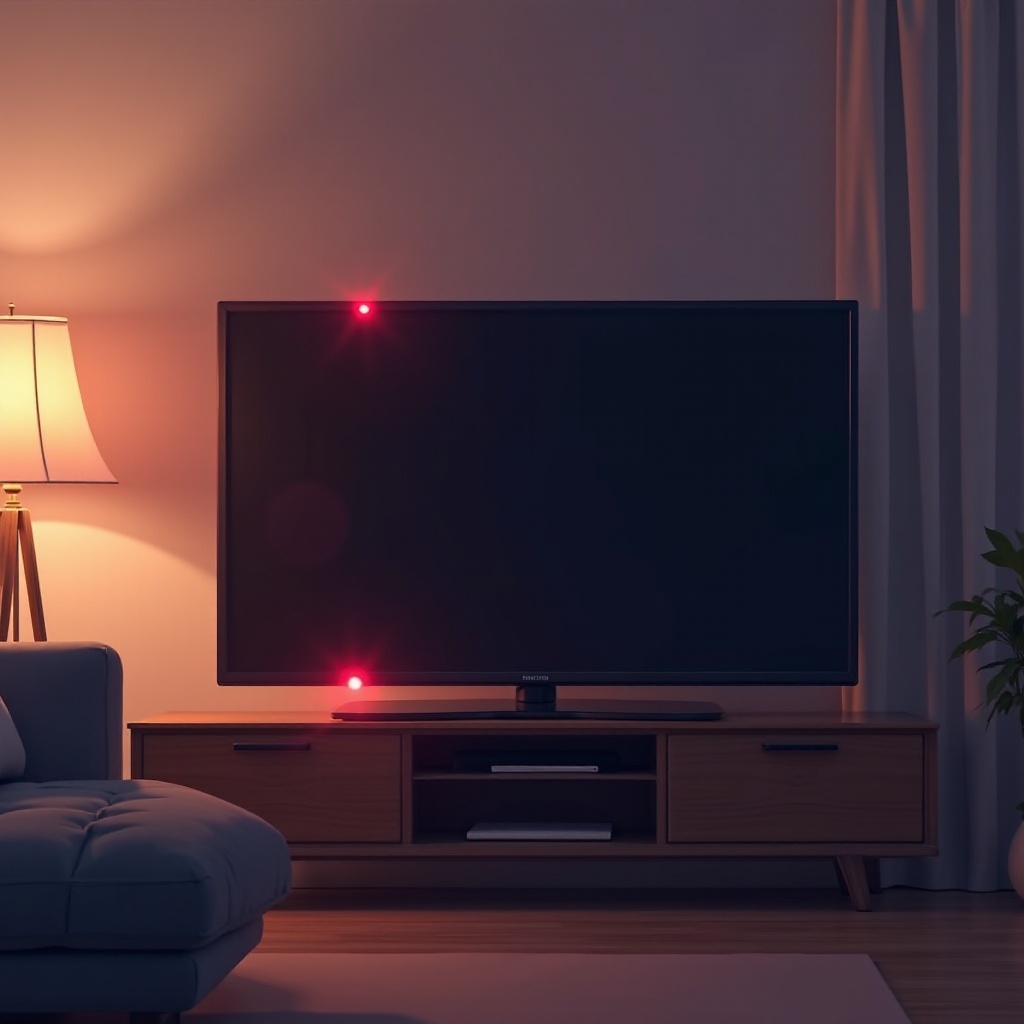
The standby light on your Samsung TV is crucial for diagnosing its status. Normally, this light stays solid when off and disappears when the TV is on. A blinking light, however, disrupts this normal pattern and may signal an underlying issue. Recognizing these signs is essential for diagnosing the problem accurately.
Common Causes of a Blinking Standby Light
There are multiple reasons your Samsung TV’s standby light might blink:
-
Power Supply Issues: Loose connections or faulty power supply can cause the standby light to blink. It is vital to ensure that all electrical connections are secure and functioning.
-
Firmware or Software Glitches: TVs require regular firmware updates to run smoothly. Outdated software can result in irregular functions, such as a blinking light, and should be addressed by checking for updates.
-
Hardware Malfunctions: Internal issues like malfunctioning capacitors or overheating may also cause light blinking and often need in-depth examination or repair.
Understanding these causes enables you to take effective actions to resolve the blinking light problem and prepare for further troubleshooting.

Initial Troubleshooting Steps
Before delving into complex solutions, start with these easy steps:
-
Checking the Power Source: Make sure your TV is connected to a working outlet. Tighten any loose power cables and try plugging your TV directly into the wall socket, bypassing power strips which may cause issues.
-
Performing a Soft Reset: An easy soft reset can solve minor software problems. Unplug the TV from power, wait about 60 seconds, then reconnect it. Turn on the TV to see if the problem resolves.
These steps often fix many minor issues, putting you on the path to a solution.

Advanced Solutions for Persistent Issues
If basic troubleshooting does not resolve your issue, consider these advanced solutions:
-
Updating the TV’s Firmware: Regular firmware updates are crucial. Access the settings menu, find the ‘Support’ or ‘Software Update’ section, and follow the prompts. Ensure your TV is connected to the internet for updates.
-
Conducting a Factory Reset: If software updates fail to fix the issue, a factory reset may help. This restores your TV to its original settings. Navigate to settings, select ‘General’, then ‘Reset’, and proceed. Remember, this will erase personal settings and data.
-
Inspecting Internal Components: Should resetting be ineffective, inspect the internal components for damage. Given the complexity of hardware inspection, professional assistance is advised to avoid additional damage to your TV.
These advanced solutions target persistent or more severe issues, ensuring your TV returns to full functionality.
When to Contact Professional Help
In some cases, professional intervention is necessary, especially for hardware issues that are beyond standard troubleshooting:
-
Signs of Hardware Problems: If basic steps don’t work and you notice other issues like noise or complete non-responsiveness, there’s likely a hardware problem.
-
Finding Authorized Service Centers: Seek out authorized Samsung service centers. They have the expertise and tools to safely check and repair your TV without voiding warranties.
Professional help ensures your TV is accurately diagnosed and repaired, protecting your device investment and extending its life.
Conclusion
Fixing a blinking standby light on your Samsung TV is manageable using this guide. From simple fixes to professional repairs, multiple paths are available to restore your TV’s functionality promptly. Regular updates and careful maintenance will also help prevent future issues, allowing you to enjoy seamless viewing.
Frequently Asked Questions
Why is my Samsung TV standby light blinking?
The blinking standby light often indicates a power connection problem, outdated firmware, or a hardware malfunction requiring attention.
How can I reset my Samsung TV to fix the blinking light?
To perform a soft reset, unplug your TV from the power source for 60 seconds and plug it back in. For a factory reset, navigate to settings and follow the instructions under ‘Reset’.
When should I seek professional repair for my Samsung TV?
Contact a professional if basic and advanced troubleshooting do not resolve the issue, especially if there’s a suspicion of hardware damage.