Troubleshooting: My PC Boots Up But No Display
Introduction
Encountering a scenario where your PC boots up but doesn’t display anything on the monitor can be exasperating. When your machine powers on with silent system buzz, only to stare back blankly, the sense of confusion it incites is understandable. This pervasive issue can be caused by a variety of factors, mostly linked to hardware complications. Thus, acquiring knowledge of these potential causes helps you swiftly pinpoint and resolve the problem. This guide will delve into identifying common issues, guiding you through initial diagnostic steps, and exploring advanced troubleshooting avenues, along with preventive measures to avoid a recurrence.

Common Causes of No Display Issues
Understanding the root cause is the first step toward resolution. Here are some typical culprits:
- Faulty Monitor: Not infrequently, the fault lies here. A malfunctioning monitor or a poor connection can prevent images from displaying.
- Loose Cables: A common yet often overlooked issue. Ensuring cables, especially HDMI, DisplayPort, or DVI, are properly connected is crucial.
- Graphics Card Failure: The engine behind your screen’s visual display. A malfunctioning or improperly positioned graphics card can disrupt displays.
- RAM Issues: Easily misaligned RAM can cause boot failures. Checking for a snug fit in the RAM slots resolves several boot issues.
Identifying these root causes will prepare you for the diagnostic steps to follow. Next, you will engage in quick checks that can save you time and uncover straightforward solutions.
Initial Diagnostics Steps
Executing primary diagnostics helps narrow down potential faults:
- Check Cable Connections: Always begin here. Make sure all cords are secure; inspect both ends of HDMI, DisplayPort, or VGA cables for secure plugging.
- Verify Monitor Functionality: Use another device to test your monitor’s responsiveness. If it works elsewhere, the monitor isn’t the issue.
- Test with an External Display: Use your PC to connect to a different monitor or TV. Functionality here suggests your primary monitor is faulty.
By completing these steps, you’re more adept at identifying the issue’s main source. Progressing to more intensive methods may be required if problems persist.
Advanced Hardware Troubleshooting
Once basic diagnostics are exhausted, shift to deeper hardware investigations:
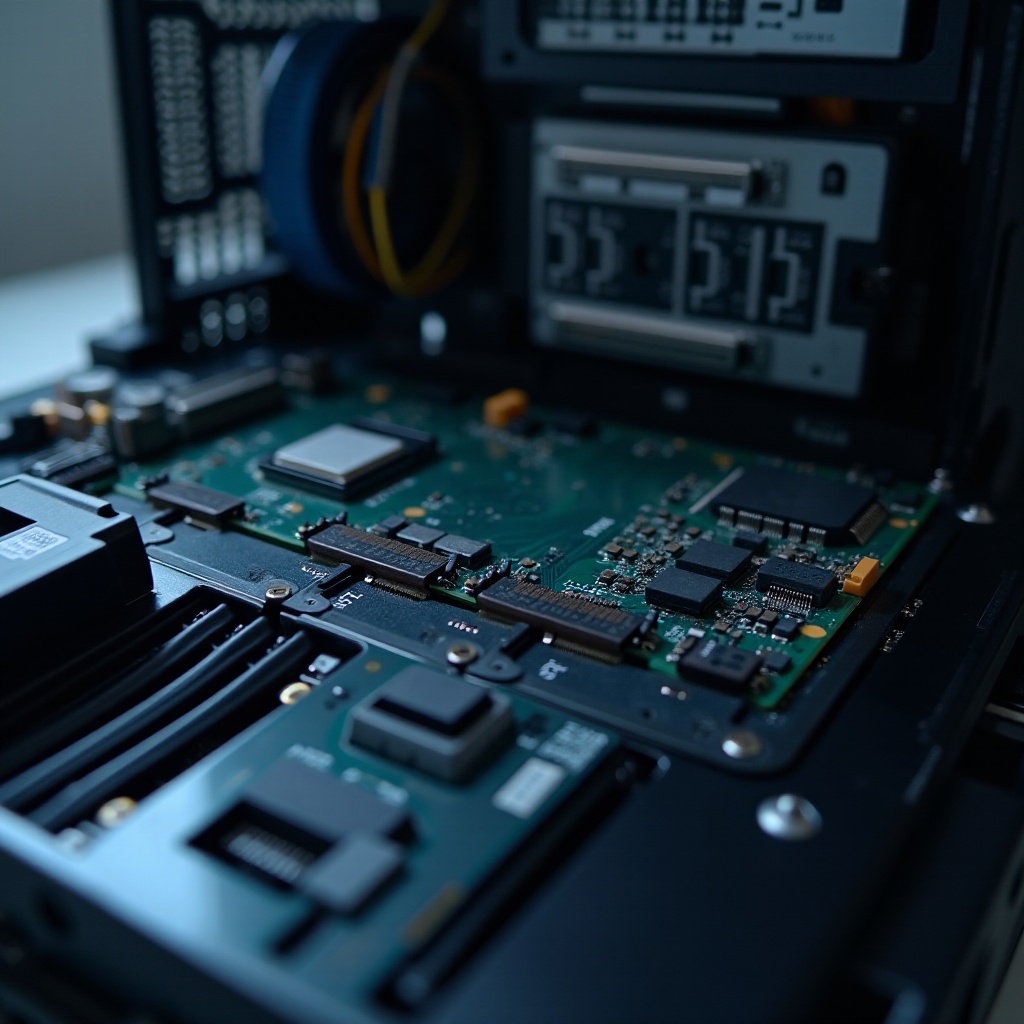
- Inspect and Reseat RAM Modules: Shut off your PC, open the case, and reinsert RAM carefully. This corrects improper seating.
- Check Graphics Card Installation: Confirm your graphics card’s correct alignment within the PCIe slot. Remove and reseat if needed.
- Examine Power Supply Issues: A dodgy power supply isn’t sufficient for component demands, causing crashes. Ensure PSU integrity by testing output voltages.
Some situations might necessitate exploring multiple areas, as certain issues can compound others.
BIOS and System Configuration Checks
Your BIOS configuration influences the booting process significantly. Incorrect settings here can lead to no display issues:
- Reset BIOS Settings: Enter BIOS on boot by pressing keys like F2, Delete, or Esc. Default reset could correct configuration hitches.
- Understand BIOS Beep Codes: Listen for BIOS beep signals; they often suggest specific errors needing resolution.
- Verify System Updates: Out-of-date BIOS and drivers can interfere with display operations. Ensure all firmware and drivers are current.
Proper attention here can eliminate settings as the barrier, making room for additional resolutions.
Additional Solutions and Preventive Measures
For continued performance, consider these extra tips and preventive tactics:
- Test with Another PC: If available, trial your hardware on another PC to identify specific hardware faults.
- Regular Maintenance: Basic upkeep such as cleaning dust, checking cables, and thermal paste renewal on CPU/GPU aids functionality longevity.
- Professional Assistance: When walk-throughs barely suffice, consult professionals for diagnostics and potential service or repair.
Ensuring vigilant maintenance and informed solutions can lead to smoother PC operations free from these issues.
Conclusion
Whenever faced with a ‘my PC boots up but no display’ scenario, often the problem boils down to a set of tractable issues. Armed with understanding, you can adeptly manage a fix through both simple and comprehensive measures detailed here. Continual preventive care coupled with informed troubleshooting will minimize both current and future display troubles effectively.
Frequently Asked Questions
Why does my monitor say no signal even though my PC is on?
This frequently results from unsecured cable connections or a malfunctioning graphics card. Double-check all connectivity and graphics card placement.
Can a faulty RAM cause no display issues?
Yes, RAM not seated correctly or being faulty disrupts the boot process, often leading to no display scenarios.
When should I seek professional help for my no display problem?
Consider professional help when basic steps don’t resolve the issue or when hardware checks feel beyond your comfort level.