Understanding and Fixing the Purple Line on Your Phone Screen
Introduction
A purple line on your phone screen can be alarming and disrupt your daily routine. This common issue may signal underlying problems that require attention. Addressing this display glitch promptly is crucial to ensuring your phone remains functional and to prevent further complications. Dive into this guide to uncover the causes and discover practical solutions.
What Causes the Purple Line on Phone Screens?
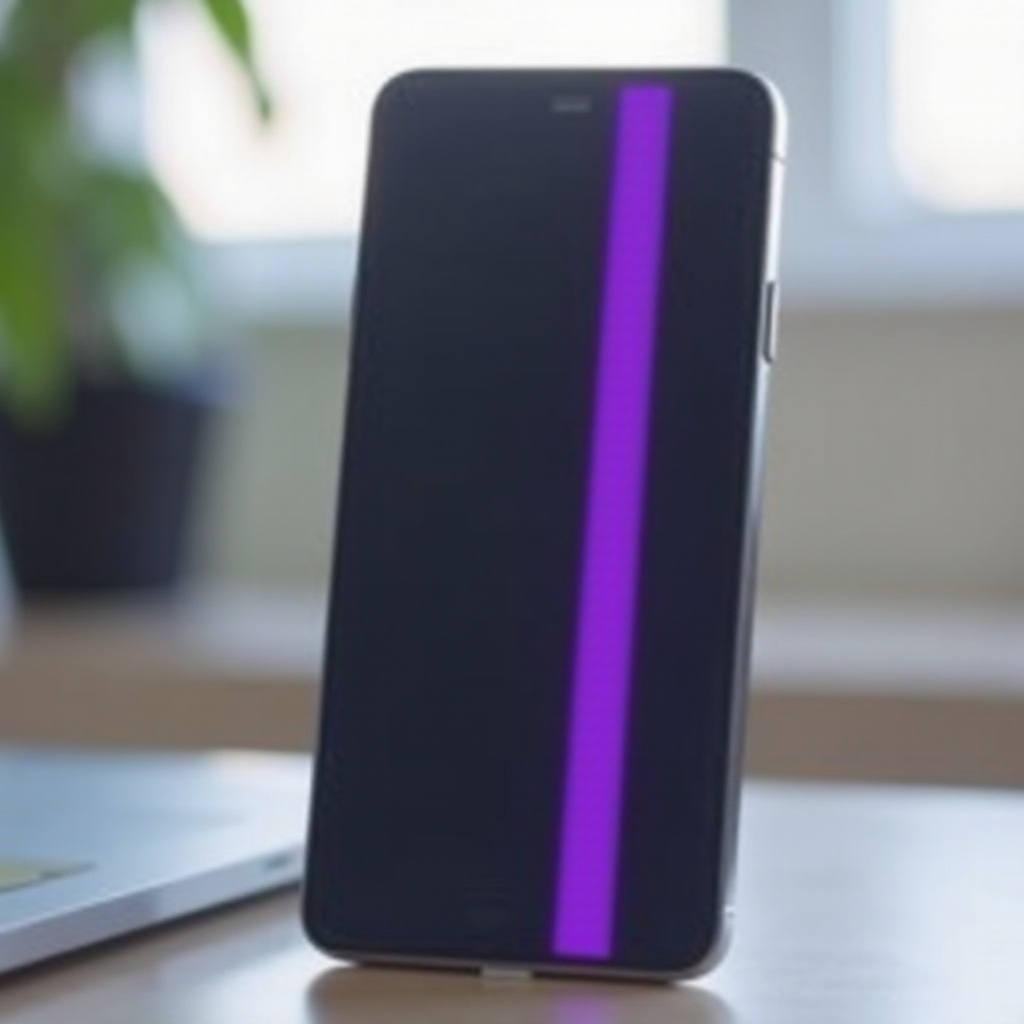
Several factors can lead to the appearance of a purple line on your phone screen. Knowing the root causes is vital for determining the appropriate response. These causes include:
-
Hardware Malfunctions: Many purple lines are attributed to hardware malfunctions. Manufacturing defects or wear and tear from daily use can cause display connectors to fail, leading to image display problems.
-
Software Glitches: Although less frequent, software glitches can also result in display anomalies. After software updates, some devices might not integrate well with existing hardware, fostering issues like purple lines.
-
Physical Damage: Physical damage such as drops or moisture exposure can harm internal components, even when the external facade appears intact. This kind of hidden damage can lead to screen problems such as purple lines.
Understanding these potential causes allows you to better assess and tackle the display issue.
Diagnosing the Issue
After learning about the potential causes, it’s critical to diagnose the problem to understand whether it’s rooted in hardware or software. Follow these steps for an accurate diagnosis:
- Restart Your Phone: Often, a simple restart can resolve minor software bugs affecting your display.
- Conduct a Software Update Check: Ensure your device’s firmware is up-to-date. Software patches are frequently released by manufacturers to address known performance issues.
- Examine for Physical Damage: Look for any visible signs of damage such as cracks or dents that indicate possible internal harm.
- Connect to an External Display: Use a cable or adapter to connect to an external monitor. If the purple line is absent on the external display, the problem is likely hardware-related.
Effective diagnosis will guide you toward the best course of action without unnecessary steps.
Quick Fixes to Try at Home
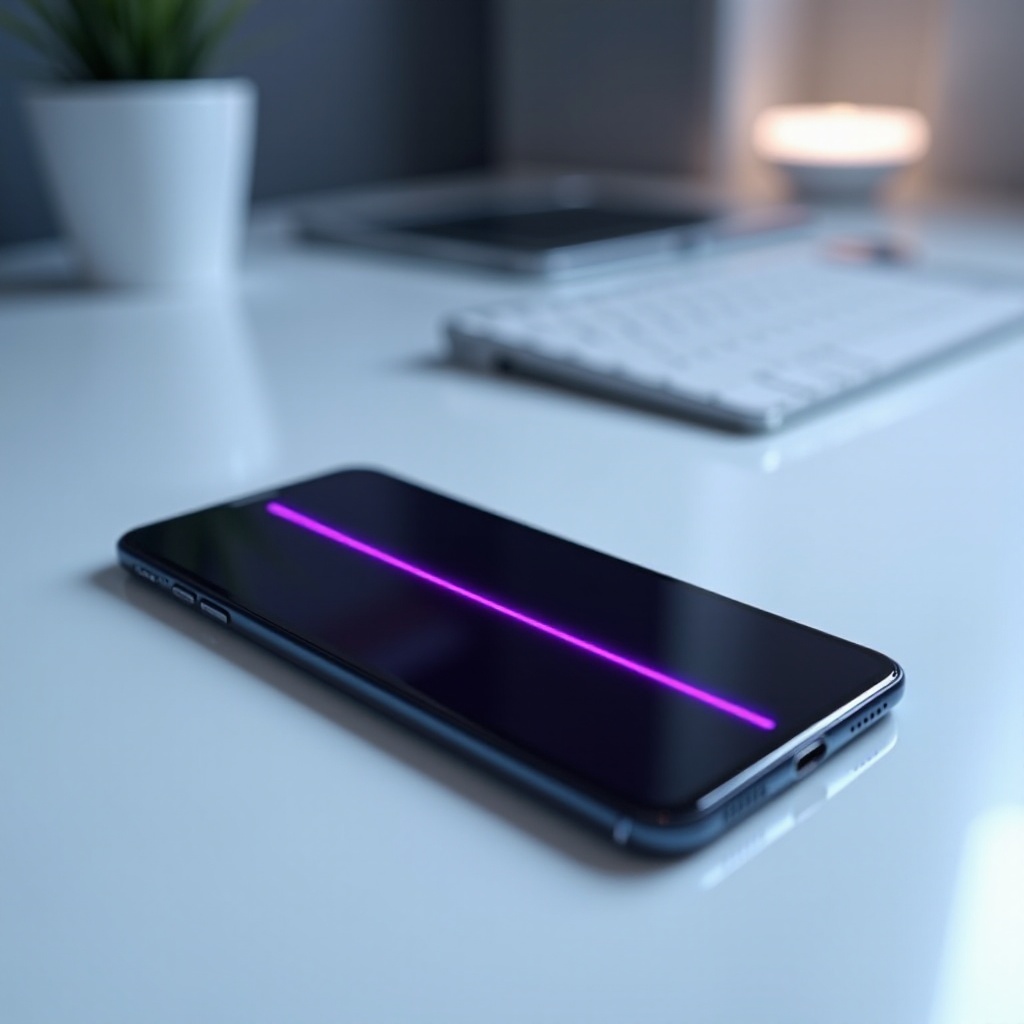
Once diagnosed, you might be able to address the issue with some quick at-home solutions:
- Restart Your Device: Always begin with a restart, as it might clear temporary software issues.
- Update Your Operating System: Go to ‘Settings’ and apply any pending updates to resolve software-related glitches.
- Check Display Settings: Altering settings or re-calibrating the screen might provide temporary relief from lines.
- Perform a Hard Reset: If other steps fail, back up your data and perform a factory reset to tackle any lingering software issues.
While these home remedies can often help, they are not always a permanent solution, especially if the issue is caused by hardware.
Professional Repair Options
If home remedies don’t resolve the issue, consider professional repair services to fix your phone:
- Authorized Service Centers: Opt for authorized centers that use original parts and offer warranties on repairs, ensuring your device is in safe hands.
- Third-Party Repair Shops: Cheaper than authorized centers, their quality varies. Choose reputable technicians and confirm details about parts and warranty.
- Manufacturer Support: Check your warranty. If your phone is still covered, the manufacturer can repair or replace it without extra cost.
Deciding on a professional repair option depends on several factors including warranty status, costs, and the urgency of repair.
Cost and Benefits of Repair vs. Replacement
Faced with a major screen issue, deciding between repair and replacement comes down to several considerations:
-
Cost Comparison: Repairs can be expensive and potentially approach the cost of a new phone. Assess your phone’s age and condition to decide.
-
Weighing the Benefits: While a new phone offers updated features, sticking with repairs can be economical if everything else on your phone functions well.
These factors will help you make a decision that aligns with your needs and budget.
Preventive Measures to Protect Your Screen
Whether you’ve resolved the issue or have a new device, adopting preventive habits can protect against future problems:
- Use protective accessories such as screen protectors and sturdy cases.
- Avoid extreme temperatures and moisture exposure to preserve functionality.
- Handle your device carefully to reduce the chance of drops and bumps.
- Clean your screen with a microfiber cloth to prevent damage from dirt and oils.
These practices will help maintain your phone’s appearance and functionality, minimizing the risk of future issues.
Conclusion
Addressing a purple line on your phone screen might initially seem daunting, but with a clear understanding of its causes and methods to resolve it, you can restore your device’s display functionality. By seeking professional help when necessary and employing preventive measures, you can extend the life and performance of your phone.
Frequently Asked Questions
What should I do if a purple line appears after a software update?
Try restarting your phone and ensure it is updated with the latest software patch. If the problem persists, contact customer support for further guidance.
Can a phone warranty cover the purple line screen issue?
Yes, if the issue is due to a manufacturer defect or hardware failure, your warranty might cover it. Review your warranty details and consult the service center.
Is it safe to keep using my phone with the purple line present?
Though it may still function, using a phone with such an issue can exacerbate the problem. Address the issue promptly to prevent further damage.