Where is the Power Button on the PS4? A Comprehensive Guide
Introduction
Finding your way around a PS4 console is crucial for an optimal gaming experience. At the heart of this experience is knowing where to find essential features, particularly the power button. Whether you are a new PS4 owner or need a refresher, this guide will help you locate the power button on various PS4 models, understand power modes, and troubleshoot common issues to ensure seamless gaming sessions.
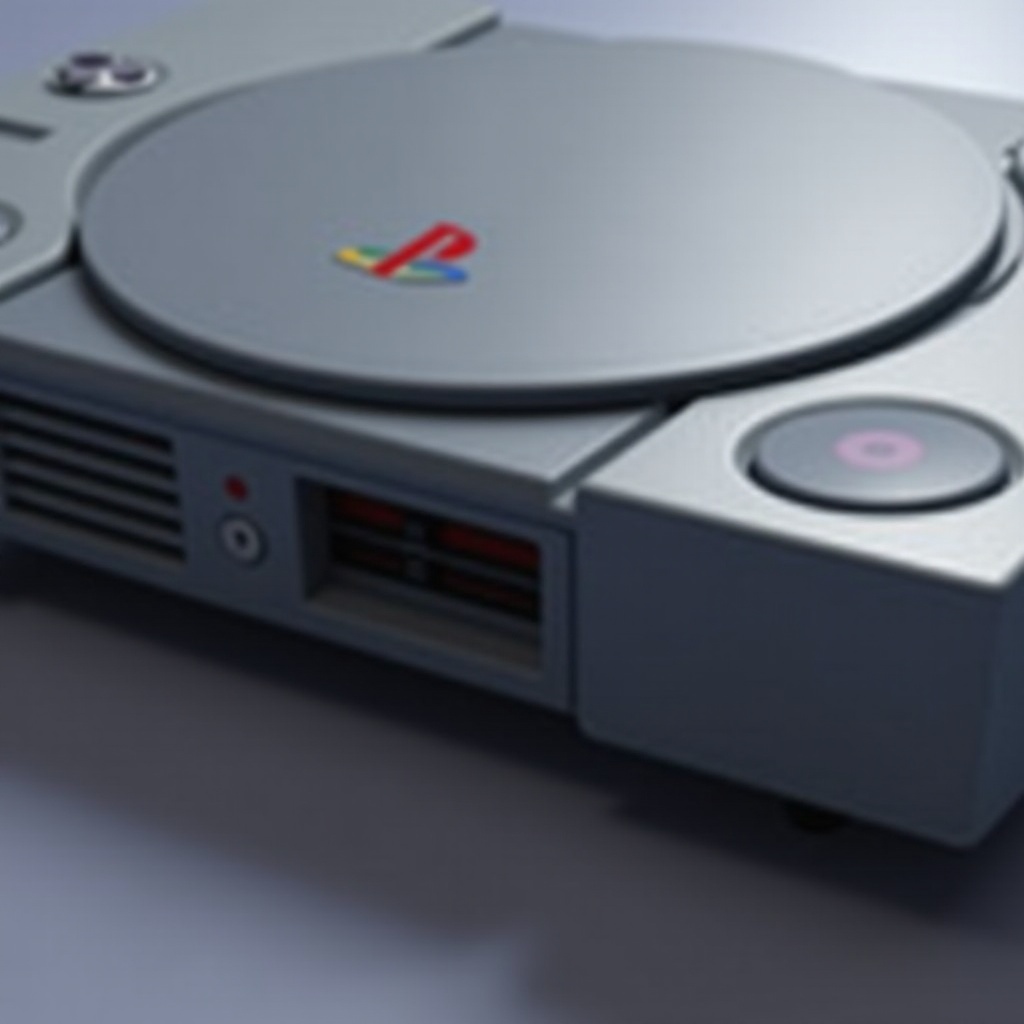
Overview of PS4 Models
The PlayStation 4 family includes several models, each with distinct designs that impact the placement of the power button. Whether you own a PS4 Original, PS4 Slim, or PS4 Pro, identifying your model is the first step.
Differences in Design: PS4, PS4 Slim, and PS4 Pro
- PS4 Original: Released in 2013, this model has a two-tone color scheme with a touch-sensitive interface, including the power button situated on the front panel.
- PS4 Slim: Launched in 2016, the Slim model offers a more compact design with physical buttons that replace the touch-sensitive interfaces, making it user-friendly.
- PS4 Pro: Also released in 2016, the Pro model supports enhanced graphics and is designed for power users, featuring a layout similar to the original but slightly larger.
Understanding these design differences is essential as it guides you to the power button specific to each PS4 version.
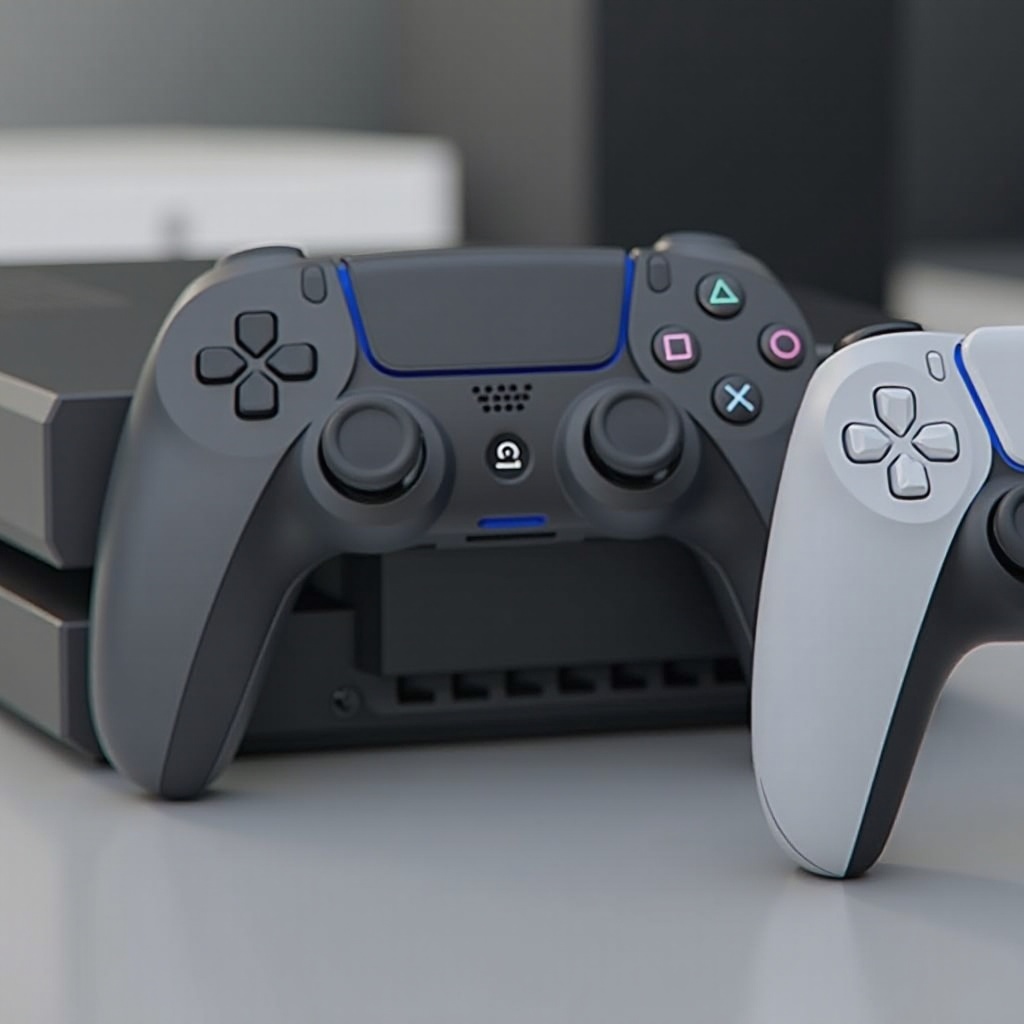
Locating the Power Button on Various PS4 Models
With your PS4 model identified, locating the power button becomes straightforward. Despite the different designs, all models have easily accessible power options.
Finding the Power Button on the PS4 Original
On the original PS4, the power button is a thin, touch-sensitive strip near the eject button. A gentle tap on this strip will power the console on or off without the need for excessive pressure.
Identifying the Power Button on the PS4 Slim
The PS4 Slim hosts its power button as a small, physical pressable button located on the lower half of the front panel. This straightforward design minimizes accidental activation.
Spotting the Power Button on the PS4 Pro
The PS4 Pro mimics the original model’s design but includes a more pronounced power button. Located on the front, it is designed for easy operation despite the device’s larger size.

Understanding PS4 Power Modes
Handling your PS4 properly also involves knowing how to use its different power modes, each serving a specific function to optimize energy usage.
On Mode
Press the power button to fully activate the console. This mode provides access to all gaming features, applications, and online content, ready for immediate use.
Rest Mode
Rest mode functions as a low-power state, allowing software updates and peripheral charging without full power consumption. To enter rest mode, press and hold the power button until you hear a second beep.
Off Mode
For complete shutdown, press the power button until the light is completely off, disconnecting all networks and stopping activities. This mode is ideal for long periods of inactivity.
The versatility of these modes makes them critical for effective console management and energy-saving.
Troubleshooting Power Button Issues
Power button malfunctions can disrupt your gaming, but most issues can be resolved with simple solutions.
Common Problems with the Power Button
- Unresponsiveness: Often due to dirt or debris impeding contact.
- Stuck Buttons: May result from manufacturing defects or dirt buildup.
Simple Fixes and Maintenance Tips
- Regular Cleaning: Gently clean around the button area with a soft, dry cloth to prevent dust buildup.
- Check for Firm Connections: Ensure all cables are securely connected and replace any that are faulty.
- Gentle Touching: Use minimal force to press buttons, reducing wear and tear over time.
Through proper care and maintenance, you can prolong the life of your PS4’s hardware.
Alternate Ways to Power Your PS4
In some situations, you might need alternative ways to power your PS4 without using the console’s built-in power button.
Using the DualShock Controller
One effective method is using the DualShock controller. By pressing the PlayStation button, you can turn the console on from rest mode or even from a complete shutdown if settings allow.
Powering On/Off via the PlayStation App
For more convenience, the PlayStation App provides a remote control feature. Download and connect it to your console, allowing you to power on or off without touching the device. This method is particularly useful when you can’t access the console physically or prefer remote management.
The DualShock controller and PlayStation app both offer flexible solutions to control your PS4, enhancing your gaming environment.
Conclusion
Understanding where the power button is on your PS4 enhances your control over the console and maximizes your gameplay experiences. Familiarize yourself with the power modes and troubleshooting steps to keep your console running smoothly, while leveraging alternative powering options for flexibility and convenience. Master these aspects to ensure your gaming is uninterrupted and enjoyable.
Frequently Asked Questions
How do I turn on the PS4 without using the power button?
You can use the DualShock controller by pressing its PlayStation button or the PlayStation App for remote control.
What should I do if my PS4 power button is not working?
First, clean around the button, then check all connections. If these steps don’t fix the problem, consult Sony support for guidance.
Can I use my PS4 without touching the console itself?
Yes, both the DualShock controller and PlayStation App offer remote control capabilities to manage your PS4 without direct interaction.