Where is Vibration on iPhone: A Comprehensive Guide
Introduction
The iPhone’s vibration feature is essential for discreetly receiving alerts and notifications without causing disruptions around you. Whether you prefer the gentle buzz in a meeting or rely on it in the cinema, understanding how to access and tailor these settings enhances user experience significantly. This guide will walk you through finding vibration settings, personalizing them to suit your preferences, and resolving any issues that might arise. Begin by exploring the importance of this feature in your daily life.
Understanding iPhone’s Vibration Functionality
The vibration function is more than just a silent mode; it ensures you stay connected even in environments where sound might be intrusive or unwelcome. By providing a tactile alert, it balances the need for discretion with staying informed of calls, messages, or other notifications. Users can adjust vibration intensities and settings to suit various scenarios, making the phone adaptable to different lifestyles and settings. With a grasp of this feature’s benefits, we can now move on to finding and managing these settings effectively on your device.
How to Find Vibration Settings on Your iPhone
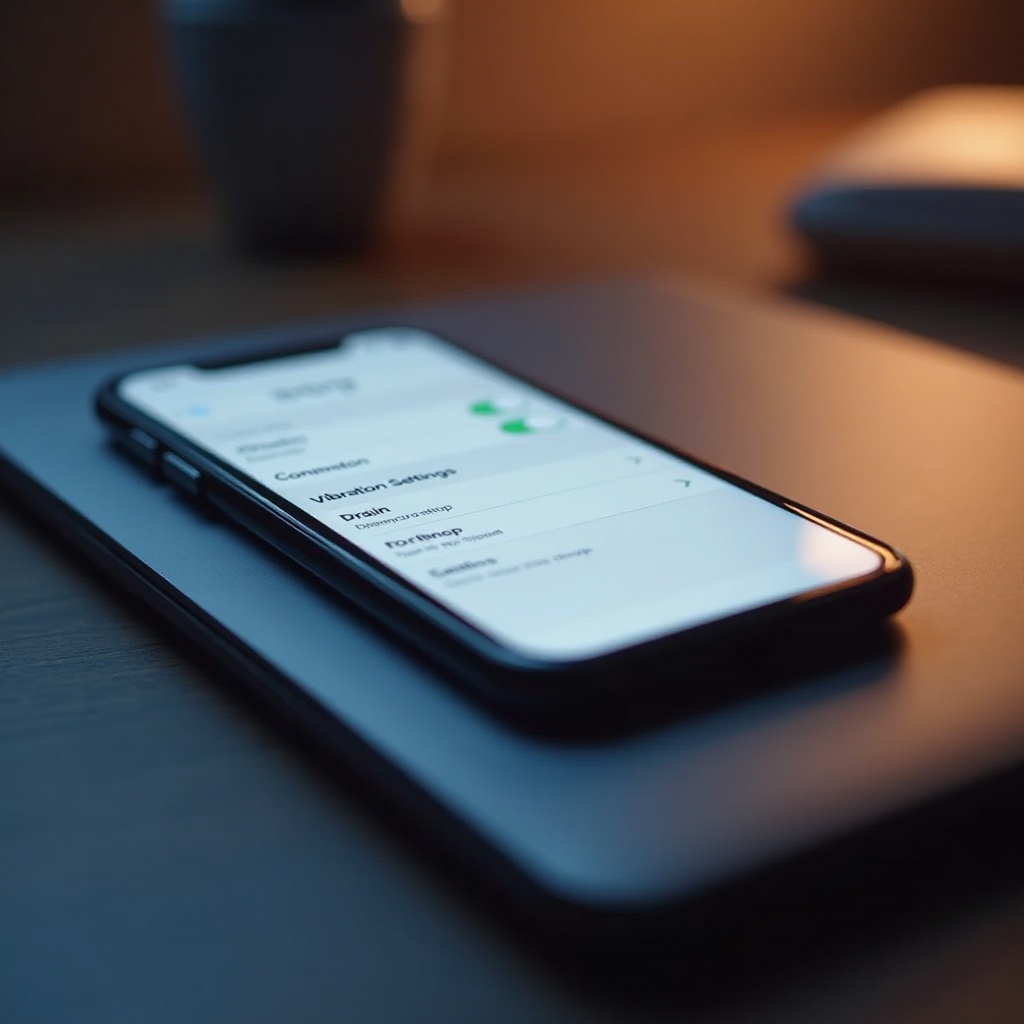
Finding vibration settings on your iPhone can be straightforward, differing slightly with iOS versions:
- Locating Vibration Settings on iOS 16 and Later:
- Access ‘Settings’ from the home screen.
- Select ‘Sounds & Haptics’.
-
Tap on ‘Vibrate’ under ‘Ringer and Alerts’ to explore available options.
-
Locating Vibration Settings on Older iPhones:
- Open ‘Settings’.
- Navigate to ‘Sounds’.
- Find the ‘Vibrate’ switch to toggle the feature on or off.
By familiarizing with these steps, you can efficiently navigate your phone to adjust your alert preferences. Let’s explore how to modify and tailor these vibrations for a customized experience.
Customizing Vibration Patterns on iPhone
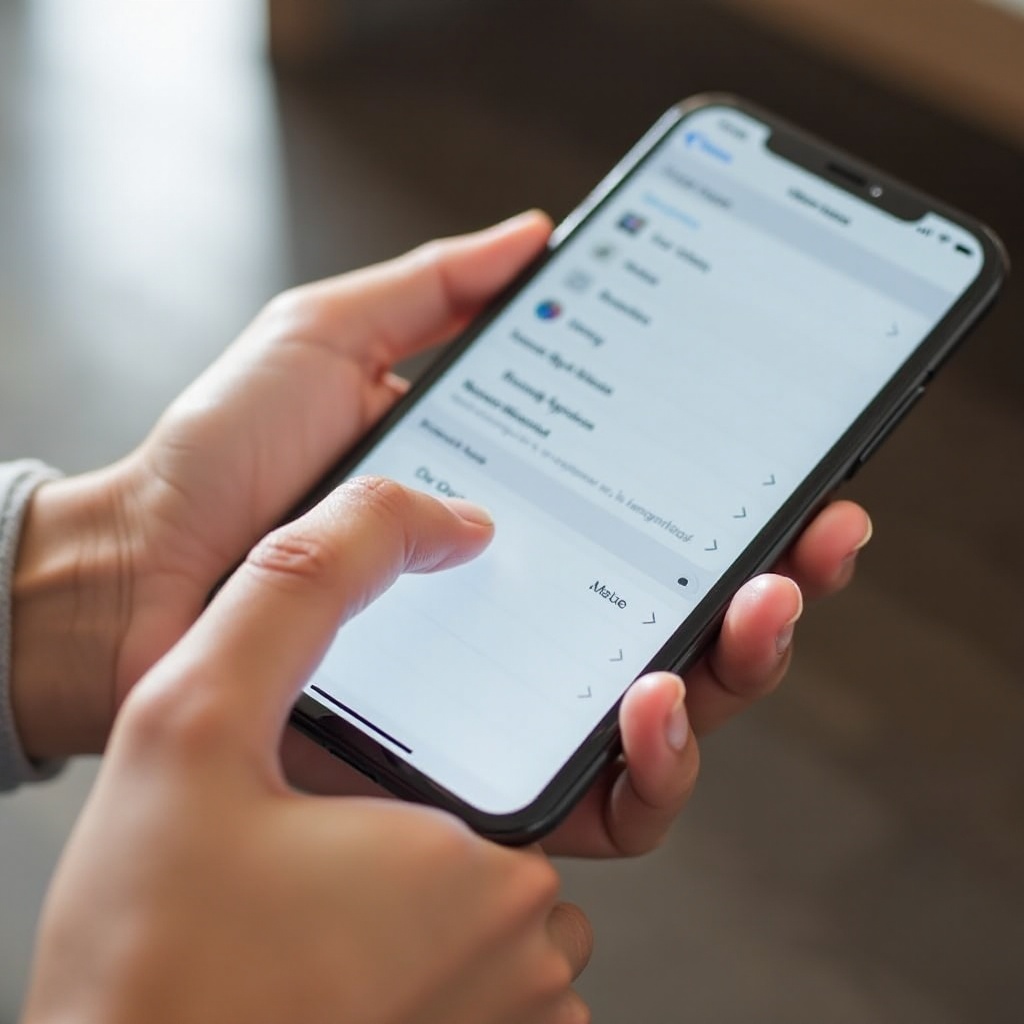
Customizing your vibration patterns allows you to tailor how your device alerts you, giving each notification a unique touch. Here’s how to personalize your vibrations:
- Creating Custom Vibration Alerts:
- Go to ‘Settings’ > ‘Sounds & Haptics’ or ‘Sounds’.
- Tap the alert type (Ringtone, Text Tone, etc.).
- Select ‘Vibration’ at the top.
-
Choose ‘Create New Vibration’ and tap a rhythm on the screen. Save it for future use.
-
Using Preset Vibration Options:
If custom patterns aren’t your preference, opt for presets: - Follow steps 1 to 3 from above.
- Select from preset options like ‘Alert’, ‘Heartbeat’, or other available options.
Personalizing these settings not only enhances the user experience but also makes distinguishing notifications intuitive and efficient. Now, let’s quickly address some frequent issues users may encounter.
Troubleshooting Common Vibration Issues
At times, your iPhone might face issues with vibrations not functioning correctly. Here are common causes and their solutions:
- Vibration Not Working: Causes and Fixes:
- Verify that vibration is enabled in ‘Settings’ > ‘Sounds & Haptics’.
- Restart your device to clear temporary issues.
-
If unresolved, reset settings via ‘Settings’ > ‘General’ > ‘Reset’ > ‘Reset All Settings’.
-
Adjusting Vibration Settings for Accessibility:
- Open ‘Settings’ and select ‘Accessibility’.
- Navigate to ‘Touch’ and tap ‘Vibration’.
- Ensure the feature is enabled and fine-tune it to match your needs.
Addressing these standard complications allows users to maintain their phone’s functionality smoothly. Once addressed, you can move on to exploring more sophisticated settings within your device.
Advanced Vibration Settings and Tips
Apple continually upgrades its iOS, offering new features and enhancements for users to explore deeper configurations:
- Integrating Vibration with Focus Modes:
- Open ‘Settings’ > ‘Focus’.
- Choose ‘Do Not Disturb’ or another mode, then go to ‘Options’.
-
Ensure appropriate notifications allow vibration through, keeping key alerts accessible.
-
Exploring Hidden Vibration Features in iOS 17:
- Navigate to ‘Settings’ > ‘Sounds & Haptics’.
- Dive into newer features, finding modes like ‘Rich Vibration’ in the advanced section.
- Experiment with these to maximize sensory feedback and notification management.
These enhancements help shape a customized interaction with your device, evolving it into an extension of your personal preferences.
Conclusion
Mastering iPhone vibration settings transforms a standard feature into a powerful tool for personal connectivity and discretion. By tailoring these settings, you enhance your ability to stay informed while maintaining control over your phone’s notifications. Use these insights and instructions to optimized vibration settings that cater to your personal needs, and watch as your device adapts seamlessly to any environment.
Frequently Asked Questions
How do I reset my iPhone’s vibration settings?
Reset all settings via ‘Settings’ > ‘General’ > ‘Reset’ > ‘Reset All Settings’. This reverts all configurations but retains personal data.
Can I set different vibration patterns for different contacts?
Yes, access ‘Contacts’, select a contact, tap ‘Edit’, then choose ‘Ringtone’ or ‘Text Tone’, and assign a specific vibration pattern.
Why is my iPhone not vibrating for text messages?
Ensure ‘Vibrate on Silent’ and ‘Vibrate on Ring’ are enabled under ‘Settings’ > ‘Sounds & Haptics’, and check message alert settings.